Analyzing your own matches is one of the most effective ways to improve your skill in Counter-Strike 2. Professional players review their rounds daily, study mistakes, and work on weak points in their game. How to watch FACEIT demos in CS2 is a question that concerns many players striving for growth. The process consists of four main steps: downloading the match recording from the FACEIT website, extracting the archive, placing the file in the correct game folder, and launching through the developer console.
An important point every player should remember: demos on FACEIT are stored for only 30 days. After this period, the match recording is deleted from servers and can no longer be recovered. Therefore, particularly important games or moments should be saved immediately after the match ends.
Where to Find and How to Download FACEIT Demos
The first step in the viewing process is obtaining the demo file. Where to watch FACEIT demos in CS2 isn't known to all beginners, although the process is quite simple. You need to start with the official FACEIT website, where your personal profile stores complete match history.
After logging into the platform, you need to navigate to your profile and open the "Matches" or "Statistics" tab. This displays complete game history showing date, map, result, and statistics for each match. Selecting the desired game takes you to the detailed match page, where among other options is the "Watch Demo" button.
Downloading a FACEIT demo in CS2 is technically straightforward – just one click on this button. The system automatically begins downloading a .zip format archive to your computer. The file saves to your browser's standard downloads folder, from where it can be moved anywhere convenient for further work. File size typically ranges from 30 to 100 MB depending on match duration.
The time availability limitation for recordings should be considered. On FACEIT servers, demos are stored for exactly 30 days from match completion, after which they're automatically deleted. This means postponing interesting game downloads isn't the best idea.
The table clearly shows key differences between demo sources. FACEIT's advantage is that it preserves both teams' voice chat, which is critical for comprehensive gameplay analysis. Valve's official matchmaking doesn't offer this capability.
Where to Place the Demo in CS2 for FACEIT
After downloading begins the most important stage where many players make mistakes. Where to place the demo in CS2 for FACEIT is a fundamental question, because the wrong path will lead to "Demo Not Found" error when attempting to launch. Correct file placement requires following several important steps.
Step-by-step instructions for placing the demo:
Extract the archive. The downloaded file is a compressed archive that needs extracting. Any archiver will work: WinRAR, 7-Zip, or even Windows' built-in tool. After extraction, you get a file with .dem extension – this is the match recording.
Rename the file. A critically important moment: before placing the file, it must be renamed. The name should contain only Latin letters and numbers without spaces or special characters. For example, instead of "faceit match 12.01.dem" use "faceit_match_1201.dem". Spaces in the name are a common reason why the game cannot find the demo.
Place in the correct folder. Here lies the main CS2 peculiarity compared to the old game version. The correct path looks like this: C:\Program Files (x86)\Steam\steamapps\common\Counter-Strike Global Offensive\game\csgo. Note the structure: after the main game folder you need to open the "game" subfolder, then "csgo".
Find the folder through Steam. The easiest way to find the needed directory is through the Steam client. To do this, you need to open your library, find Counter-Strike 2, right-click and select "Manage" → "Browse local files". Steam automatically opens the game's root directory, where you only need to navigate to "game" → "csgo" and copy the renamed .dem file there.
Many mistakenly try placing the file in the old path ...\Counter-Strike Global Offensive\csgo or in the "replays" folder, which worked in CS:GO. In Counter-Strike 2 this doesn't function – FACEIT demos are only read from the \game\csgo directory. Following the correct path is the key moment for successful demo launch.
How to Launch a FACEIT Demo in CS2
After correct file placement comes the launch moment. How to launch a FACEIT demo in CS2 through the game client is a standard process for all demo types in Counter-Strike 2.
First, you need to activate the developer console if it's not already enabled. In CS2 settings, navigate to the "Game" section and check the box next to "Enable Developer Console". By default, the console is called with the tilde key (~), located left of number 1 on the keyboard.
Opening a FACEIT demo in CS2 through console is quite simple. After launching the game, open the console and enter the command playdemo filename without specifying the .dem extension. For example, if the file is named "faceit_match_1201.dem", the command would look like this: playdemo faceit_match_1201.
An important detail: the filename must be entered exactly, with case sensitivity if capital letters were used. With correct command execution, the demo automatically begins loading and playing. The screen will show gameplay from the moment recording started – usually the warmup before the match.
If a "Demo Not Found" error message appears, reasons may be the following: the file is in the wrong folder, the filename contains spaces or special characters, or the .dem extension was accidentally specified in the command.
How to Enable Sound in FACEIT Demos
One of the main questions when watching is accessing teams' voice chat. FACEIT demo sound in CS2 doesn't play by default, which often confuses players during first viewing. This isn't a bug or file problem – just a technical feature of the GOTV system used for match recording. FACEIT demos are recorded through the SourceTV server system, and voice chat is present in them but requires manual activation through console commands.
How to watch FACEIT demos in CS2 with both teams' voice – step-by-step instructions:
Launch Counter-Strike 2 and open the developer console with the ~ (tilde) key.
Enter commands for voice chat (critical moment: commands must be entered BEFORE the playdemo command, otherwise they won't work):
tv_listen_voice_indices -1 – handles player slots 0 through 31
tv_listen_voice_indices_h -1 – handles player slots 32 through 63, covering all match participants
Enable text chat with command tv_relaytextchat 2 to display messages in the demo.
Launch the demo with command playdemo filename after entering all commands above.
FACEIT's official support page confirms these commands' functionality, and the player community actively uses them for analyzing team communication. The value -1 in commands activates listening to all players simultaneously. It's worth remembering that some very old demos may not contain voice recording at all due to technical limitations of past system versions.
Demo Playback Control
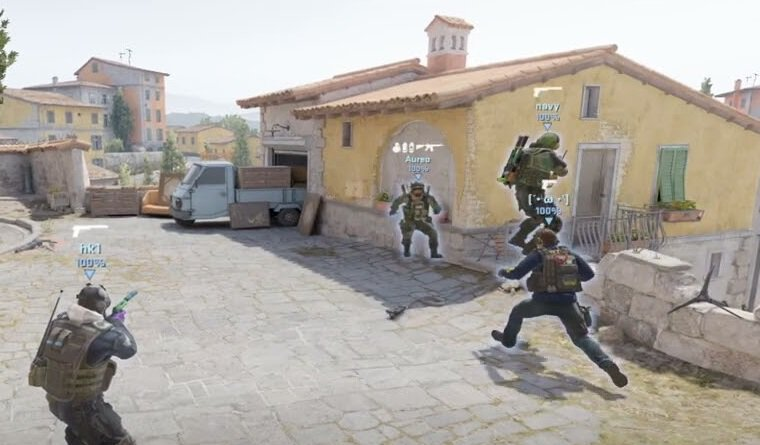
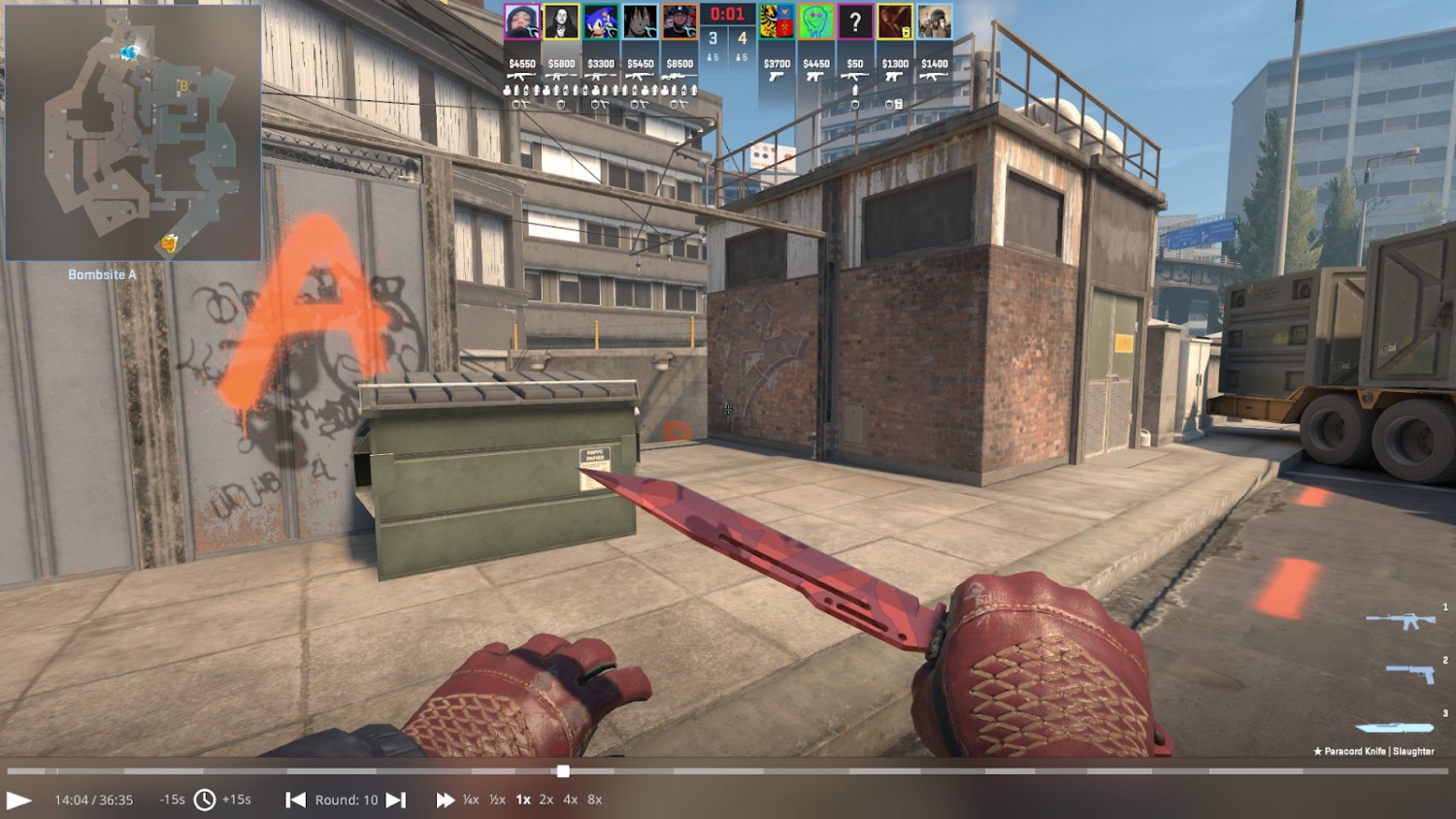
After successful recording launch comes the need for viewing control. Watching FACEIT demos in CS2 is most convenient through the built-in Demo UI interface, which provides all necessary analysis tools.
The graphical control interface opens with command demoui in console or hotkey Shift + F2. A panel appears with play, pause, rewind, and round navigation buttons. The slider at the top allows quick movement along the match timeline, while "Previous Round" and "Next Round" buttons instantly switch between rounds.
Basic hotkeys significantly speed up demo work. Space pauses and resumes playback, convenient for detailed study of specific moments. The Tab key opens the scoreboard with complete player statistics. Number keys from 1 to 0 allow instant switching between players without using the mouse.
For advanced analysis, players use console commands that give more playback control. The demo_timescale command changes viewing speed – value 0.5 slows by half for detailed moment study, while value 2 or 3 speeds up for quick scrolling through uninteresting fragments.
The table shows most useful commands for effective demo work. Combining them with hotkeys can create the most convenient analysis process.
Camera modes add even more analysis possibilities. First-person (POV) shows exactly what the player saw, including their crosshair and mouse movements. Third-person allows evaluating positioning from the side. Free camera enables flying around the map and observing both teams' setups simultaneously, which is invaluable for understanding tactics.
Solving Common Problems
When working with demos, players regularly encounter certain difficulties. Understanding error causes helps quickly eliminate them without wasting time searching for solutions. Below are the most common problems and their solutions explained.
What to Do with "Demo Not Found" Error?
"Demo Not Found" error is the most common problem. Causes and solutions:
File in wrong directory. Need to verify the demo is in \game\csgo, not the root folder or \csgo without the game subfolder.
Spaces or Cyrillic letters in filename. Simple solution – rename file with Latin characters without spaces.
.dem extension specified in command. In playdemo command, extension doesn't need specifying.
Why Won't the Demo Launch or Game Crashes?
Launch problems or game crashes when loading demo may be related to corrupted file. Solutions:
Verify CS2 file integrity through Steam: right-click game → Properties → Installed Files → Verify integrity.
Re-extract demo archive from original .zip file.
Use simpler filename without complex characters.
How to Fix Missing Sound in Demo?
Missing sound is a common situation when players forget entering voice activation commands before launch. Solution:
Commands tv_listen_voice_indices -1 and tv_listen_voice_indices_h -1 must be entered before playdemo command.
If demo is already running, need to exit with disconnect command, enter voice commands and launch demo again.
What to Do with "Access Denied" Error When Downloading?
"Access Denied" error when attempting download is usually related to technical problems on FACEIT's side. Solutions:
Refreshing match page in browser often solves the problem.
Downloading through FACEIT application if installed on computer.
Most problems are solved by carefully following instructions and checking each step's correctness. If the problem persists after all attempts and you cannot watch FACEIT demos in CS2, it's worth contacting FACEIT support through the platform's official website.
Practical Benefits of Demo Analysis
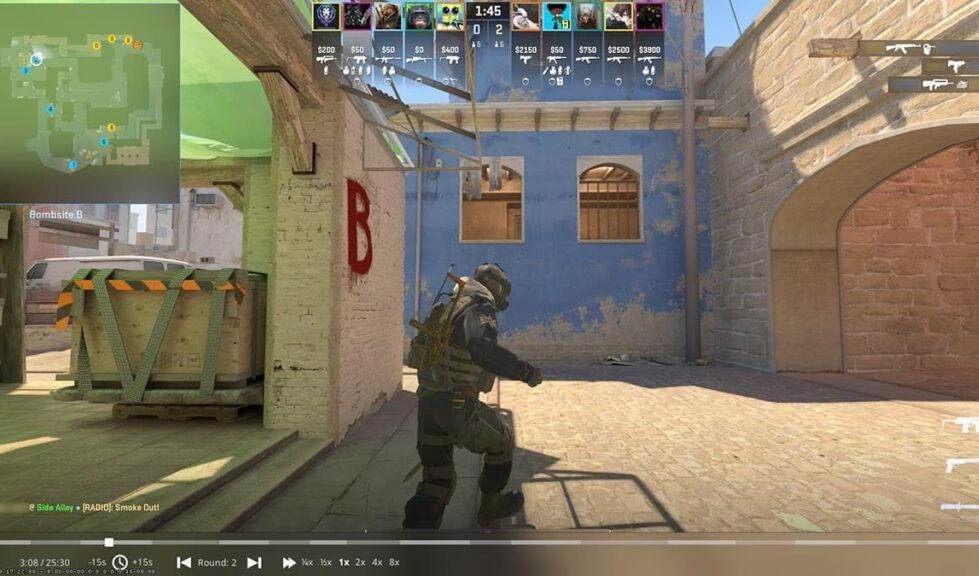
Regular viewing of your own matches gives players enormous advantage in skill development. When playing in real time, many mistakes go unnoticed due to stress and focus on the current moment. Demo allows calmly analyzing every decision.
Studying your own mistakes begins with positioning. Players often don't notice they're standing in predictable places or leaving angles open. Viewing from opponent's camera shows how easy or difficult the frag was. Rotation timings, utility usage moments, save or force buy decisions – all this becomes obvious on replay.
Opponent analysis reveals their gameplay patterns. Some players prefer the same positions on certain maps, use characteristic peeks, or typically react to utility. Remembering these details gives advantage in future encounters. Professional teams spend hours studying opponent demos before important matches.
Content creation is another reason to download demos. Players record best moments for YouTube, TikTok, or personal collections. Incredible clutches, precise wallbangs, or perfectly calculated tactics deserve preservation. In the future, these moments become pleasant memories of game development.
Understanding how to watch FACEIT demos in CS2 comprehensively transforms viewing from simple entertainment into powerful progress tool. Professional players don't spend this time daily without reason – results are visible in statistics and rating growth.
Summary
The process of working with FACEIT demos in Counter-Strike 2 consists of several clear steps: downloading archive from platform website, extracting file, placing in correct \game\csgo directory, and launching through console with playdemo command. The key moment is activating voice chat with commands before launching recording, allowing you to hear both teams' communications.
It's important to remember the 30-day limitation on demo storage on FACEIT servers. Valuable matches should be downloaded immediately to not lose the opportunity to review them. Regular analysis of your own gameplay through demos is a proven method for skill improvement used by players of all levels from beginners to professionals.