Anyone who's put a couple hundred hours into Dota knows the feeling: five-man teamfight, everything hangs in the balance for a split second – and that's exactly when the game starts stuttering. Sooner or later, every player ends up asking how to boost FPS in Dota 2. The good news: Dota 2 on Source 2 isn't particularly demanding by 2026 standards, and the issue is almost never your hardware. The problem is the default settings, which Valve tunes for 'safe' rather than 'fast'. Out of the box, you're capped at 120 FPS, heavy effects like Ambient Occlusion and High Quality Water are enabled, and the rendering API is chosen automatically – which isn't always the right call.
This guide covers everything in order: from the fastest changes that take minutes to see results, through to fine-tuning via the console and launch options.
Why is FPS low in Dota 2 even on a decent PC?
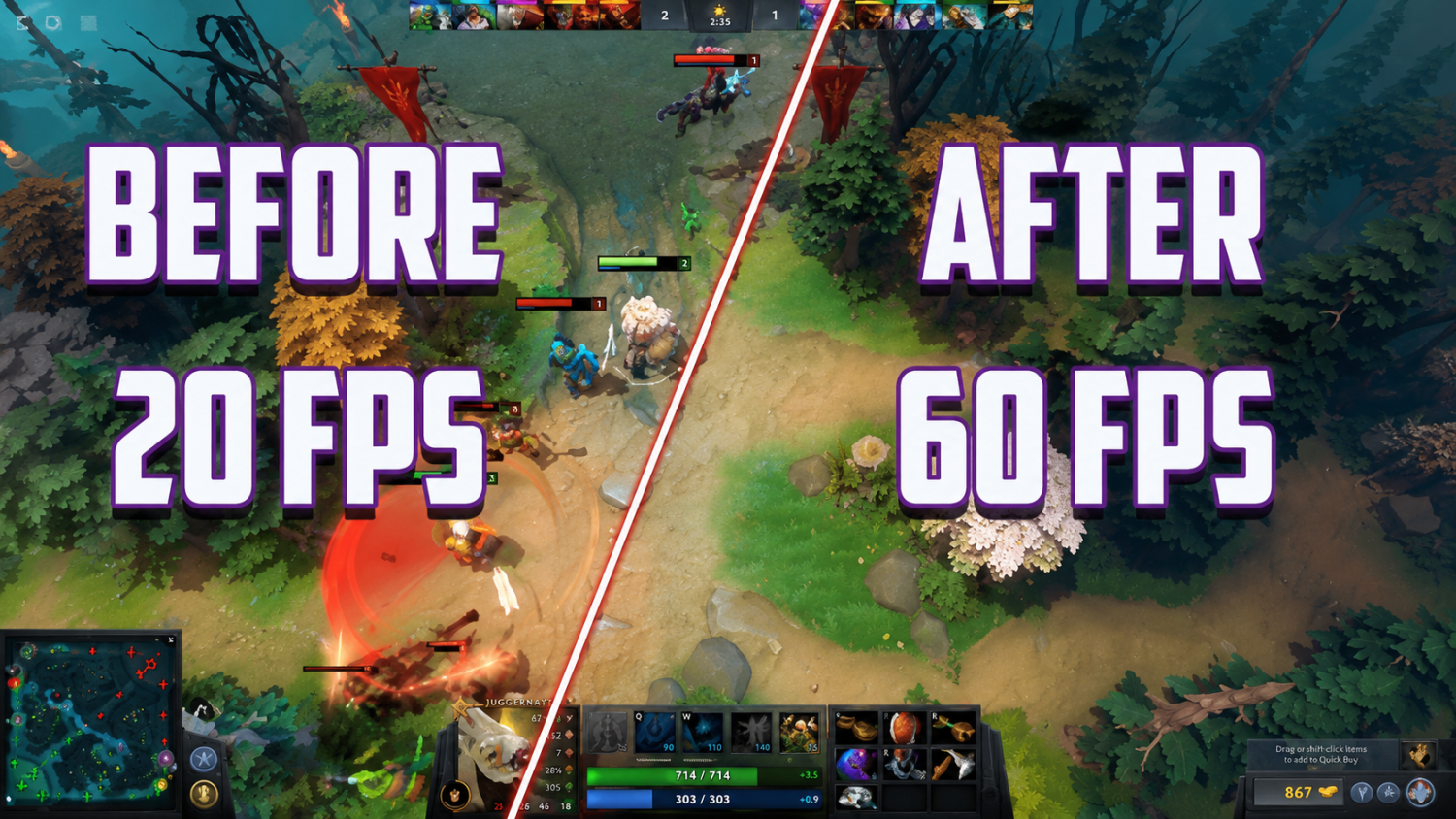
A lot of players are surprised: their rig handles modern games just fine, but Dota is dropping frames. It actually makes sense: the game is built to run across the widest possible range of hardware – hence the conservative defaults. Before boosting FPS in Dota 2, it's worth figuring out exactly where performance is being lost. The first thing to check is the built-in counter: Settings → Advanced → 'Display Network Information'.
Here's what actually tanks performance in a stock configuration:
The 120 FPS cap is hardcoded into the engine, not the graphics menu – easy to miss. You can have a 144 Hz monitor and the game still outputs 120 without the right launch option.
VSync is on by default – it adds up to one frame of input lag and locks output to your monitor's refresh rate.
Ambient Occlusion and High Quality Water each eat 10–20% of GPU performance, and are barely noticeable from the top-down perspective.
The rendering API is set to 'auto' – the game may pick a suboptimal option for your specific hardware.
Once you know where performance is being lost, you can start fixing it.
Where to start: 5 changes that will boost your FPS in 2 minutes
These recommendations are backed by aggregated data from ProSettings.net across 43 pro players (March 2026) and independent community benchmarks. The key is understanding the logic: not all settings impact performance equally. Effects Quality and shadows aren't just 'eye candy' – they put a real load on your GPU, especially when five heroes are simultaneously casting their ultimates. The difference between Low and Ultra on Effects Quality can hit 30+ FPS in those moments – this holds across every GPU generation. To quickly boost your FPS in Dota 2, just work through this table:
Setting | What to change | Why it matters |
Display Mode | Exclusive Fullscreen | Bypasses the Windows DWM layer, reduces latency |
VSync | Off | Eliminates input lag, removes the monitor-tied frame cap |
Effects Quality | Low | Up to +30 FPS in teamfights – the single most impactful setting |
Shadow Quality | Off | Zero gameplay value, real GPU cost |
Launch Options | +fps_max 0 -high -map dota -novid -nojoy -novr | Removes the 120 FPS cap, raises process priority |
After these five changes, you'll feel the difference on your very first launch. If you're happy with the result, stop there. If you want to squeeze out more, or your hardware is on the weaker side – read on.
How to tune your graphics settings for your hardware
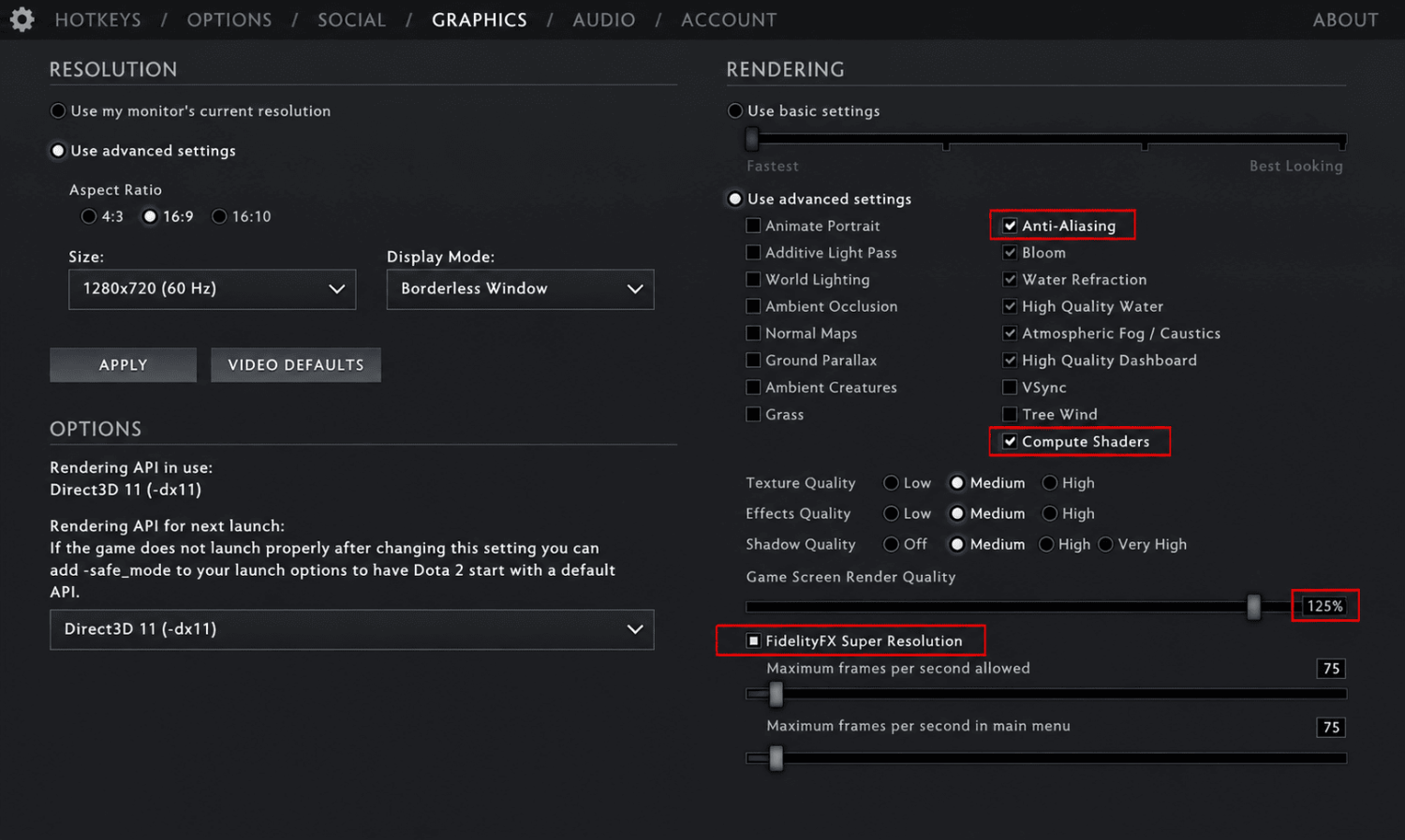
There's no universal config: what runs buttery smooth on an RTX 4070 will turn the game into a slideshow on a GTX 1060. That's why boosting FPS in Dota 2 is better done by dialing in settings for your specific GPU, rather than just slamming everything to minimum. Anti-Aliasing should be turned off regardless of hardware tier – it costs around 10% performance, and aliasing is barely noticeable in Dota 2's stylized art style at 1080p. The profiles below are built from ProSettings.net data (43 pro players, March 2026) and community benchmarks:
Setting | Low-End PC (GTX 1060 / RX 580) | Mid-Range PC (RTX 3060 / RX 6700 XT) | High-End PC (RTX 4070 / RX 7800 XT+) |
Display Mode | Exclusive Fullscreen | Exclusive Fullscreen | Exclusive Fullscreen |
VSync | Off | Off | Off |
Texture Quality | Low | High | High |
Effects Quality | Low | Low | Low |
Shadow Quality | Off | Off | Medium |
Anti-Aliasing | Off | Off | Off |
Game Screen Render Quality | 70% + FSR | 85–90% + FSR | 100% |
Ambient Occlusion | Off | Off | Off |
High Quality Water | Off | Off | Off |
Compute Shaders | Off | On | On |
NVIDIA Reflex | – | On | On + Boost |
FPS Cap | = monitor refresh rate | = monitor refresh rate | Uncapped |
A note on Game Screen Render Quality: on low-end hardware, dropping it to 70% with FSR enabled is a solid option – the upscaler does a good job recovering sharpness, and heroes in teamfights stay readable. Going below 70% isn't recommended: ability readability starts to suffer.
How to remove the FPS cap in Dota 2 using launch options
Launch options are the most underrated way to boost FPS in Dota 2. Most players either don't know about them at all, or are running outdated configs. The Source 2 engine reads these commands before the interface even loads, meaning part of the optimization kicks in the moment the process starts.
Adding launch options is straightforward: Steam → right-click Dota 2 → Properties → General → the 'Launch Options' field. Before pasting a new set, clear out any old commands – conflicting parameters can actually hurt performance. Launch options are also the easiest way to lift Dota 2's default 120 FPS cap. Here are three ready-to-use presets for different setups:
Universal – works for everyone:
+fps_max 0 -high -map dota -novid -nojoy -novr
For a modern GPU with Vulkan:
+fps_max 0 -high -map dota -novid -nojoy -novr -vulkan
For a low-end or older PC:
-high -map dota -novid -nojoy -novr -nod3d9ex -noipx -noaafonts +fps_max 90
Understanding what each parameter does means you're not just blindly copying strings – you can actually tailor the config to your own setup. When it comes to squeezing more FPS out of Dota 2 via launch options, you don't need to throw everything in – just what's relevant for your hardware:
Parameter | What it does | Who needs it |
+fps_max 0 | Removes the default 120 FPS cap (0 = uncapped) | Everyone |
-high | Sets Dota 2 process to high priority in Windows | Everyone |
-map dota | Pre-loads map assets – eliminates in-game stutters | Everyone |
-novid | Skips the Valve intro video on launch | Everyone |
-nojoy | Disables joystick support – frees up RAM | No gamepad |
-novr | Disables VR modules – frees up RAM | No VR headset |
-nod3d9ex | Disables Aero DX extensions, speeds up Alt+Tab | Low-end PCs |
-noipx | Disables the IPX network stack – saves RAM | Legacy PCs only |
-noaafonts | Disables font anti-aliasing | Low-end PCs only |
-vulkan | Forces Vulkan API | GPUs from 2018 onwards |
-dx11 | Forces DirectX 11 | Older GPU or unstable Vulkan |
-console | Enables the developer console | Advanced users |
After applying launch options, you need to fully restart the game – not just exit to the menu, but close it and relaunch through Steam. That's when the parameters actually take effect.
Vulkan or DX11 – which one gives better FPS in Dota 2?
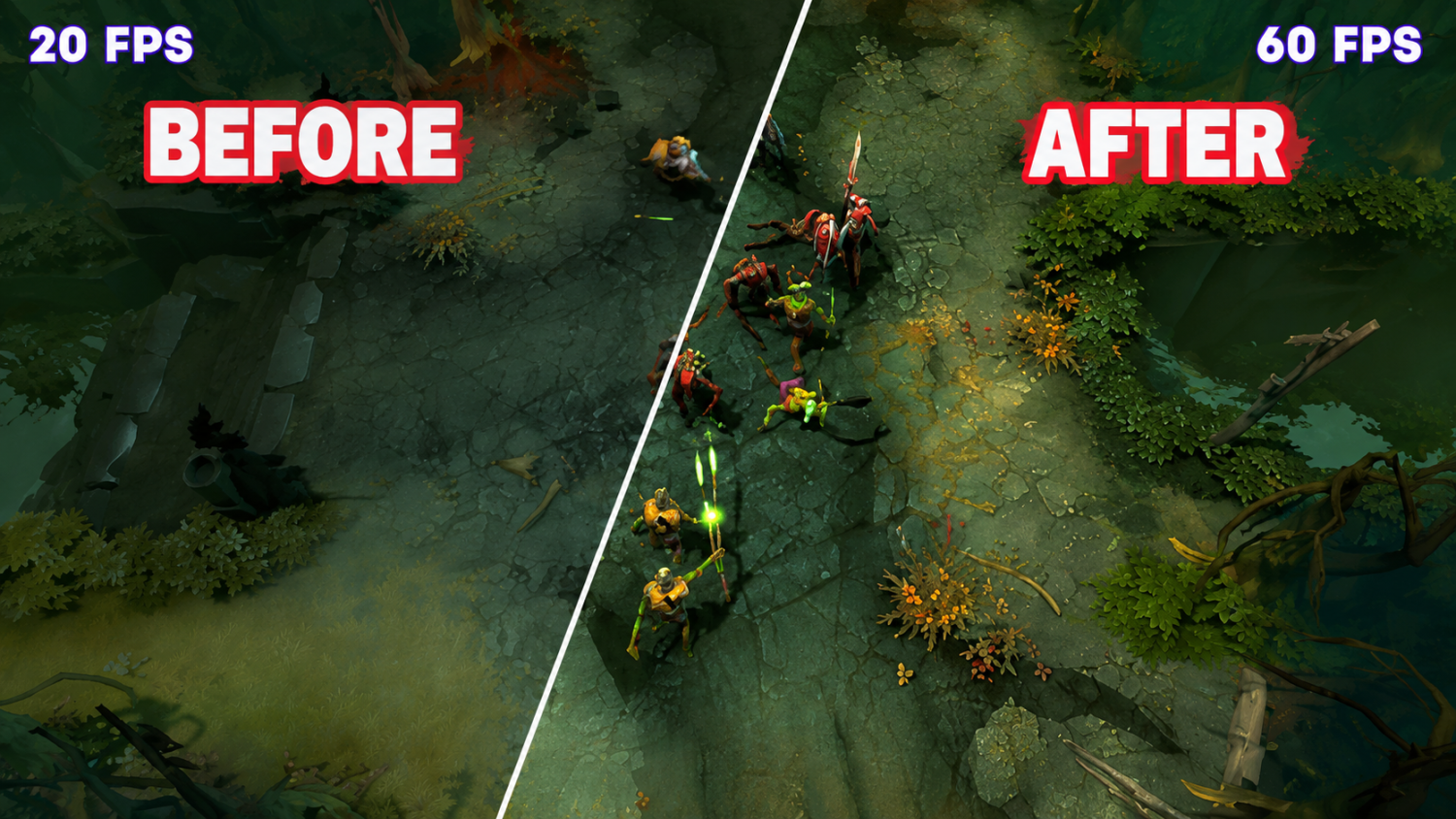
Your choice of rendering API is one of the highest-impact decisions for performance. Most guides just say 'test both' – here's a more specific breakdown.
Vulkan performs better on GPUs from 2018 onwards. It uses multi-threaded draw calls and consistently outperforms DX11 on modern hardware – typically by 10–15%. Enable it with the -vulkan launch option.
DX11 is the reliable fallback. According to ProSettings.net data, most pros run it – largely due to stability on tournament machines. If Vulkan causes crashes or micro-stutters, switch here. Use -dx11.
DX9 is only for pre-2015 GPUs. Valve is winding down support – don't use it on modern hardware.
Simple approach: start with Vulkan, play one full game. Stable – keep it. Crashes or stutters – swap -vulkan for -dx11. It's one of the most overlooked ways to gain FPS in Dota 2 without sacrificing any visual quality.
Which advanced settings have the biggest FPS impact?
Dota 2's advanced video settings menu has around 15 individual toggles. The approach here is the same as any optimization: tackle the most expensive settings first. If the goal is to max out FPS in Dota 2, disable by priority – not everything at once.
Disable first – each costs 15%+ FPS:
High Quality Water renders detailed reflections and caustics in the map's rivers and ponds – nearly invisible from the top-down view, but the GPU cost is very real. Ambient Occlusion adds contact shadows where surfaces meet: the effect is subtle, but the cost hits 15–20% on older hardware and 8–12% on modern cards.
High Quality Water – the single most expensive toggle, disable it first.
Ambient Occlusion – eats up to 20% GPU on older hardware, barely visible from the top-down view.
Disable second – each costs around 10% FPS:
The next group covers lighting and atmospheric effects. Turning these off doesn't affect in-game visual clarity, but takes real load off the GPU during teamfights. After this step, you can still noticeably boost FPS in Dota 2 without any gameplay tradeoffs.
Specular / Additive Light Pass / World Lighting – the lighting shader group.
Atmospheric Fog / Caustics – atmospheric effects along the map's edges.
Ground Parallax – adds depth to ground textures, costs ~10% GPU, barely noticeable at normal zoom.
Safe to keep – costs less than 5%:
Normal Maps add surface depth to heroes and terrain; the cost is under 5% on any GPU from 2016 onwards. Compute Shaders improve shader throughput on mid-range and high-end hardware – leave them on.
Normal Maps – under 5% cost, visually noticeable, keep on mid-range and above.
Compute Shaders – improve performance on modern GPUs, do not disable.
How to remove the FPS cap using console commands
The Dota 2 console is an extra layer of tweaking that's not accessible through the regular menu. It's enabled with -console in your launch options and opened with the tilde key (~) in-game. The commands below have been verified in the current version of the game. You can add them once to your autoexec.cfg file and they'll apply automatically on every launch. Before doing that, make sure your in-game video settings are already configured correctly – the console supplements the main settings, it doesn't replace them.
Command | What it does |
dota_cheap_water 1 | Simplified water rendering |
cl_globallight_shadow_mode 0 | Disables global shadows |
r_deferred_height_fog 0 | Disables volumetric fog |
r_deferred_simple_light 1 | Simplified lighting |
r_screenspace_aa 0 | Disables screen-space anti-aliasing |
mat_vsync 0 | Disables VSync via console |
+fps_max [value] | Sets the FPS limit (0 = uncapped) |
This is one of the most targeted ways to boost FPS in Dota 2 on low-end hardware when everything else has already been squeezed. After adding the commands, either restart the game or enter them manually in the console – changes apply immediately.
Does optimizing Windows actually help boost FPS in Dota 2?
Yes, and it's not just generic advice. System-level settings directly affect how many resources the OS allocates to the game. The -high launch option raises Dota 2's process priority, but OS-level optimization sits above that and determines how much compute power is available in the first place. This is especially relevant for laptops and mid-range hardware. Here's what actually makes a difference at the OS level:
Power plan – switch to 'High Performance' (Win + R → powercfg.cpl). On laptops this is critical: in 'Balanced' mode the CPU is intentionally throttled.
Game Mode – enable it in Windows Settings. Windows 11 in this mode optimizes resource allocation in favor of the active game.
GPU drivers – update to the latest version. NVIDIA and AMD regularly ship optimizations that deliver real performance gains.
Background apps – close your browser, Discord Overlay, and OBS. Discord Overlay in particular is well-known for tanking FPS in Dota 2.
Hardware-accelerated GPU scheduling – in Windows Settings (Settings → System → Display → Graphics), set dota2.exe to 'High Performance'.
After these steps, check the in-game FPS counter again. On mid-range and low-end hardware, the difference can be substantial.
What counts as good FPS in Dota 2 in 2026?
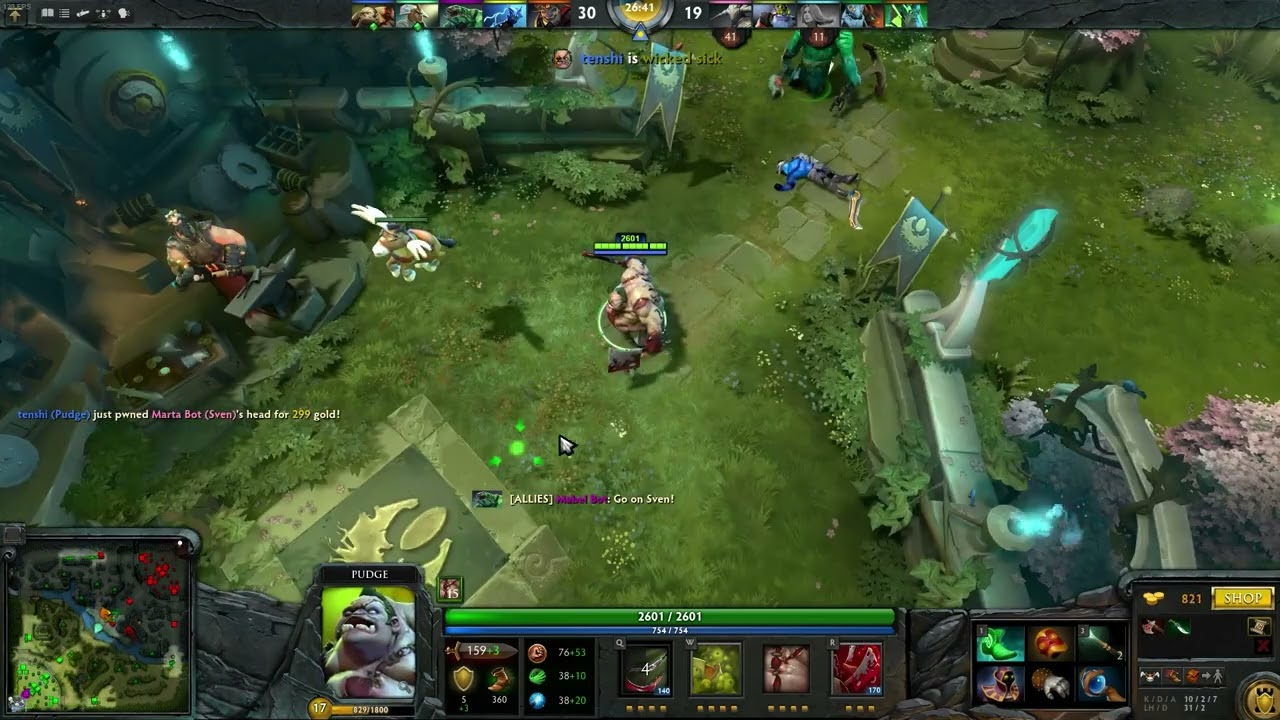
The answer depends on your monitor and context. ProSettings.net data from March 2026 across 43 pro players shows that most either remove the cap entirely with +fps_max 0, or set +fps_max 240. This isn't just about visual smoothness – it's about input lag. The higher your FPS relative to your monitor's refresh rate, the lower the delay between input and response. For anyone aiming to get their Dota 2 FPS up to a professional standard, here are the benchmarks:
FPS | Context |
60 FPS | Minimum acceptable for a comfortable pub game |
120 FPS | The default cap, sufficient for a 120 Hz monitor |
144 FPS | Target figure for a 144 Hz monitor |
240 FPS | Pro standard, 240 Hz monitor |
Best practice: set your cap with +fps_max to match your monitor's refresh rate. For 144 Hz – +fps_max 144. This delivers stable frame times without putting unnecessary strain on your GPU. If you want to remove the cap entirely – +fps_max 0, which is what most pros run.
The summary: from 60 to 240 in 10 minutes
To sum it up, the flow for most players looks like this. Start with the five quick video setting changes: Exclusive Fullscreen, VSync off, Effects Low, Shadows Off, and the launch options. Takes two minutes, delivers results immediately. Next, pick your API: Vulkan for GPUs from 2018 onwards, DX11 if you hit instability. Then selectively disable the heavy toggles: High Quality Water and Ambient Occlusion first, then the lighting group.
For low-end PCs, go a step further: drop Game Screen Render Quality to 70% with FSR enabled, add -nod3d9ex -noipx -noaafonts to your launch options, and switch your Windows power plan to High Performance. That's how you get meaningful FPS gains in Dota 2 even on hardware that's no longer considered current.
The key is to check the built-in FPS counter after each individual change, rather than changing everything at once. That way you'll know exactly what made a difference on your specific hardware.