Connection problems to FACEIT servers in Counter-Strike 2 are encountered by many players, especially during first attempts to play on the platform. What to do if can't join FACEIT server CS2? FACEIT remains one of the most popular platforms for competitive CS2 play thanks to effective anti-cheat and quality servers. However, technical difficulties can arise even for experienced users.
Main solutions include restarting FACEIT Anti-Cheat client, checking correct Steam account linking in Integrations section, verifying game files integrity through Steam, and temporarily disabling firewall or antivirus. In most cases, these basic actions help restore connection to platform servers.
Main Causes of Connection Problems
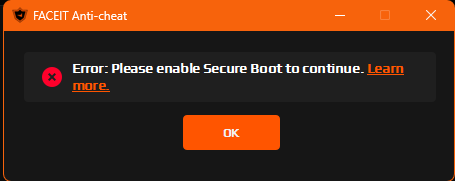
When player faces situation where can't join FACEIT server CS2, causes can vary. FACEIT platform uses its own anti-cheat client that must work simultaneously with game, and any failure in its operation leads to connection impossibility. Correct Steam account linking also plays important role.
Network problems often become cause of connection refusal. Firewalls and antiviruses can block necessary connections, ISP may filter traffic to anti-cheat servers, and router may not pass required ports. Corrupted CS2 files also cause conflicts when attempting connection.
Steam or Counter-Strike 2 updates during active match create special problem. If game automatically updates, client version stops matching server version. When playing with friends from same local network, port conflict arises when multiple computers use identical settings.
Checking Basic Connection Settings
Correct Steam Account Linking
First thing to check with connection problems is correct Steam account linking to FACEIT profile. Each Steam account can be linked only to one platform account, and using wrong credentials causes connection errors.
For checking, you need to go to FACEIT website, navigate to Settings section and open Integrations tab. There the linked Steam account is displayed – it's important to make sure this is exactly the account through which CS2 launches. If mismatch is found, need to unlink old account and link correct one.
Another mistake is launching game directly through cs2.exe executable file instead of Steam library. FACEIT requires Counter-Strike 2 to launch through Steam client, otherwise security system cannot verify gaming session.
Methods of Connecting to Match
FACEIT offers two official methods of connecting to match server. First method is copying server IP address through "Copy" button in match room and pasting in CS2 console. For this you need to open console with tilde (~) key, paste copied address and press Enter.
Second method is automatic connection through "Connect via Anti-cheat" button. When clicked, FACEIT client automatically launches CS2 and connects to server. Important condition – game must be updated to latest version.
If can't connect to FACEIT servers CS2 through console, worth trying second method, and vice versa. Sometimes one method works more stable depending on system configuration.
Solving FACEIT Anti-Cheat Problems
Freezing When Connecting to Anti-Cheat Servers
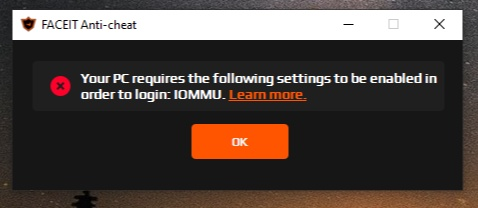
When FACEIT Anti-Cheat client shows message "Connecting to FACEIT servers..." and freezes, problem is usually related to network connection to anti-cheat servers. First action should be simple client restart – close application completely and launch again as administrator.
If restart didn't help, next step is checking FACEIT servers status on official website faceitstatus.com. Sometimes platform conducts technical work or experiences temporary problems. In such case, only waiting for operability restoration remains.
With no problems on FACEIT side, worth checking own internet connection. Anti-cheat system connects to host ac-client-ws.faceit.com, and if ISP or corporate network filters this traffic, connection won't establish.
Complete FACEIT Anti-Cheat Reinstallation
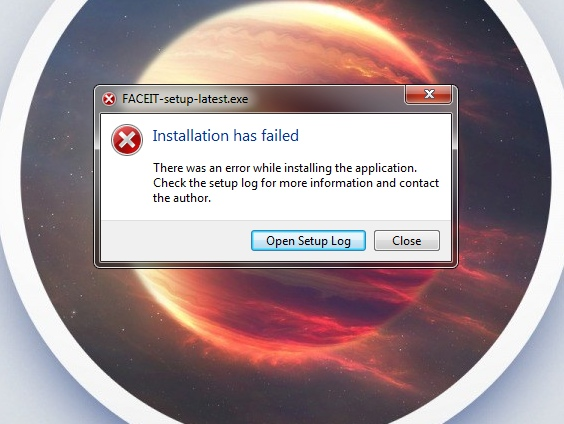
When basic methods don't help and problem that can't launch to FACEIT server CS2 persists, clean anti-cheat client reinstallation is necessary. Process begins with complete current version removal through "Apps & features" section in Windows settings.
After removal, computer restart is mandatory for cleaning all system connections and temporary files. Then need to download fresh FACEIT Anti-Cheat version from platform official website – important not to use third-party sources.
When installing new version, recommended to immediately launch program as administrator. This can be set permanently through FACEIT AC shortcut properties, "Compatibility" tab and "Run this program as administrator" checkbox.
Error Requiring Running Anti-Cheat
Message "You need to have the Anti-cheat client running to connect" appears when attempting to connect to match without running FACEIT AC. Simple solution – make sure anti-cheat client is active before pressing connect button.
Sometimes this error occurs even with running anti-cheat, which indicates using wrong Steam account. FACEIT system checks correspondence between account in anti-cheat client and Steam profile.
Eliminating Network Problems
Multiple Failed Connection Attempts Error
When CS2 console shows "Connection failed after 30 retries", this indicates network problem between computer and FACEIT server. First diagnostic is checking internet connection speed and stability through services like speedtest.net.
Often problem is solved by simple network equipment restart. Need to completely turn off router, wait 30 seconds and turn back on. This updates network settings and may eliminate routing conflicts.
If restart didn't help and still can't join FACEIT server CS2, next step is temporarily disabling Windows Defender Firewall and other firewalls. After disabling need to try connecting again.
In this case shouldn't leave protection disabled permanently. Correct solution is adding CS2 and FACEIT Anti-Cheat to firewall exceptions list through Windows Defender settings.
Port Configuration for Local Network
When playing with friends from same house, specific problem arises – multiple computers try to use identical network ports for FACEIT connection. By default CS2 uses port 27005, and when two players from one IP address connect simultaneously, server cannot distinguish their connections.
Official FACEIT solution is assigning each player unique port through Steam launch parameters. For configuration need to open Steam library, right-click on Counter-Strike 2 and select Properties. In Launch Options field, command with required port is entered.
Port distribution between players:
After adding command need to close settings window and launch game. Each player must use their unique port, then FACEIT server will be able to correctly process connections from all participants.
Checking and Restoring CS2 Files
File Integrity Verification Procedure
Corrupted or modified game files often become reason why can't join FACEIT server CS2. Steam provides built-in tool for checking and automatic game files restoration.
To launch check need to open Steam, go to Library and find Counter-Strike 2. Right-click on game opens menu where Properties is selected. In opened window there's Installed Files tab with "Verify integrity of game files" button.
After clicking, Steam begins scanning all game files, comparing them with original versions. Process usually takes 2 to 10 minutes. If corrupted files are found, Steam automatically downloads and replaces them.
When File Check Is Necessary
Integrity verification should be launched after any game crashes or startup errors. CS2 updates sometimes install incorrectly, especially with internet problems – checking after update will prevent possible problems.
Error "Unable to establish connection with game server" is often related specifically to game files. If FACEIT Anti-Cheat reports problems with game files, Steam check usually solves problem.
Also recommended to conduct check after installing any interface modifications, custom Workshop maps or configuration files changes. Even harmless changes can conflict with anti-cheat system.
Problems With Updates During Match
Steam Updates Impact
When Steam starts updating during active FACEIT match, this shouldn't affect game according to platform official information. However in practice, Steam client updates sometimes cause connection breaks. In such situation often kicks from FACEIT server CS2 without ability to quickly return.
If disconnection happened during Steam update, need to wait for complete update installation finish. Attempts to connect to FACEIT server during client update will be unsuccessful.
After Steam update completion need to completely restart client and Counter-Strike 2. Unfortunately, FACEIT doesn't compensate Elo loss due to disconnections related to updates.
CS2 Version Rollback After Update
More serious problem arises when Counter-Strike 2 automatically updates during FACEIT match. Server runs on previous game version, but player's client already updated. Version difference makes reconnection impossible.
Official FACEIT solution is game rollback to previous version through Steam beta-testing system. For this need to open Counter-Strike 2 properties, go to Betas tab and in Beta Participation menu select previous version.
After selecting previous version, Steam automatically downloads necessary rollback files. After match completion must return beta version setting to "None" position.
Console Commands for Diagnostics
Basic Connection Commands
CS2 console provides several important commands for server connection work. Command connect [IP:PORT] is used for manual FACEIT server connection – exactly this needs to be entered after copying address from match room.
If connection interrupted but match still ongoing, retry command will attempt to reconnect to last server. Command disconnect forcibly disconnects from current server, which is useful when freezing.
For current connection diagnostics, status command is used. It shows information about server to which player is connected.
Windows Network Settings Reset
When standard methods don't help and problem is clearly related to Windows network settings, complete network stack reset helps. These actions are performed in Windows command prompt with administrator rights.
To launch command prompt need to find it through Windows search, right-click and select "Run as administrator". Then three commands are entered sequentially: ipconfig /flushdns, netsh winsock reset and netsh int ip reset.
After executing all three commands, computer restart is mandatory. Also recommended to go to Steam and clear download cache through Settings → Downloads → Clear Download Cache.
Managing Timeouts and Preventing Bans
Server Leaving Rules
Important to understand FACEIT punishment system to avoid situations when user is disconnected from CS2 FACEIT server for long time. Platform automatically issues ban for leaving server if player is absent more than five minutes.
If need arises to briefly leave game for router restart or fixing technical problems, need to ask team to call timeout. This is done through !pause command in server general chat before round start.
Timeout gives five minutes for problem solving without ban risk. During this time can restart equipment, check settings or perform other quick actions for connection restoration.
High Ping Problem Solving
When all players on server experience high ping or lag, problem is on server side. In this case, team captain should contact FACEIT technical support through match page using live support function.
Important moment: if teams move to new server, all players must connect to it. If at least one losing team player doesn't join, their team will be counted defeat.
If high ping only for one player, problem is in their personal connection. First diagnostic step is checking connection speed on speedtest.net.
Contacting Technical Support
When all independent fixing attempts are exhausted and still can't join FACEIT server CS2, need to contact official FACEIT support through support.faceit.com. Response quality and speed directly depend on provided information completeness.
Before creating ticket worth collecting exact problem occurrence time, server IP address from match room, problem screenshots or video recording, ping and traceroute commands results to server.
When creating request important to choose correct category: "Elo, Server & Matchmaking Issues" → "Server Issues". In description need to briefly but detailed outline problem essence.
Preventing Future Problems
Best way to avoid connection problems is regular system preventive maintenance. After each major CS2 update worth launching file integrity check through Steam, even if game works normally.
FACEIT Anti-Cheat needs to be kept constantly updated. Before gaming session start useful to check FACEIT servers status on faceitstatus.com. Also recommended to use wired connection instead of Wi-Fi for maximum stability.
Adding CS2 and FACEIT Anti-Cheat to antivirus exceptions is mandatory setting for stable work. Closing resource-intensive programs before game frees system resources and prevents conflicts.
Quick diagnostic checklist:
Most problems are solved by basic methods from first four points. Following these recommendations will help minimize situations when can't join FACEIT server CS2 and ensure stable gameplay.