Many Counter-Strike 2 players face the problem of visual discomfort due to weapon movement animation. After updates in mid-February 2024, where Valve noted changes related to viewmodel animation smoothness at low/unstable FPS, some players began noticing arm swaying more prominently during movement and shooting, which caused mixed reactions in the community. Some players liked this effect for the "lively" feel, while others actively started searching for ways to remove hand shake in CS2, since the animation distracts from aiming and can create a sense of less stable visuals.
The problem is especially acute for those accustomed to static visuals in CS:GO or playing on weak computers. Constant weapon model swaying creates visual noise that makes it harder to focus on enemies and aim precisely. Fortunately, several proven methods exist to minimize this effect and restore comfort to gameplay.
It's important to understand that completely removing hand shake in CS2 is impossible – customization options became fewer compared to CS:GO. However, a combination of console commands, viewmodel settings, and additional tweaks allows minimizing discomfort and significantly improving the game's visual perception.
What is Hand Shake and Why Does It Exist?
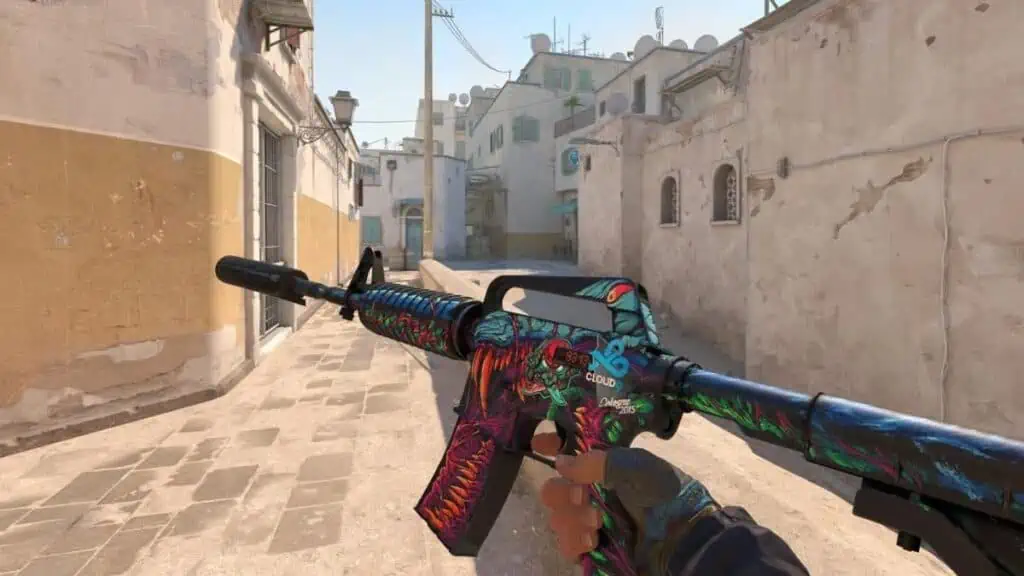
Hand shake in CS2 is a visual effect simulating natural weapon swaying during character movement and firing. Developers implemented this mechanic to increase gameplay realism – in real life, it's impossible to hold heavy weapons absolutely static while running or shooting. The Source 2 engine allowed creating more complex animations accounting for physics and weight of each weapon type. In February 2024, Valve specifically noted fixes related to viewmodel animation smoothness at low/unstable FPS.
A critically important point: hand shake doesn't affect shooting accuracy or actual weapon behavior at all. This is exclusively a cosmetic effect that doesn't change bullet spread mechanics or recoil. Nevertheless, visual interference can psychologically affect accuracy perception and create a sense of crosshair instability, which is especially noticeable in tense gaming situations.
How to Remove Hand Shake During Movement – Main Command
The most effective way to remove hand shake when weapon sways during movement is using a console command (if available in your CS2 version). Before entering any commands, you need to activate the developer console in game settings. This is done through the main menu: open the "Settings" section, then the "Game" tab, and find the "Enable Developer Console" option, setting it to "Yes."
After activating the console, press the tilde key (~), usually located under the Escape key. The console window will open where you can enter commands. To remove hand shake during movement, enter the command cl_usenewbob 0 and press Enter. An alternative is cl_usenewbob false, the effect will be identical.
This command deactivates the new hand movement animation system, returning more static visuals familiar to CS:GO players. After entering the command, changes apply instantly – you can immediately enter any map and check the result. The difference is especially noticeable when running with rifles like AK-47 or M4A4, where swaying was most pronounced.
If the console responds with unknown command, it means the command is unavailable in your CS2 version, and you need to proceed to viewmodel configuration (below).
Important clarification: even when cl_usenewbob is available, it relates specifically to bobbing during movement, not "visual recoil" when shooting.
Table: cl_usenewbob Command Values (if the command is recognized by the game)
Command Value | Effect | Visual Picture |
cl_usenewbob 1 (or true) | Shake enabled | More pronounced swaying during movement |
cl_usenewbob 0 (or false) | Shake reduced | Calmer model during movement |
It's important to understand that this command only works for hand shake during movement but doesn't completely remove visual effects when shooting. A comprehensive solution requires additional commands.
How to Remove Screen Shake When Shooting
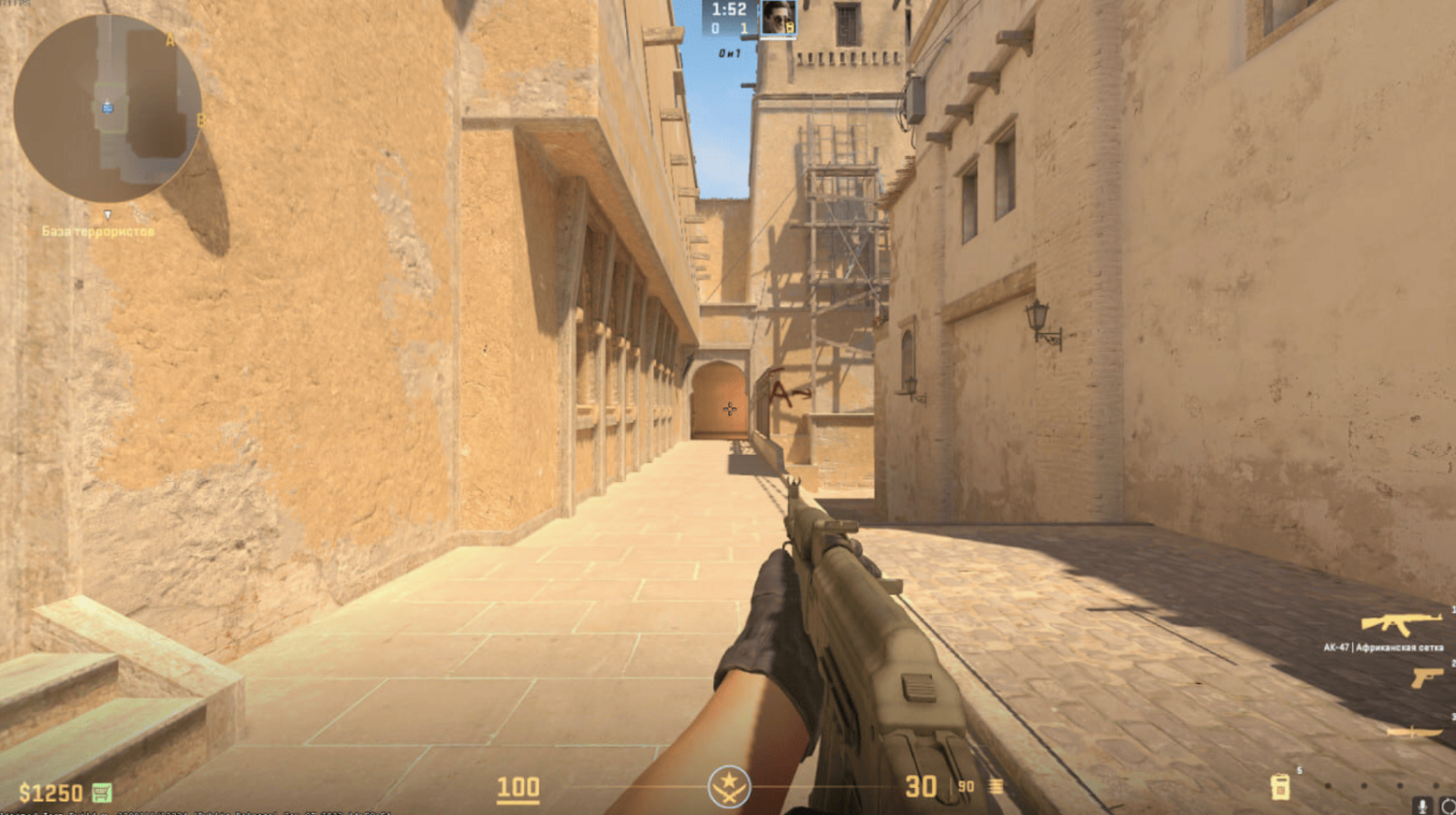
Besides the weapon model swaying itself, there's another visual effect – camera or screen shake when shooting, technically called view punch. This effect manifests as slight trembling of the entire image at the moment of firing, as well as when taking damage, grenade explosions, or falling from heights. To remove hand shake and camera shake simultaneously, additional settings need to be applied.
The command view_punch_decay 999 can accelerate view punch decay, but usually only works on local server/practice with sv_cheats 1 (meaning only on local server/in practice). Therefore, in Premier/Matchmaking you shouldn't rely on it – there the main focus should be on viewmodel configuration. The standard value of this parameter is much lower, leading to prolonged screen trembling after each shot. By setting the maximum value, you force the game to instantly return the camera to its original position, which helps remove hand shake visually.
If you're training on a local server with sv_cheats 1, to enter the command open the console and enter view_punch_decay 999, then press Enter. The effect is especially noticeable when firing long bursts from automatics or using powerful weapons like AWP. In old guides, you might also encounter cl_bob_lower_amt 1, but in CS2 the command is often absent or may not apply (if you see unknown command, just skip this step).
Unfortunately, popular commands from CS:GO, such as viewmodel_recoil 0, cl_bobamt_vert 0.1, and cl_bobamt_lat 0.1, don't work in Counter-Strike 2. Valve reworked the game's internal structure on the Source 2 engine, which led to old parameters' incompatibility. These commands can be periodically checked since developers may add their support in future updates.
Table: Commands for Reducing Shake
Command | Effect | Status in CS2 |
view_punch_decay 999 | Accelerates view punch decay | Usually only sv_cheats 1 |
cl_bob_lower_amt 1 | Bobbing parameter from old guides | Often absent / depends on version |
viewmodel_recoil 0 | Disables recoil animation | Doesn't work in CS2 |
cl_bobamt_vert 0.1 | Removes vertical shake. Command from CS:GO | Doesn't work in CS2 |
Important: popular advice about view_punch_decay and other "anti-shake" commands often relates to practice on local servers. For example, view_punch_decay usually only works with sv_cheats 1, meaning it's not suitable for Premier/Matchmaking.
Therefore, in competitive modes, the main working path is shifting the viewmodel so movements are less noticeable.
Alternative Method Through Compatibility Settings
Some players use a system method in Windows – disabling fullscreen optimization to make the visual feel more stable and reduce micro-freezes/"jerkiness." This method is based on disabling the fullscreen optimization feature and can additionally help remove hand shake visually.
Open Steam library and find Counter-Strike 2. Right-click the game title and select "Properties." In the opened window, go to the "Installed Files" tab and click "Browse." Windows Explorer will open with the game installation folder.
Right-click the CS2 icon and select "Properties." Go to the "Compatibility" tab. Find the "Disable fullscreen optimizations" option and check the box. Click "Apply," then "OK."
Many players note that after these actions, hand shake becomes less noticeable and visuals more stable. The effect is sometimes more noticeable for users with 144Hz and higher monitors. This method usually doesn't affect performance and doesn't create ban risks.
Using the crashz' Viewmodel Generator Map
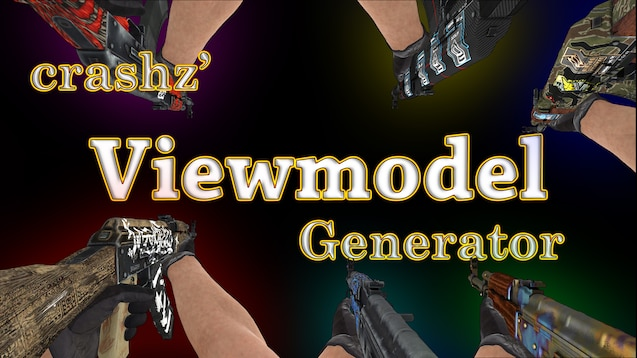
For players who don't want to deal with console commands, there's a map from Steam Workshop. The crashz' Viewmodel Generator CS2 map provides an interactive playground for configuring weapon display parameters without manual command entry, which also helps visually remove hand shake.
Open Steam and go to Counter-Strike 2 Workshop. In search, enter "crashz' Viewmodel Generator CS2" and subscribe to the map. After launching the game, select "Play" → "Workshop Maps" → crashz' Viewmodel Generator.
To minimize hand shake, find the "Viewmodel Bob Motion" block. Click the green "Lowest" button – this will automatically set minimum shake parameters. After selecting settings, shoot the "Save Viewmodel" button to save.
The map's advantage is the ability to see changes in real-time. You can run, jump, and shoot while observing how weapon behavior changes. The map also offers ready presets from the CS2 community who have already optimized their settings to remove hand shake most effectively.
Configuring Viewmodel to Minimize Visual Shake
Even if you can't completely remove hand shake, proper weapon position configuration allows significantly reducing its visual impact. The idea is to shift the weapon model so it occupies minimum screen space, making hand shake less noticeable.
Main commands for viewmodel configuration: viewmodel_fov sets the model's field of view (from 54 to 68). The higher the value, the smaller the weapon appears. Most professionals use the maximum value of 68, which helps visually remove hand shake from the main field of view.
Additional commands: viewmodel_offset_x shifts weapon left/right, viewmodel_offset_y shifts model forward/backward, viewmodel_offset_z shifts model up/down.
Recommended configuration for minimizing visual hand shake:
viewmodel_fov (usually 54-68) – model field of view; often set to 68.
viewmodel_offset_x – shift left/right (X).
viewmodel_offset_y – shift forward/backward (Y).
viewmodel_offset_z – shift up/down (Z).
Ranges (in most CS2 guides): X usually up to ±2.5, Y/Z – up to ±2.
The logic is simple: the less space the weapon model occupies, the less noticeable the hand shake. Even if animation works, in peripheral vision it's perceived less intrusively.
For some players, viewmodel may "reset." On Steam discussions, there's a solution: set viewmodel_presetpos 0 (custom viewmodel mode), and only then set offsets.
Professional Player Settings
Analysis of top esports athletes' configurations shows certain patterns. Professionals spend thousands of hours in-game and find optimal parameters through trial and error to most effectively remove hand shake from their view.
Legendary s1mple uses: viewmodel_fov 68, viewmodel_offset_x 2.5, viewmodel_offset_y 0, viewmodel_offset_z -1.5. ZywOo and m0NESY use practically identical settings, confirming this configuration's effectiveness for minimizing hand shake.
Besides viewmodel, professionals use low mouse sensitivity in the 1.5-2.2 range at 400 DPI. This provides maximum control over micro-movements and allows compensating for visual interference from hand shake.
Table: Pro Player Settings
Player | Team | FOV | Offset X | Offset Y | Offset Z |
s1mple | Natus Vincere | 68 | 2.5 | 0 | -1.5 |
ZywOo | Team Vitality | 68 | 2.5 | 0 | -1.5 |
m0NESY | G2 Esports | 68 | 2.5 | 0 | -1.5 |
It's important not to blindly copy pro settings but use them as a starting point for experiments under your playstyle.
Creating autoexec.cfg for Automatic Loading
Constantly entering commands at every game launch is tedious. The solution is creating an autoexec.cfg file that automatically executes commands at CS2 startup and helps permanently remove hand shake without manual entry.
Open Windows Notepad and enter commands, placing each on a separate line:
viewmodel_presetpos 0
viewmodel_fov 68
viewmodel_offset_x 2
viewmodel_offset_y 0
viewmodel_offset_z -2
The fastest way to open the needed folder: Steam → CS2 → "Properties" → "Installed Files" → "Browse," then navigate to game\csgo\cfg.
Save the file as autoexec.cfg (choose "All Files" instead of "Text Document"). Place the file in the game\csgo\cfg folder in the installed game directory.
For guaranteed loading, add a launch parameter in Steam: Right-click CS2 → "Properties" → "Launch Options" → enter +exec autoexec.cfg. Now all settings will apply automatically at every game launch, and you won't have to reconfigure methods to remove hand shake each time.
Additional Windows System Tweak (not about "hand shake" but about smoothness)
On Windows, you can try disabling Fullscreen Optimizations for cs2.exe. This is a system function that in some cases affects input lag/stutters and the feeling of "jerkiness."
Important: the effect depends on the system – it helps some, not others.
Frequently Asked Questions
Will disabling shake affect bullet spread?
No, this is a common misconception. Hand shake is exclusively a visual effect that doesn't affect game mechanics. The spread and recoil calculation system works independently of weapon model animation. When you try to remove hand shake, you're only changing visual perception, not game physics.
Can you get a VAC ban for using these commands?
No, if we're talking about standard client commands and viewmodel settings without third-party software. VAC bans for cheats/game interference, not regular display parameters. Such viewmodel settings and client commands are generally safe if no third-party software or game file interference is used.
Why did shake return after an update?
Major updates sometimes reset user settings. That's why using an autoexec.cfg file with launch parameter is recommended. With this approach, settings allowing you to remove hand shake load automatically after any patches.
Is it allowed to use these settings in tournaments?
In regular matchmaking and on most servers, there are no restrictions. At professional tournaments, organizers may establish restrictions on certain commands. Always check the specific tournament regulations.
Why don't some commands "like in CS:GO" work?
Many cl_bob* and similar parameters relate to CS:GO and in CS2 are often absent/don't apply (hence unknown command).
Final Recommendations
The hand shake problem in Counter-Strike 2 concerns a significant part of the gaming community. Although Valve limited customization possibilities, existing methods are sufficient to noticeably increase visual comfort. You can't completely remove hand shake in CS2, but a competent combination of settings helps minimize discomfort.
Main ways to remove hand shake: cl_usenewbob 0 command (if available in the current version) to reduce swaying during movement, viewmodel configuration with increased FOV and weapon model shifting, using the crashz' Viewmodel Generator CS2 map, and disabling fullscreen optimization in Windows as an additional step for more stable visual feel. Commands like view_punch_decay may only work on local servers with sv_cheats 1, so in matchmaking and Premier you shouldn't rely on them.
It's important to remember that settings are only part of success. Proper configuration makes visuals calmer but doesn't replace practice and experience. Even after managing to remove hand shake visually, training, spray control, and stable muscle memory remain the key to confident play in Counter-Strike 2.