When a player enters CS2 after countless hours in CS:GO, they almost immediately notice one detail: the camera started behaving differently. When shooting, noticeable recoil appears, the screen starts "jumping," which can interfere with aiming. That's exactly why many wonder – how to remove screen shake in CS2 to make the game feel more comfortable and precise. The answer isn't as straightforward as it might seem. You can't completely disable all effects, but you can reduce them to a minimum and customize the game for yourself.
What is Screen Shake in CS2 and Why Does It Occur?
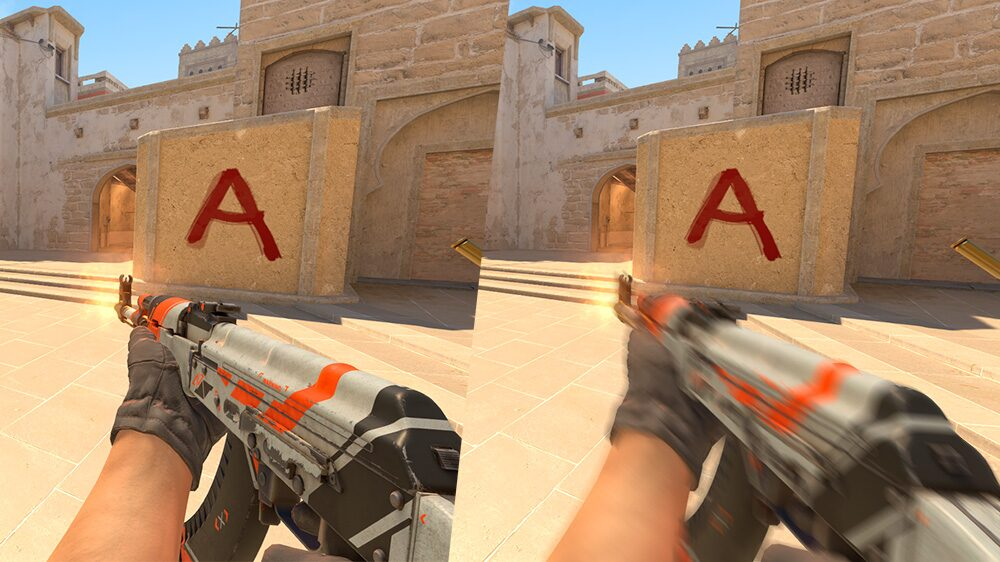
Screen shake in CS2 is a visual effect that occurs when shooting, running, taking bullet hits, and other actions. The camera moves to create a sense of realism. On the Source 2 engine, this effect became more pronounced: the camera reacts to every movement, recoil became visually stronger, and the weapon model constantly shifts. It looks impressive visually, but isn't always convenient.
Screen shake when shooting in CS2 is especially noticeable and interferes with accurate fire. However, the actual ballistics don't change – bullets fly the same way as with shake disabled. In other words, it's purely a visual component.
Can You Officially Disable Screen Shake in CS2?
You can't completely disable shake – part of the shake effects are built into Source 2. However, certain commands and settings actually allow you to reduce screen shake in CS2 or even visually "disable" it. Valve doesn't prohibit using these commands, and many esports professionals actively configure them in their setups.
So, if you're interested in how to disable screen shake in CS2 – below are all the commands and settings that affect it.
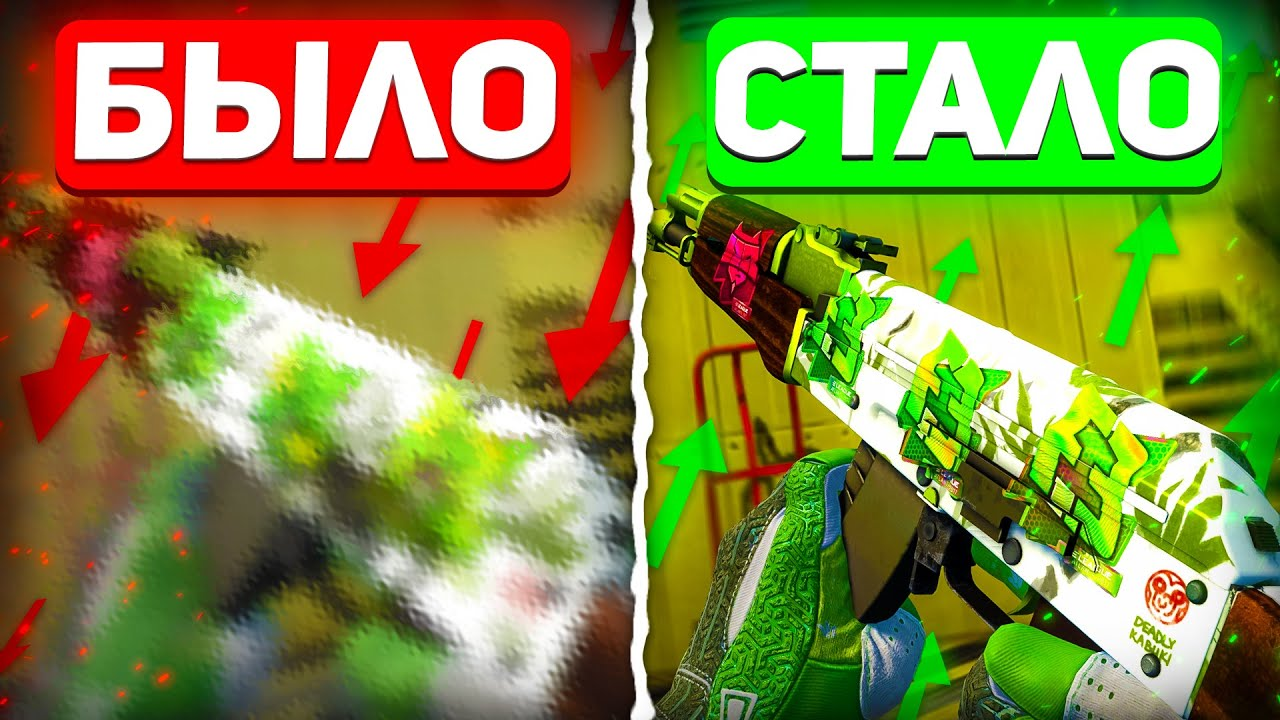
Using the console is the most direct way to remove screen shake. Valve gives players freedom to customize the interface and weapon model behavior, including shake effects.
Can You Disable Screen Shake When Shooting?
Many players want to remove screen shake when shooting in CS2 so the crosshair doesn't "jump" and accuracy is higher. The command viewmodel_recoil 0 partially solves this task. It disables weapon model shift during recoil, however the shooting mechanics remain the same – spray still requires control.
This allows better visibility of screen center, especially when using AK-47, M4A4, and other automatics. The command to disable screen shake in CS2 is often included in esports players' basic configs.
How to Reduce Shake Through Graphics and Video Settings
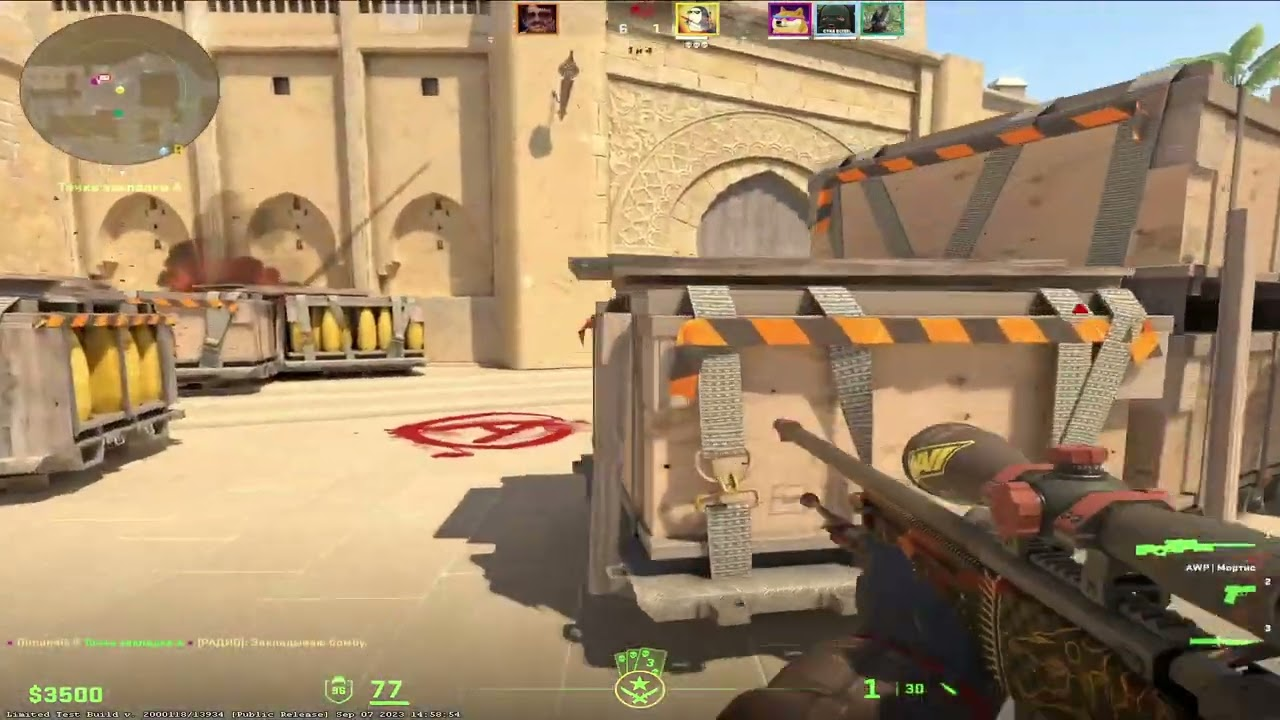
Besides the console, part of visual shake can be effectively removed through graphics settings. This is especially relevant for players who don't use console commands or want to achieve smooth visuals without interfering with configuration files. Properly selected video parameters help achieve stable image, minimize weapon model "jerking," and reduce eye strain during long gaming sessions.
The main goal of these settings is eliminating additional effects that intensify visual camera oscillations. Reducing screen shake in CS2 through graphics doesn't affect shooting mechanics but makes aiming significantly more comfortable.
The following parameters are recommended for modification:
Disable Motion Blur. This effect adds cinematography, but in CS2 it interferes – the picture becomes blurry during movement, especially during turns and sharp direction changes. Removing this parameter makes the picture sharp and reduces visual load.
Lower or disable Post-Processing effects. Post-processing adds lighting effects, filters, and shadows, but simultaneously increases system load and visual overload. With high post-processing, the screen can "jump" even more, especially when shooting in enclosed spaces.
Disable Anti-Aliasing. On weak PCs this is especially important – anti-aliasing affects performance, and with FPS drops, shake becomes even more noticeable. It's better to enable only basic anti-aliasing or completely disable it for stability.
Use high FPS and enable G-Sync/FreeSync (if supported by monitor). Often players think console commands are the main thing, but it's precisely high frame rate and adaptive frame synchronization that allow achieving smooth, stable visuals. If FPS is unstable, the camera will jerk regardless of settings.
Set fixed crosshair (static Crosshair Style). A crosshair that moves, scales, or reacts to recoil visually intensifies shake. A static crosshair helps concentrate and reduces visual noise.
Configuring these parameters doesn't require special knowledge – everything is in CS2's standard menu. Such changes are especially useful for those playing on weak hardware or laptops, where even minor graphics optimization leads to significant comfort increase.
This is especially important if you want to reduce screen shake in CS2 without using console commands. Even if you're unfamiliar with configs, properly selected graphics parameters will already yield noticeable results.
How to Save Screen Shake Commands in Config
To avoid entering commands every time, they can be saved to the autoexec.cfg file. Example contents:
viewmodel_recoil 0
cl_bobamt_lat 0
cl_bobamt_vert 0
cl_bobcycle 2
cl_viewmodel_shift_left_amt 0
cl_viewmodel_shift_right_amt 0
The file is saved in the ...\csgo\cfg\ folder. In CS2 launch parameters, you need to specify +exec autoexec.cfg.
Which Devices and Parameters Affect Screen Shake?
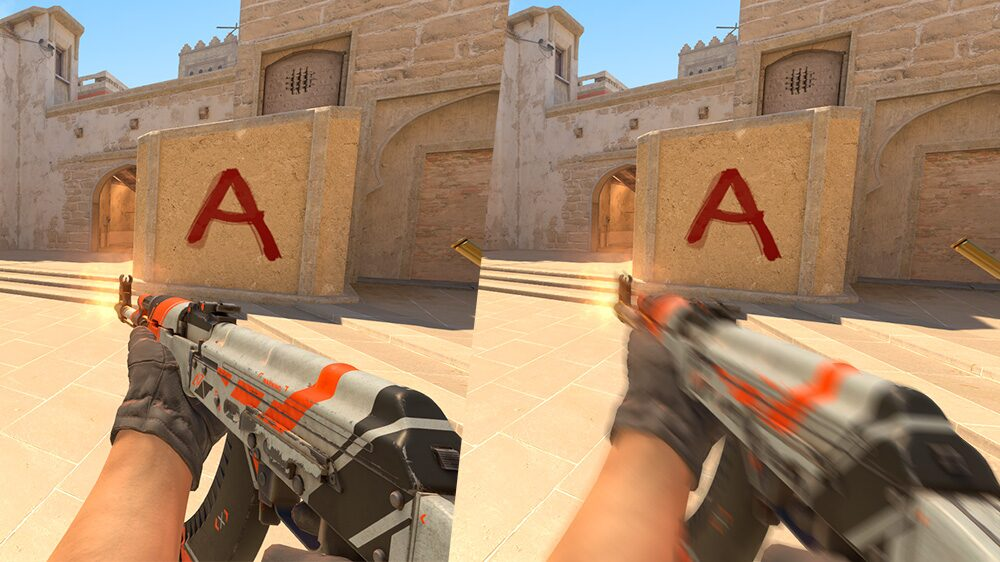
Many players try to remove screen shake in CS2 only through commands, not considering that hardware characteristics also play a crucial role. Even with ideal game settings and written configs, weak hardware or an unsuitable monitor can negatively impact image stability. Visual shake intensifies when the system can't handle graphics processing, or if the screen can't render each frame.
Below are key components that directly affect how the picture will be perceived in-game:
Monitor. The higher the monitor's refresh rate, the less shake is felt. If you're using a 60Hz display, the picture can seem torn even with high FPS. When switching to 144Hz or 240Hz, the image becomes smoother and all movements more natural. This is especially noticeable during strafing and shooting. For CS2, a monitor with 144Hz or higher isn't luxury – it's necessity.
FPS (frames per second). Even if you have a powerful monitor but FPS is unstable, shake won't disappear. The more stable the FPS, the smoother the picture will be. Ideally – lock it around 240 frames per second so the frequency matches monitor hertz. Any drops or sharp FPS spikes make the camera jerky, even with disabled shake effects.
G-Sync / FreeSync. These are adaptive synchronization technologies that eliminate visual artifacts – flickering, screen tearing, and micro-lags. With enabled G-Sync (on NVIDIA) or FreeSync (on AMD), monitor refresh rate synchronizes with game FPS, eliminating desync between video card and display. The result – the picture becomes smooth, and visual screen shake in CS2 decreases even without changing the game settings themselves.
How Does Screen Shake Affect Shooting and Accuracy?
Players, especially at high ranks, understand perfectly: in CS2 every millisecond and every pixel matters. Even minor visual deviation can affect shot accuracy. That's exactly why screen shake in CS2 becomes a real problem – it interferes with stably keeping crosshair on opponent, especially during prolonged firefights or spray.
The more the screen moves – the harder it is to control shooting. Camera jerks upward, crosshair gets knocked off, player has to constantly compensate these micro-movements. This is especially critical when shooting weapons like AK-47, M4A4, or FAMAS – all weapons with vertical and horizontal recoil. Even a well-learned spray pattern can "get knocked off" if the image shakes.
Shake not only interferes with aiming but also affects timing perception. When the camera jerks, it's harder for eyes to fixate on a point. Eyes tire faster, especially during prolonged play. This reduces overall reaction, causes irritation, and lowers concentration at crucial moments – for example, in clutches.
That's exactly why for most players, disabling screen shake in CS2 becomes not just an aesthetic setting but an important step toward stable and predictable shooting. By removing visual interference, the player is left alone with real weapon recoil, which can already be controlled through skill and practice.
How Does Screen Shake Differ in CS2 and CS:GO?
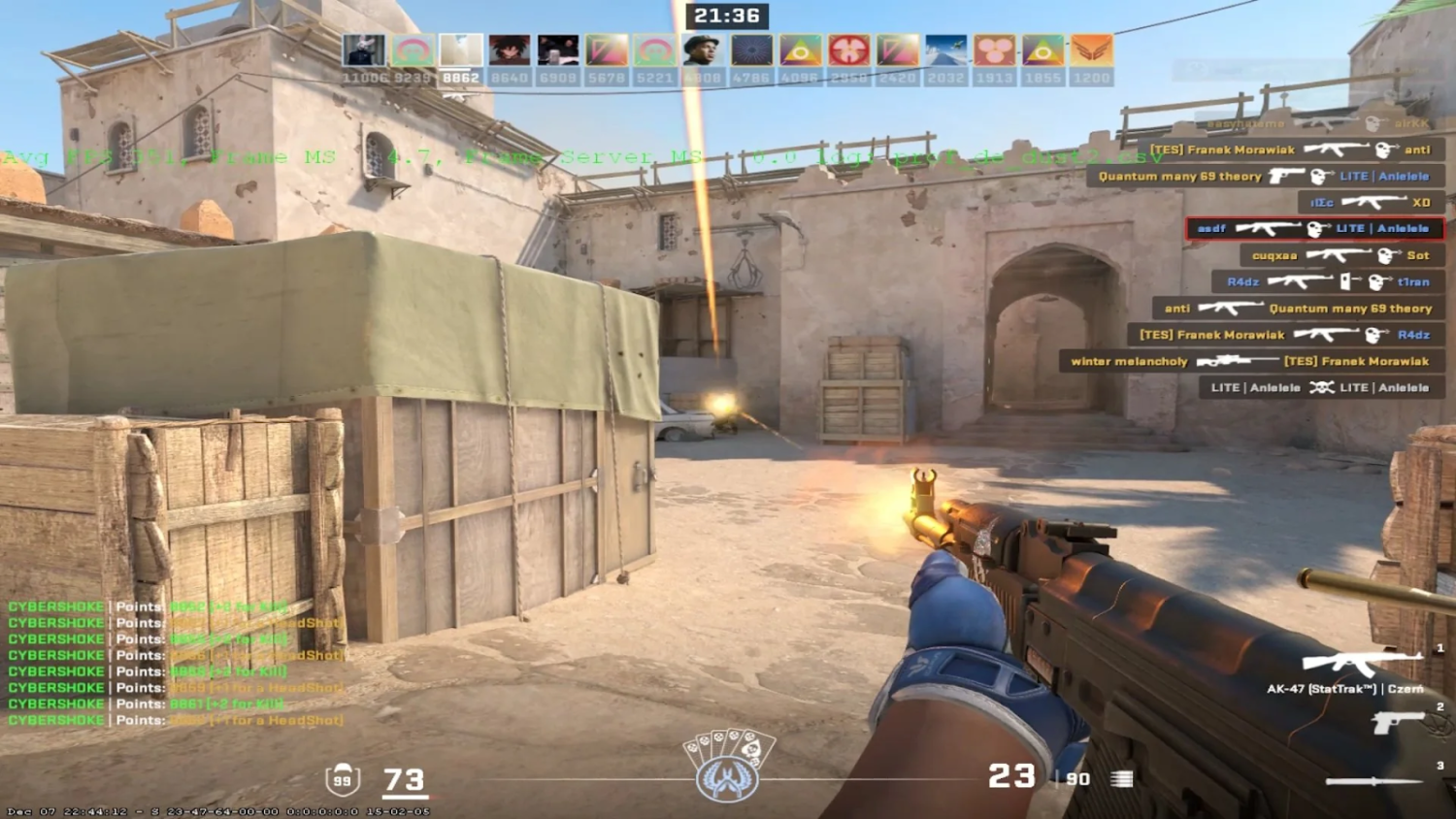
The transition from CS:GO to CS2 proved noticeable not only in graphics and interface but also in how shooting itself is perceived. Even experienced players immediately noticed: recoil feels different, the picture became more mobile, and the weapon model more "alive." Screen shake in CS2 isn't just an effect but an entire visual layer built into the Source 2 engine, which radically differs from the old Source.
To clearly understand the difference, let's compare key parameters that affect recoil and movement perception in both game versions:
Parameter | CS:GO | CS2 |
Camera | Fixed | Floating |
Viewmodel | Stable | Swaying |
Recoil | Dry, controlled | Visually strong, with shake |
Camera
In CS:GO, the camera always remained fixed and rigid. It didn't react to character movement or weapon recoil – all visual effects were limited to hand movement. In CS2, the camera became "alive": it shifts slightly when walking, tilts during strafes, and noticeably "flinches" during shots. This makes the game more cinematic but complicates accurate shooting.
Viewmodel (weapon model)
In CS:GO, the weapon model in hands remained stable, didn't shift much even when shooting or running. In CS2, it moves more realistically – sways left-right, bounces on bumps, gives visual recoil. This intensifies the screen shake effect in CS2, especially on fast and light weapons like SMGs.
Recoil
In CS:GO, recoil was dry and predictable: bullets flew in a clear pattern, and visually it was barely felt. In CS2, recoil is accompanied by visual effects: camera shudders, model flies backward, and screen slightly shakes. This makes shooting more "alive" visually, but at the same time visually harder to perceive and control.
All these changes visually intensify screen shake, and this is one reason why many players want to return to CS:GO's feel. However, with proper graphics configuration, disabling unnecessary effects, and using the right console commands, CS2 can also become comfortable and stable for shooting.
In CS2, everything is built on feel – players have to adapt.
Which Commands to Choose for Your Playstyle?
Every CS2 player chooses their own path – some prefer standing with AWP in pixel-perfect positions, some rush first onto site with rifles, and some play from position and timing. It's important to remember: screen shake in CS2 feels different depending on playstyle. Therefore, there's no universal recipe – you should adapt settings specifically for yourself.
Below are recommendations for configuring console commands and graphics depending on your gaming style:
Snipers (AWP, Scout, sometimes AUG)
When aiming, even the slightest camera jitter or weapon model movement can break focus. Snipers critically need "clean" and stable visuals.
Recommended:
disable Motion Blur and all blur visual effects;
use viewmodel_recoil 0 command so there's no extra model movement when shooting;
configure minimalist, static crosshair without animations.
This helps focus on the point and maximally reduce visual interference impact.
Riflers (AK-47, M4A4, Galil, SG553)
Here, stability when burst firing is important. Calm camera behavior gives advantage in spray control.
Recommended:
enable viewmodel_recoil 0 to avoid seeing model shift;
use fixed crosshair;
disable arm bobbing through cl_bobamt_lat 0 and cl_bobamt_vert 0.
Such settings not only reduce screen shake in CS2 but also increase hit accuracy in dynamics.
Aggressive Assault Style Players (MAC-10, MP9, P90, shotguns)
For those playing close and actively moving, removing extra animations is especially important. They interfere with orientation at high-speed distances.
Recommended:
disable Post-Processing;
use maximum refresh rate and stable FPS;
disable all shake commands, including cl_viewmodel_shift_left_amt 0 and cl_viewmodel_shift_right_amt 0.
With these settings, even quick bursts will feel predictable, without visual shake and "jumping" crosshair.
All listed commands are completely legal. They're not considered cheats since they only change the visual side – don't affect recoil, spread, hitboxes, and other gameplay parameters. It's simply a way to adapt the game to your feel and reduce interference preventing accurate and confident shooting.
Reducing screen shake in CS2 isn't a magic setting but part of a systematic approach to gaming comfort. And the more precisely you configure your setup for your style – the higher your effectiveness will be.
How Beginners Can Quickly Configure CS2
Enable the console.
Copy commands into autoexec.
Add launch parameter +exec autoexec.cfg.
Disable unnecessary graphics effects.
Restart the game.
After this, disabling screen shake in CS2 will work at every launch.
What to Do If Commands Don't Work?
Check if console is active.
Make sure autoexec.cfg file is in the correct folder.
Check syntax (no spaces or quotes).
Launch CS2 with +exec autoexec.cfg.
Enter commands manually for testing.
FAQ
Can it be completely disabled?
No, only visually minimized.
Is this not prohibited?
No. All commands are official engine parameters.
Which method is best?
Combine: commands + graphics + stable FPS.
Configure It – and Play Comfortably
Now you know how to turn off screen shake in CS2. Use commands, optimize graphics, and enjoy stable gameplay. All actions are completely legal and will help you focus on victory.