With Counter-Strike 2's release on the Source 2 engine, players received not only updated graphics but also several unexpected surprises. One of them is text that either didn't exist before or looked different. The lower left corner now displays build version information. FPS counters pop up at the most inconvenient moments. And debug messages can cover half the screen entirely.
Naturally, many wonder: how to remove text in CS2? After all, in classic CS:GO everything was simpler and clearer. Valve developers, of course, added these elements for a reason – each has a technical purpose. But honestly, that doesn't make it easier for regular players. Removing text in CS2 is actually possible, and through several methods. Each text type requires its own approach, and we'll now break down all options based on official commands.
What's the Text in the Bottom Left of CS2?
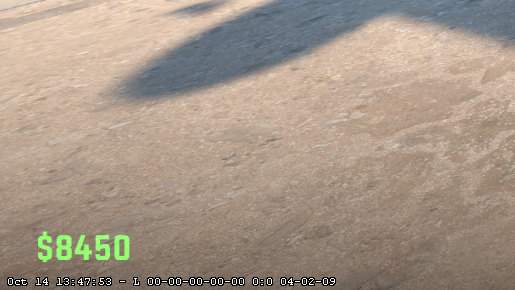
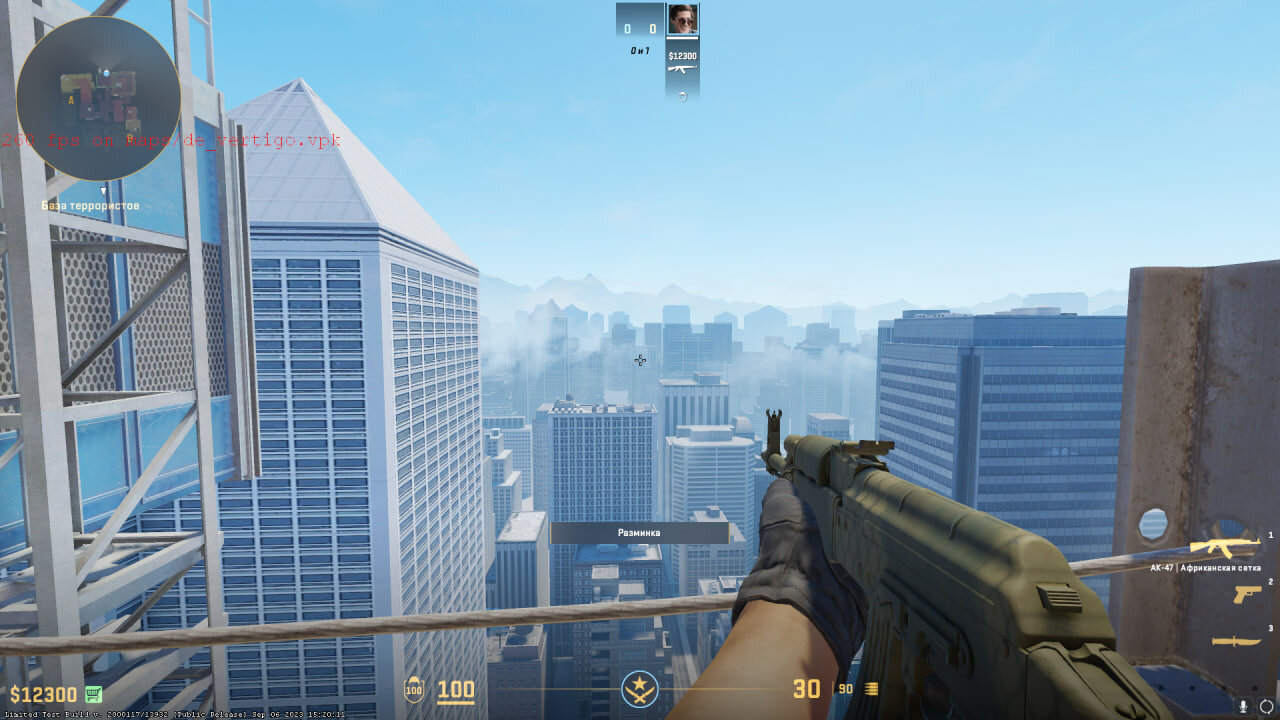
This line in the corner is service information about the current build (version/build number and build data). The format may differ depending on client version. Most often this is called build info.
It's everywhere. In the main menu. During matches. In lobbies.
Why does Valve need this? Simple: when a player finds a bug and sends a screenshot or video, programmers immediately see the game version. This greatly speeds up work, especially with frequent CS2 updates. The logic is clear.
But here's the problem. For regular gamers, this information is useless. It just gets in the way. Professional players don't tolerate any visual interference at all – in a tense round, every detail counts. No wonder the question of how to remove bottom text in CS2 became one of the most frequent in the community.
How to Remove Bottom Text in CS2 Through Console?
The developer console is the main tool for fine-tuning the game. Through it, you control display parameters, performance, binds, and much more. But first, the console needs to be activated.
Enabling Developer Console
First option – through game settings. Launch CS2, click the gear icon top left, go to the "Game" tab, and look for "Enable Developer Console." Set to "Yes." Done. Now the console opens with the tilde key (~) on English layout. On Russian layout, it's "ё".
Second option – through Steam, for those who like setting everything up in advance. Open library, find Counter-Strike 2, right-click → "Properties." There's a "Launch Options" field. Enter -console. Now the console will open automatically at every game start, which is convenient.
Main Command for Removing Build Info
Console activated? Excellent. Let's get to business. To remove the bottom text in CS2, open console and enter one of the commands:
r_show_build_info false
Or, if it's easier to remember:
r_show_build_info 0
No difference – false and 0 work identically. Press Enter. The text disappears instantly. If you ever need to bring it back – use r_show_build_info true or r_show_build_info 1.
Important Console Method Limitation
There's a nuance. If you enter the command in console manually – yes, the effect usually lasts until restart; for permanent disabling, use Steam launch parameters +r_show_build_info 0 (or add the command to autoexec.cfg).
At the next CS2 launch, the text will return. You'll have to enter the command again. For those playing daily, this gets old fast.
However, for one-time tasks, the method is ideal. Recording video? Making screenshots for a guide? Quickly enter the command – screen is clean. Simple and convenient.
How to Remove Date Text in CS2 Through Launch Parameters?
For those wanting a permanent solution to the problem, a more effective method exists – using Steam launch parameters. This method allows automatically executing console commands at every game start, eliminating the need for repeated entry.
Advantages of Launch Parameters Method
Launch options are special commands that Steam passes to the game at initialization. They're processed before main menu loading, so all specified settings apply automatically. The main advantage of this approach is that you can remove text in CS2 once, and it will never appear on screen again.
Step-by-Step Setup
The launch parameters setup process starts in the Steam client. In the game library, you need to find Counter-Strike 2, right-click the title, and select "Properties" from the context menu. In the opened game properties window, there's a "Launch Options" text field at the bottom.
In this field, you need to enter the following command:
+r_show_build_info 0
A critically important point – the "+" symbol before the command name. In launch parameters, this sign tells the system that the following command should be executed as a console command. Without this plus, the command won't work, and the text will continue displaying.
If there are already other commands in the launch parameters field, add the new one separated by a space. For example, the full line might look like: -console -novid +r_show_build_info 0. After entering the command, you can close the properties window – changes save automatically.
Checking Functionality
After configuring launch parameters, you should completely restart Counter-Strike 2. When loading the game, the command will execute automatically, and the build version text won't appear on screen. If the text is still visible, check the command spelling – typos or missing "+" sign can cause malfunction. It's also important to ensure there are spaces between commands in the launch parameters line.
How to Remove FPS Text in CS2?
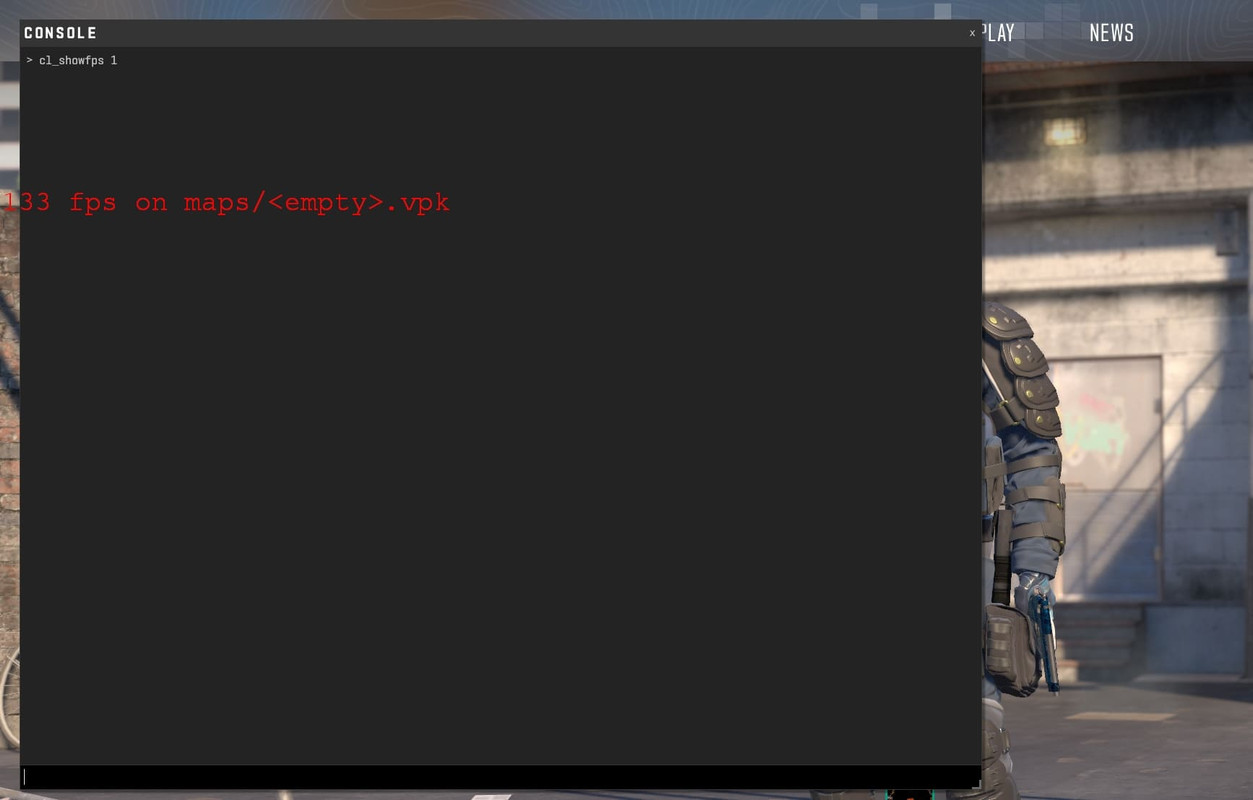
The frame rate counter (FPS) is another type of text that can appear on the Counter-Strike 2 screen. Unlike build info, FPS display isn't activated by default but is enabled manually by the player through console commands. Many gamers use the counter for performance monitoring, but there are situations when it needs to be temporarily disabled.
What the FPS Counter Shows
When the counter is active, a red line with a numeric value appears on the left side of the screen – for example, "120 fps". This value shows how many frames per second the graphics card is rendering at the moment. Professional players often monitor this indicator, as stable 200+ FPS is critically important for competitive play.
In Counter-Strike 2, several FPS display modes exist with different detail levels. Developers provided four command variants, each showing different amounts of information:
Extended network metrics are more conveniently enabled through Telemetry in settings or through cl_hud_telemetry_* commands (FPS/ping/drops/frametime) – the set depends on client version.
Disabling FPS Counter
Removing FPS text in CS2 is maximally simple. Just open the developer console and enter the command:
cl_showfps 0
After pressing Enter, the red text with frame count instantly disappears from screen. The command works immediately and doesn't require game restart. The counter can be reactivated anytime by entering cl_showfps 1 or any other mode from the table above.
Alternative FPS Monitoring Methods
For players who want to track performance without using CS2's built-in counter, alternative solutions exist. Steam offers its own FPS display system through the game overlay. To activate it, you need to open Steam settings, go to the "In-Game" section, and in the "In-game FPS counter" item, select one of four screen corners.
NVIDIA graphics card owners can use the GeForce Experience program, which includes an overlay function with detailed performance statistics. After installation and overlay activation with Alt+Z, access to FPS counter and other system metrics appears. The advantage of this method is that data displays over any game, not just CS2.
How to Remove White Text in CS2 (Debug Messages)?
Besides build info and FPS counter, various white debug messages can appear in Counter-Strike 2's lower left corner. These texts are related to Source 2 engine operation and usually appear on community servers or in certain game situations.
Types of Debug Text
Several categories of system messages exist in CS2, each controlled by a separate console command. Developer commands show test information that developers use when debugging the game. Debug logs output error messages about server issues or map loading problems. These texts usually don't carry useful information for regular players and only obstruct view.
A special set of commands exists for controlling these message displays. It's important to understand that each text type requires its own command for disabling:
developer 0 - disables developer messages
cl_showerror 0 - hides error messages
If the command doesn't work and console shows unknown command, the parameter is unavailable in your version – then focus on disabling the message source (e.g., developer 0) or on specific overlay/telemetry type.
These commands are entered in console using the same principle as all others. After entering the command and pressing Enter, corresponding messages stop displaying on screen. Removing white text in CS2 is possible precisely through these methods, depending on the appeared text type.
When Debug Text Is Useful
Despite these messages usually being distracting, in some situations they can be useful. When creating custom maps or testing modifications, developer commands provide important technical information. Debug logs help identify problems on community servers. Therefore, it's recommended to disable these texts only for regular play but leave them enabled when working with content or diagnosing problems.
Text That Cannot Be Removed in CS2
Not all text elements on the Counter-Strike 2 screen can be disabled using console commands. Developers intentionally made some notification types non-disableable, as they carry critically important information for game security and stability.
VAC Warnings
The VAC (Valve Anti-Cheat) system outputs server notifications when a player connects to a server with potentially dangerous settings or modifications. These messages usually appear in yellow or red and inform about possible block risks. Removing text in CS2 of this type is impossible – it's a Valve protective measure.
VAC warnings most often appear on unofficial community servers where modifications or non-standard settings are used. On official Valve servers, these messages practically never appear. The only way to avoid such text is playing exclusively on official matchmaking servers or verified community servers.
Low Performance Notifications
When the game detects critical FPS drops or system performance problems, corresponding warnings appear on screen. These messages cannot be disabled through console commands, as they warn the player about technical issues requiring attention.
Instead of trying to hide these notifications, it's more logical to solve the performance problem itself. This may include optimizing CS2 graphics settings, updating graphics card drivers, closing background applications, or even upgrading computer components. When the system starts stably delivering normal FPS, warnings will disappear on their own.
Frequently Asked Questions
Why doesn't the command save after game restart?
Counter-Strike 2 doesn't save most console commands between game sessions automatically. Each time at launch, the game loads standard settings. To solve this problem, you need to use Steam launch parameters with the "+" symbol before the command, as described above.
Can all text be removed with one command?
No, a universal command for disabling all text types doesn't exist. Each interface element is controlled by a separate command: r_show_build_info for build version, cl_showfps for FPS counter, developer and cl_showerror for debug messages. This is done intentionally so players can flexibly customize the interface for their needs.
Console won't open in CS2, what to do?
First, you need to check if console is activated in game settings. Then ensure the correct key is being pressed – it's tilde (~) on English layout or "ё" on Russian. If console still won't open, try switching keyboard layout. Alternative solution – add -console to Steam launch parameters.
Does disabling text affect performance?
Disabling text elements has minimal performance impact. FPS counter and build info consume negligible resources. However, even a small gain of 1-2 frames can be important on weak systems. The main reason for disabling text is improving visibility and concentration, not increasing FPS.
Is it safe to use these commands?
All described commands are official and safe. They're built-in by Valve developers and don't violate game usage rules. VAC ban risk is completely absent – the anti-cheat system doesn't react to interface visual settings changes. Removing text in CS2 through these methods is possible without any concerns.
Optimal Clean Screen Setup
To achieve a maximally clean and convenient interface in Counter-Strike 2, using a combination of methods is recommended. Build version text is best disabled through Steam launch parameters with the +r_show_build_info 0 command – this ensures permanent effect. FPS counter can be left under console command cl_showfps 0 control to quickly enable it when needing to check performance.
Here's a final table with all important commands for quick access:
If a command doesn't apply and console reports unknown command, the parameter is unavailable in your client version/mode – just remove it from launch parameters.
Using these settings, every player can adapt Counter-Strike 2's interface to their preferences. A clean screen without unnecessary text improves concentration in critical match moments and allows complete focus on gameplay. Professional esports athletes have long appreciated the importance of a minimalist interface, and now every player can follow their example by applying simple console commands.