Managing bots in Counter-Strike 2 is a fundamental skill for any player who wants to train effectively. Bots can be a great training tool — or a major distraction when you're trying to focus on lineups or tactical setups. Valve carried over a full set of console commands for controlling AI on your server, and they work just as well in CS2 as they did before.
The fastest way to remove bots in CS2 is to open the developer console with the ~ key and type bot_kick. Hit Enter and every bot on the server disappears instantly, leaving you with a clean map for solo practice. This command works in Practice mode and on any server where you have admin privileges.
How to Enable the Developer Console for Bot Management
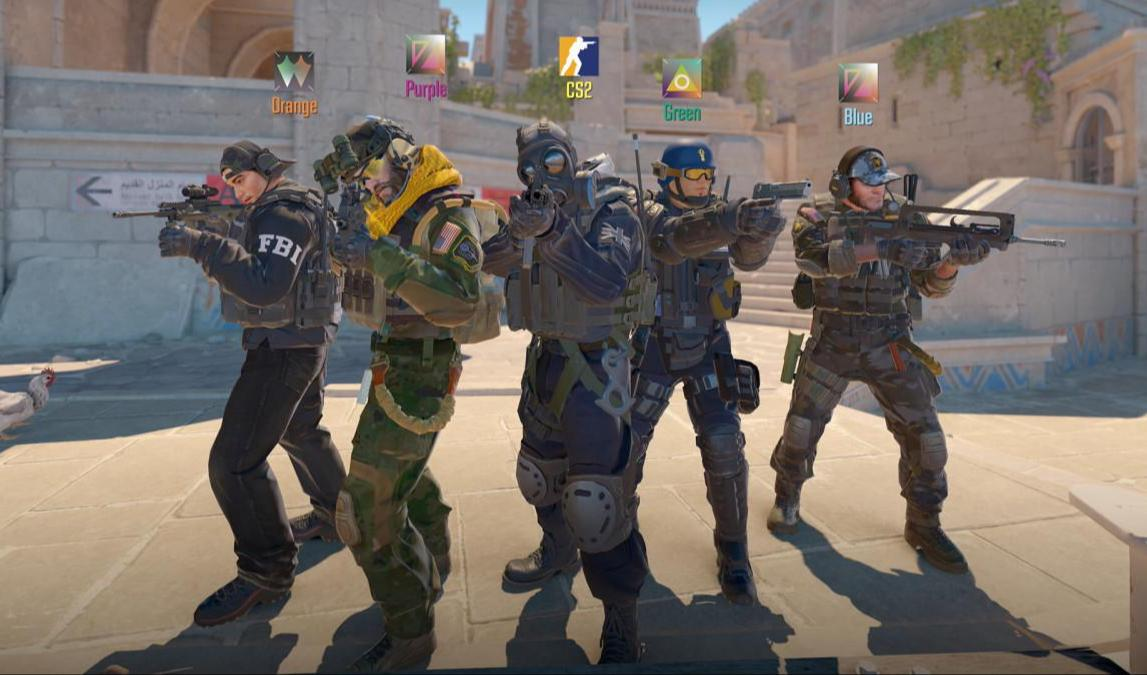
Before you can start removing bots in CS2, you need access to the developer console. It's disabled by default, and a lot of newer players don't even know it exists. The console is essentially a command-line interface that gives you direct access to the game's internal settings.
The first way to enable it is through the CS2 settings menu. Launch the game, open Settings (the gear icon in the top-left corner), go to the Game tab, and look for the Enable Developer Console (~) option. Switch it from No to Yes and the console becomes available immediately.
The second method is better if you want the console to open automatically on launch. In your Steam library, right-click Counter-Strike 2, select Properties, then find the Launch Options field under the General tab. Type -console (no quotes) and the console will load every time the game starts.
Once enabled, the console opens with the ~ (tilde) key, located above Tab. One important thing to keep in mind: the key only registers on an English keyboard layout. If the console isn't opening, switch your input language to English first — usually with Alt + Shift.
CS2 Bot Removal Commands
The commands for removing bots in CS2 through the console break down into a few categories depending on what you need. The core set lets you clear all bots at once or remove them selectively by team. These commands work the same way across Practice mode, local servers, and private lobbies with friends.
The main command for clearing the entire map is bot_kick. It instantly removes all bots regardless of team or difficulty. If you only want to clear one side, there are variations of the command for that too. Here's the full list of basic options:
Command | Description | Use Case |
bot_kick | Removes all bots from the server | Full map clear of all AI |
bot_kick t | Removes only Terrorist-side bots | Clear bots from one side only |
bot_kick ct | Removes only Counter-Terrorist-side bots | Leave bots on T side only |
bot_kick NAME | Removes a specific bot by name | e.g. bot_kick Igor or bot_kick Cliffe |
The process is about as simple as it gets. Open the console with ~, type your command, press Enter. Bots vanish immediately — no waiting for the round to end. This is especially useful when setting up training sessions where you need a completely empty map to start with.
One limitation worth knowing about: you can't remove multiple bots from a team in a single command by specifying a number. If you want to drop three bots from CT, you'll have to run bot_kick ct three times. Valve never implemented something like bot_kick ct 3 — it's a constraint that carried over from CS:GO.
Bot names are visible above their models at the start of a round and in the scoreboard. CS2 uses a standard name pool: Igor, Yuri, Viktor, Minh, Arnold, and others. Removing a specific bot by name is handy when you want to keep team sizes at a certain number but need to drop one particular slot.
How to Remove Bot Limits in CS2 and Disable Auto-Balance
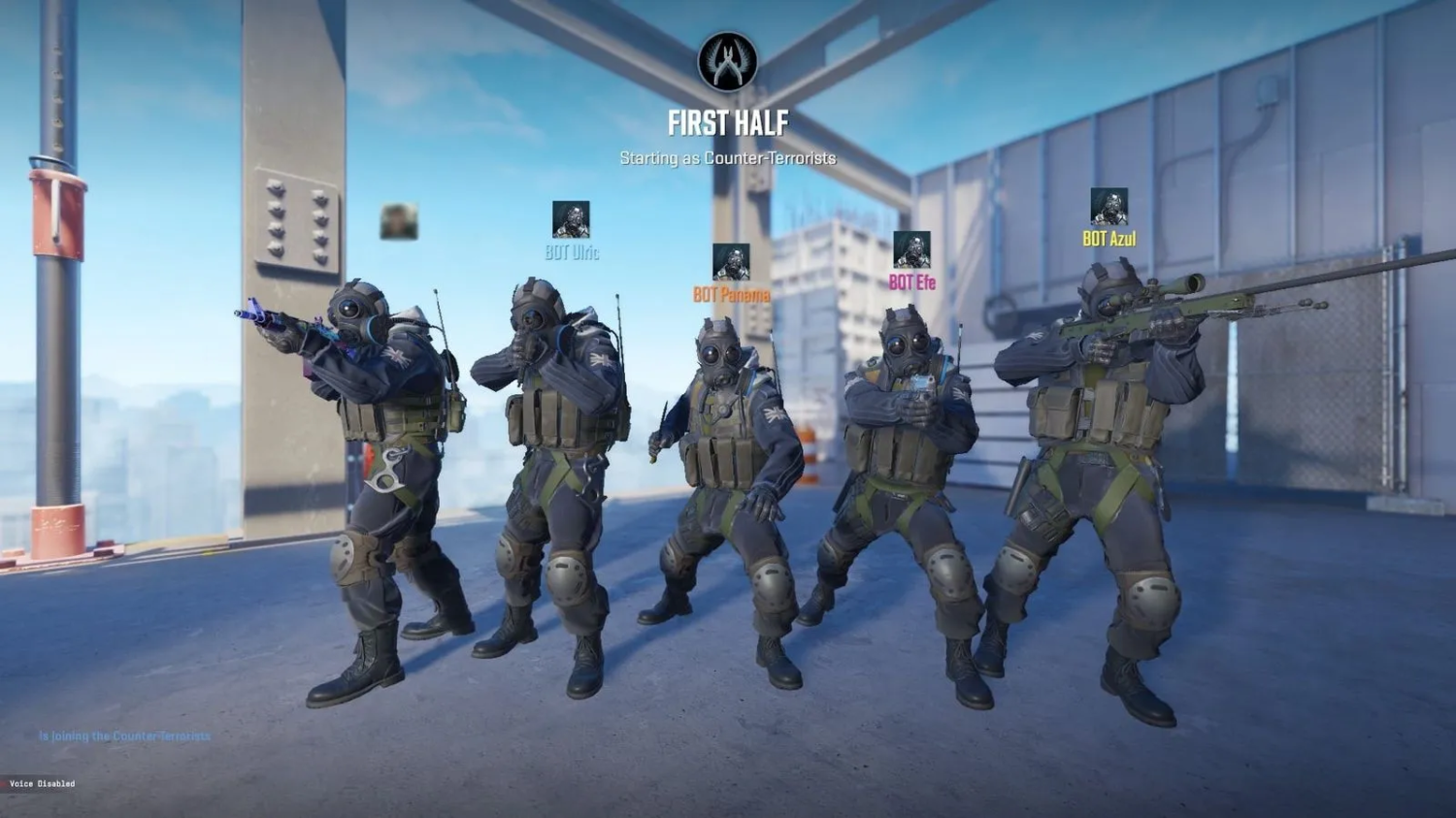
By default, CS2 auto-balances teams and caps the number of players on each side. This becomes a problem when you're training and need an asymmetric setup — say, one player against ten bots. The system keeps shuffling AI between teams trying to equalize things, which defeats the purpose.
To remove bot limits in CS2, you need two console commands. The first — mp_limitteams 0 — lifts the cap on how many players can be on each team. The second — mp_autoteambalance 0 — shuts off the automatic balancing system entirely. Both commands need to be run together for things to work correctly.
Command | Value | Effect |
mp_limitteams 0 | 0 = limit disabled | Unlimited players per team |
mp_limitteams 5 | 5 = max 5 players | Sets a specific team size cap |
mp_autoteambalance 0 | 0 = auto-balance off | Disables bot team balancing in CS2 |
mp_autoteambalance 1 | 1 = auto-balance on | System equalizes teams automatically |
The correct order of operations is: run mp_autoteambalance 0 first, then mp_limitteams 0, and only after that start adding or removing bots. If you get the sequence wrong, the system may bring bots back or redistribute them across teams on its own.
These settings are critical for certain training scenarios. Retake practice on a bombsite often calls for a 1v5 situation where you're drilling quick decision-making under numbers pressure. Without disabling the limits, that setup is impossible — the game will keep filling your team with bots to even things out.
Removing Bots in CS2 Practice Mode: Setting Up Your Training Environment
Getting the most out of CS2 practice with bots removed takes more than just running bot_kick. You need to configure round time, economy, and other server settings to build a proper training environment. Experienced players use pre-built command sets that turn a regular map into a fully-equipped practice server.
A solid training setup starts with enabling cheats via sv_cheats 1 — without it, most of the useful commands are locked. From there, you kick the bots with bot_kick and set your round timer. The default two minutes isn't nearly enough for working through complex lineups, so most players set it to 60 minutes with mp_roundtime_defuse 60.
Command | Description | Why You Need It |
sv_cheats 1 | Enables cheat mode | Unlocks training commands |
bot_kick | Removes all bots | Clear the map for practice |
mp_roundtime_defuse 60 | Sets round time to 60 minutes | Effectively unlimited training time |
mp_freezetime 0 | Removes the freeze period | Round starts instantly |
mp_buy_anywhere 1 | Buy from anywhere on the map | No need to run back to spawn |
mp_buytime 60000 | Buy time set to 60000 seconds | Buy menu available at any point in the round |
sv_infinite_ammo 1 | Infinite ammo | Practice spray control without reloading |
mp_startmoney 16000 | Starting money | Max funds to buy whatever you need |
These commands are usually pasted into the console as a single line to save time. The full setup string looks like this: sv_cheats 1; bot_kick; mp_roundtime_defuse 60; mp_freezetime 0; mp_buy_anywhere 1; mp_buytime 60000; mp_startmoney 16000; sv_infinite_ammo 1; mp_restartgame 1. Paste it in and the server restarts with all the new settings applied.
This configuration is perfect for grenade lineup work, map study, and positioning practice. Infinite ammo lets you drill recoil control without constantly stopping to reload. Being able to buy anywhere saves time you'd otherwise spend running back to spawn between reps.
For more advanced training, you can layer in commands like sv_grenade_trajectory 1, which shows the flight path of thrown grenades, or sv_showimpacts 1 to visualize bullet impacts. These tools help you understand the game's physics and make meaningful improvements to your accuracy.
How to Remove Bot Armor in CS2 and Configure Their Loadout
Controlling what bots are equipped with opens up new training possibilities. Removing bot armor in CS2 is useful for headshot drills — without protection, bots die from a single headshot with most weapons. This speeds up accuracy training and lets you practice flicking without needing to track down wounded targets.
The main command for managing armor is mp_free_armor with three possible values. Zero strips all protection, one gives just a vest, and two gives the full kit with a helmet. Worth noting: this command affects all players on the server, including yourself.
Command | Value | Effect |
mp_free_armor 0 | No armor | Bots spawn with no protection |
mp_free_armor 1 | Vest only | Body protection, no helmet |
mp_free_armor 2 | Full armor | Vest and helmet automatically |
bot_knives_only 1 | Restriction | Bots use knives only |
bot_pistols_only 1 | Restriction | Bots use pistols only |
Additional commands restrict bot loadouts for specialized training. bot_knives_only 1 forces all AI to run with nothing but knives — great for map movement practice with zero threat of taking damage. Bots become moving targets you can use to simulate real player pathing without the risk.
For pistol round training, bot_pistols_only 1 does exactly what it says. Pair it with mp_free_armor 0 and you've got conditions that closely mirror an actual pistol round, with unprotected opponents and limited firepower on both sides. This kind of training specifically sharpens the skills that often decide the outcome of entire matches.
Experienced players combine these settings with behavior control commands. For example, bot_stop 1 freezes bots in place, turning them into static targets for precision aiming drills. When you're done with that portion of the session, bot_stop 0 brings them back to life.
One important note: most bot control commands require sv_cheats 1 to be active. Without cheat mode on, commands either won't work or will throw an error in the console. This is Valve's safeguard to prevent these commands from being used on official servers — they only function in Practice mode or on your own server.
Adding Bots Back After Removing Them
Once you've cleared the server, you'll often want to bring bots back to continue training. Adding bots in CS2 is just as straightforward as removing them, just with a different set of commands. The system gives you control over not just how many bots you add, but exactly which side they go to.
The basic bot_add command drops one bot into whichever team currently has fewer players. If both sides are even, the bot gets assigned randomly to either T or CT. For more precise control, use the team-specific variants.
Command | Description |
bot_add | Adds a bot to the smaller team |
bot_add_t | Adds a bot to Terrorists |
bot_add_ct | Adds a bot to Counter-Terrorists |
bot_add_t expert | Expert bot on Terrorist side |
bot_add_ct easy | Easy bot on CT side |
bot_quota X | Sets the total bot count |
bot_quota is especially useful for quick setup. Instead of typing bot_add ten times in a row, you can just run bot_quota 10 and the system fills the server up to that number automatically. Distribution is even — five per side by default.
Here's a handy trick: bot_quota 0 works as an alternative to bot_kick. Setting the quota to zero removes all bots from the server instantly. Some players find this easier to remember than keeping a separate command for removal.
In competitive mode, the cap is five bots per side. In casual modes, that limit goes up to ten. You can bypass both with mp_limitteams 0 and mp_autoteambalance 0, as covered earlier. Once those limits are off, you can create any numerical combination you need for your training setup.
To mix things up, consider adding bots of varying difficulty. The bot_difficulty command with values from 0 to 5 sets the level: zero gives you passive bots that don't shoot, five gives you expert opponents with sharp reactions. You can adjust difficulty on the fly mid-session to match what you're working on at any given moment.
Advanced Commands for Full Control
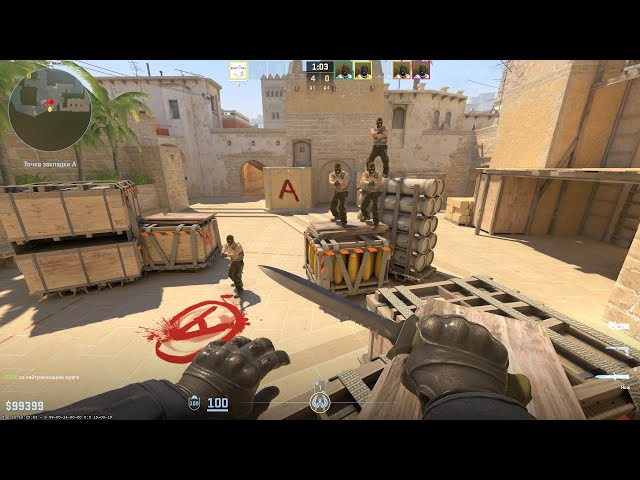
Advanced bot management includes commands that most casual players never touch, but that serious players consider essential. These tools let you effectively remove bots from active play without kicking them off the server, or place AI at precise positions on the map.
bot_stop 1 freezes every bot in place. They stop moving, stop shooting, and stop reacting to you entirely — perfect for static aiming drills or studying angles on a map. Run bot_stop 0 to restore normal behavior. A related command, bot_zombie 1, goes a step further by not just stopping bots but fully disabling their attacks.
Command | Effect |
bot_stop 1 | Freezes all bots in place |
bot_place | Places a bot at your crosshair position |
bot_difficulty 0-5 | Difficulty from passive to expert |
bot_zombie 1 | Turns bots into static targets |
bot_chatter off | Silences bot voice lines |
bot_dont_shoot 1 | Bots won't fire |
bot_place is particularly popular in the community. It spawns a bot at exactly the spot your crosshair is pointing when you run the command. This lets you build very specific training scenarios — for example, positioning bots at different spots around a bombsite to practice pre-firing angles.
Combining bot_stop 1 with bot_dont_shoot 1 creates ideal conditions for utility practice. Bots hold their positions and don't interfere, but they still serve as reference points to check whether your smoke or molotov is landing correctly. Once you've worked out your lineup, bot_stop 0 brings them back to life so you can test it against moving targets.
bot_chatter off is worth running whenever you want to eliminate distractions. CS2 bots constantly call out what's happening with voice lines — "Fire in the hole!", "Need backup!" and so on. During intensive training sessions where you're focused on timing and concentration, the constant chatter gets old fast.
Troubleshooting Common Issues
Even with the right commands, players run into snags. The most common issue is the console not opening when you press ~. In nine out of ten cases, the cause is the wrong keyboard layout. CS2 inherited a quirk from CS:GO: the console key only works on the same layout it was assigned in.
The fix is simple — switch to English with Alt + Shift and try again. If that doesn't work, check the keyboard settings in-game. The Keyboard/Mouse section lets you rebind the console key to whatever you prefer. Some players set a dedicated key specifically to avoid having to switch layouts mid-session.
The second common issue is bots returning after you've removed them. This happens when auto-balance is still on. mp_autoteambalance 0 and mp_limitteams 0 must be entered before bot_kick — otherwise the system will keep repopulating teams automatically to even things out.
The third scenario is commands not working or throwing an "sv_cheats blocked" error. Most advanced commands need sv_cheats 1 active first. Make sure it's the first thing you run in any training setup. Keep in mind: on official Valve servers, these commands are locked entirely — they only work in Practice mode or on a server you control.
If you need to clear a lot of bots quickly and bot_kick t isn't cutting it, bot_quota 0 is a solid alternative. Setting the quota to zero removes all bots in one shot, which some players find faster than running bot_kick multiple times in succession.
Quick Reference Summary
Full bot control in Counter-Strike 2 lives entirely in the console. The core command set — bot_kick, mp_limitteams 0, mp_autoteambalance 0 — becomes second nature after a few sessions and turns into an automatic part of any training setup. Being able to remove, add, and configure bots in CS2 is a fundamental skill for anyone who takes practice seriously.
Experienced players save their training configurations as config files. An autoexec.cfg in Steam\userdata\your_id\730\local\cfg runs automatically every time the game launches. You can load an entire training environment — from bot removal to crosshair settings — with a single line.
Flash practice calls for one server setup; aim training calls for another. The flexibility of CS2's command system makes it possible to build any training environment you need — from shooting at static targets to going up against aggressive AI in realistic tactical scenarios.