Bot matches in Counter-Strike 2 remain one of the most effective ways to sharpen your skills, practice new positions, or warm up before ranked play. A lot of players run into the same question: how do you actually increase bot difficulty in CS2 to get a real challenge instead of free kills? The answer is simple — use the developer console command bot_difficulty with values ranging from 0 to 5, where 5 gives you the toughest opponents the game has to offer.
Valve removed the familiar difficulty dropdown menu from CS:GO, which threw a lot of newer players off. The upside is that you now get more flexibility — you can change bot difficulty in CS2 mid-match without restarting the game. In this guide, we'll walk through every method available, from basic commands to advanced training setups.
Why Can't You Change Bot Difficulty From the Menu?
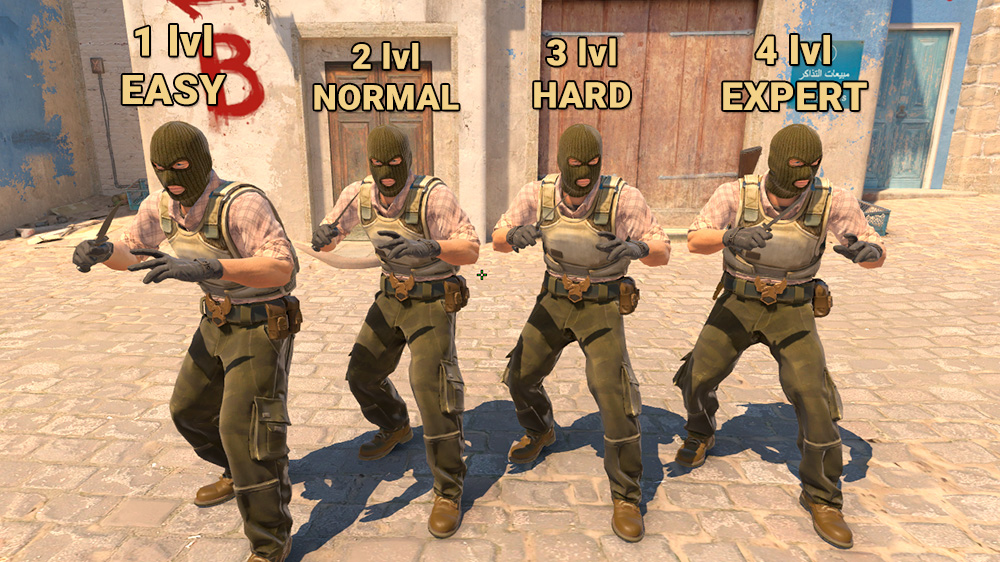
Back in CS:GO, things were straightforward — you'd launch the game, head to the Practice lobby, and pick your difficulty from a dropdown ranging from Easy to Expert. One click and you were in. When CS2 launched, Valve overhauled the UI and, for whatever reason, cut that option from the visual menu entirely.
Now, bot difficulty in CS2 is controlled exclusively through the developer console. The game defaults to bot_difficulty 2, which lands somewhere in the middle — not a cakewalk, but far from hardcore. A lot of players feel like CS2 bots are noticeably more passive compared to CS:GO, and especially compared to the legendary CS:Source bots that would genuinely punish you for every mistake.
The lack of a GUI is offset by how flexible the console is. You can change bot difficulty on the fly without leaving the match, experiment with different settings, and combine commands to build custom training scenarios. Sure, it means memorizing a few commands — but after a couple of sessions, it becomes second nature.
How to Set Up the Console for Bot Configuration
Before you can start tweaking bot difficulty in CS2 through the console, you need to make sure the developer console is actually enabled. By default it may be turned off, especially if you've just installed the game or did a fresh Windows install. Enabling it takes about 30 seconds and only needs to be done once. Here's the step-by-step process:
How to enable the developer console:
Launch CS2 and click the gear icon in the bottom-left corner of the main menu.
Go to the Game tab and scroll down to the interface settings section.
Find the Enable Developer Console option.
Toggle it to Yes.
Save your settings and return to the main menu.
Test it by pressing the tilde key (~), located to the left of the 1 key.
Once enabled, the console will open with the tilde key at any point during the game. It appears as a semi-transparent black overlay covering the top half of your screen, with a cursor at the bottom for typing commands. If the tilde key isn't working, check your keyboard layout — on some regional setups, that key may be mapped to a different character. You can also rebind the console to any key you prefer in the keybind settings, which is especially handy on laptops with non-standard keyboards.
How to Set Bot Difficulty in CS2 Using bot_difficulty

The most common and straightforward way to change bot difficulty in CS2 is using the bot_difficulty command before starting a practice session. This method is perfect if you want to lock in a difficulty level once and not worry about it mid-match. The syntax is simple: bot_difficulty [number from 0 to 5], no spaces inside the command itself. Here's the full process from game launch to training session:
How to set difficulty before a match:
Launch CS2 and wait for the main menu to fully load.
Open the console with the tilde key (~).
Type the command in this format: bot_difficulty X, where X is a number from 0 to 5.
Press Enter (the console won't show a confirmation message — that's normal).
Close the console by pressing tilde again.
Click Play in the main menu.
Select Practice mode.
Pick any map from the available list.
Wait for the map to load — bots will spawn at the difficulty you set.
The bot difficulty command in CS2 has six tiers, each dramatically changing how the AI behaves. The gap between levels is massive — at zero, bots won't shoot at all, while an expert bot at level five can headshot you through smoke or land a wallbang at exactly the right moment. Let's break down each level with concrete examples of what to expect.
CS2 Bot Difficulty Levels
One important thing to note — bot difficulty in CS2 only affects shooting skill and tactics, not economy or weapon choices. Expert bots at level 5 can still buy a shotgun on a force buy or make a questionable rotation, but mechanically they'll punish every mistake you make. Levels 3 and 4 are generally considered the sweet spot for daily warmup before competitive matches.
How to Change Bot Difficulty in CS2 Mid-Match
The second method for adjusting bot difficulty in CS2 is doing it live during an active match through a sequence of console commands. This is useful when you've already launched a practice session and realize the bots are either too easy or way too punishing. No need to quit to the menu and start over — just three quick commands in the console, and you're good to go. The whole process takes about 10–15 seconds without interrupting your session.
How to change difficulty mid-match:
Open the console with the tilde key (~) while in-game.
Type bot_kick and press Enter — all bots will be removed from the server instantly.
Type bot_difficulty X with the number you want (for example, bot_difficulty 5).
Press Enter — the new difficulty is now set, but there are no bots yet.
Repopulate the server using one of the methods below.
There are two main approaches to adding bots after a difficulty change, each with its own advantages. The first is simpler but less precise — just type bot_add repeatedly and bots will be assigned to random teams. The second gives you full control over team composition, letting you specify exactly which side each bot joins. When working with bots mid-match, being able to quickly and precisely adjust CS2 bot difficulty is key.
Methods for Adding Bots After Changing Difficulty
If you want to set up uneven teams for clutch practice, you'll need a couple of extra commands. By default, the game auto-balances teams, so if you want a 1v5 scenario, first run mp_autoteambalance 0 to disable auto-balance and mp_limitteams 0 to remove the team size difference cap. After that, you can freely set bot difficulty in CS2 and stack as many bots as you want on one side. These settings only apply to the current session and reset when you restart the game.
What's the Difference With custom_bot_difficulty?
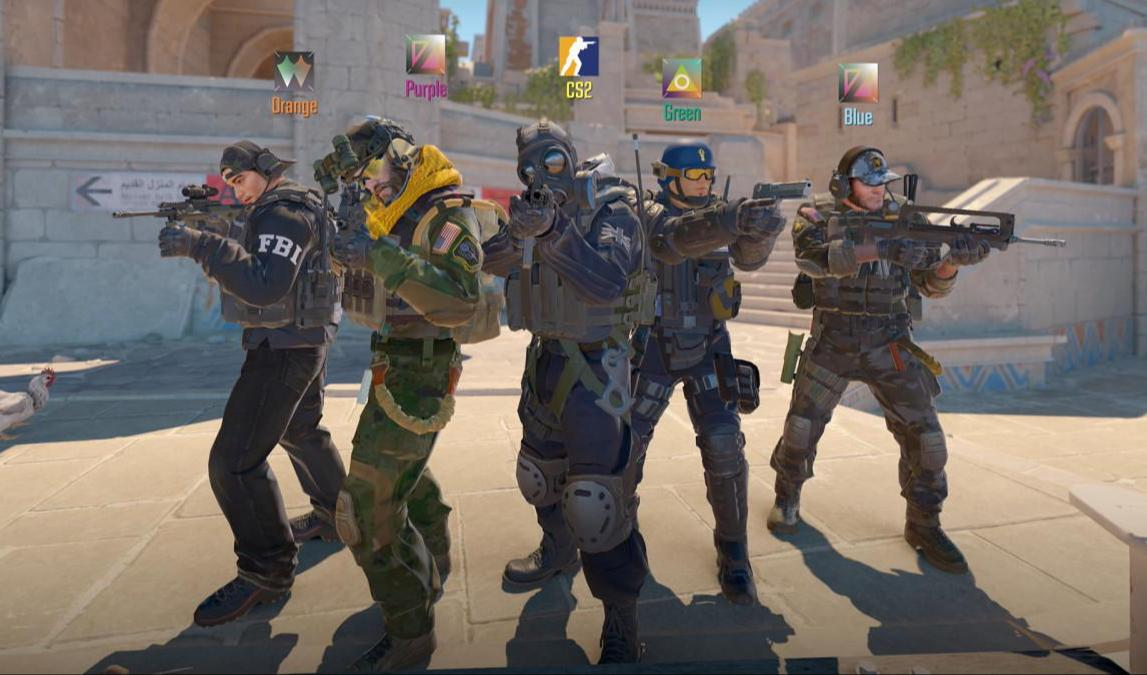
Besides the standard bot_difficulty, there's an alternative command called custom_bot_difficulty that works with the same 0–5 range. The difference is subtle and barely noticeable for most players, but in certain scenarios custom_bot_difficulty gives you more precise control over specific aspects of the AI's behavior.
custom_bot_difficulty affects secondary AI parameters like how often bots clear angles, how aggressively they rotate, and how consistently they use utility. The community generally recommends running both commands together for maximum effect — first bot_difficulty 4, then custom_bot_difficulty 4. This ensures the difficulty setting is applied across all dimensions of bot behavior.
In practice, bot_difficulty alone covers 95% of what most players need. custom_bot_difficulty is really only worth adding if you're a hardcore perfectionist trying to squeeze every last bit out of your training. If bot_difficulty 5 still feels predictable, throw in custom_bot_difficulty 5 and see if you notice a difference.
Which Bot Difficulty Should You Choose for Training?
The right bot difficulty in CS2 depends entirely on your current skill level and what you're actually trying to work on. Newer players often make the mistake of jumping straight to max difficulty, getting demolished, and calling it quits. On the flip side, seasoned players sometimes coast on level 3 or 4 when level 5 would push them further. The golden rule: difficulty should be just outside your comfort zone — challenging enough to keep you sharp, not so brutal that it's demoralizing.
For a structured approach, think about your playtime and rank. Total beginners with no prior Counter-Strike experience should start at bot_difficulty 1 — it lets you get used to the shooting mechanics and learn maps without the pressure. After 50–100 hours, bumping up bot difficulty in CS2 to level 2 adds basic tactics and forces you to start thinking about positioning.
Difficulty Recommendations by Skill Level
Here's an underrated tip — bot_difficulty 0 isn't just for warming up, it's a legitimate skill-building tool. Passive bots are perfect for grinding grenade lineups, nailing smoke timings, or drilling movement tech like bunny hops and strafes. No one shooting at you, no distractions — just you repeating the same action hundreds of times until it's locked into muscle memory. This approach genuinely works, and pro players regularly use level zero for exactly these purposes.
Levels 3 and 4 are widely considered the sweet spot for most players. bot_difficulty 3 offers a balanced challenge — bots clear corners and use cover, but they're not pulling off impossible shots. Level 4 gets close to actual mid-rank competitive play, with bots actively flashing and smoking, pushing aggressively, and punishing exposed positions. Level 5 is pure hardmode — the place to go when you want to stress-test the absolute ceiling of your mechanics.
What to Do When the Command Isn't Working?
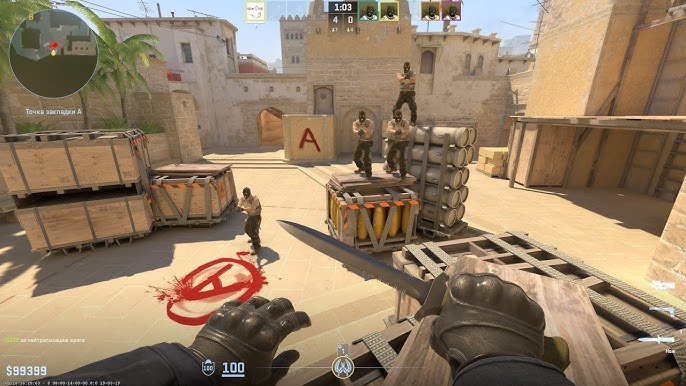
Sometimes you enter bot_difficulty correctly but the bot behavior doesn't change — opponents keep acting the same as before. The most common reason is that the command was applied to the settings, but the bots already on the server spawned with the old parameters. The game doesn't rebuild AI on the fly, so you need to force a bot refresh. Here are the four most common issues and how to fix them quickly.
Common problems and solutions:
Problem 1: bot_difficulty isn't applying to current bots
Open the console and type bot_kick to remove all bots.
Re-enter your desired command, e.g. bot_difficulty 4.
Add bots back using bot_add, bot_add ct, or bot_add t.
New bots will spawn at the updated difficulty.
Problem 2: Developer console won't open with the tilde key
Check Settings → Game → Enable Developer Console = YES.
Try switching your keyboard layout to English.
Go to keybind settings and reassign the console to a different key.
On some non-English keyboards, look for a key in the same physical position as tilde.
Problem 3: Can't add more than 5 bots to one team
Enter mp_autoteambalance 0 to disable auto-balance.
Enter mp_limitteams 0 to remove the team size restriction.
You can now create uneven teams for clutch training scenarios.
These settings reset on game restart.
Problem 4: Bots behave strangely or freeze after a command
Use bot_kill to reset all bots — they'll respawn at the start of the next round.
If that doesn't help, fully restart the practice session.
Make sure you're not running conflicting commands at the same time.
Confirm your bot_difficulty value is within the valid 0–5 range.
These fixes cover 99% of the issues players run into when trying to set bot difficulty in CS2 via the console. If problems persist after all of the above, verify the game files through Steam or reinstall CS2. In rare cases, conflicts with third-party overlays — like Discord or NVIDIA GeForce Experience — can interfere with console commands.
What Other Commands Help Fine-Tune Training?
Beyond the core bot difficulty command in CS2, there's a whole arsenal of additional console commands for dialing in your training setup. These let you create specific scenarios that aren't possible in a regular match — from freezing bots in place to setting unlimited round time. Combining commands opens up practically unlimited possibilities for drilling specific situations. Many pro players save entire command sets in config files so they can load a complete training mode with a single line.
Useful bot management commands:
Add and remove commands:
bot_add [team] [name] — adds a bot with specified parameters (e.g. bot_add ct).
bot_kick — instantly removes all bots from the server.
bot_kill — kills all bots; they'll respawn at the start of the next round.
Behavior modification commands:
bot_stop 1 — freezes all bots in place (bot_stop 0 restores movement).
bot_knives_only 1 — bots use only knives.
bot_crouch 1 — forces all bots into a crouch.
Server rule commands:
mp_respawn_on_death_ct 1 and mp_respawn_on_death_t 1 — instant respawn on death.
mp_roundtime_defuse 60 — sets round time to 60 minutes.
mp_buy_anywhere 1 — allows weapon purchases from anywhere on the map.
mp_buytime 999999 — removes the buy time restriction entirely.
mp_ignore_round_win_conditions 1 — prevents the round from ending when win conditions are met.
A particularly powerful combo is chaining commands to create an infinite training mode. Run mp_roundtime_defuse 60, mp_buy_anywhere 1, mp_buytime 999999, and mp_respawn_on_death_ct 1 in sequence — you'll get a setup where bots respawn immediately, round time is effectively unlimited, and you can buy from anywhere at any time. This is ideal for long aim grind sessions or drilling a specific mechanic until it's automatic.
How to Use Different Difficulty Levels for Different Goals
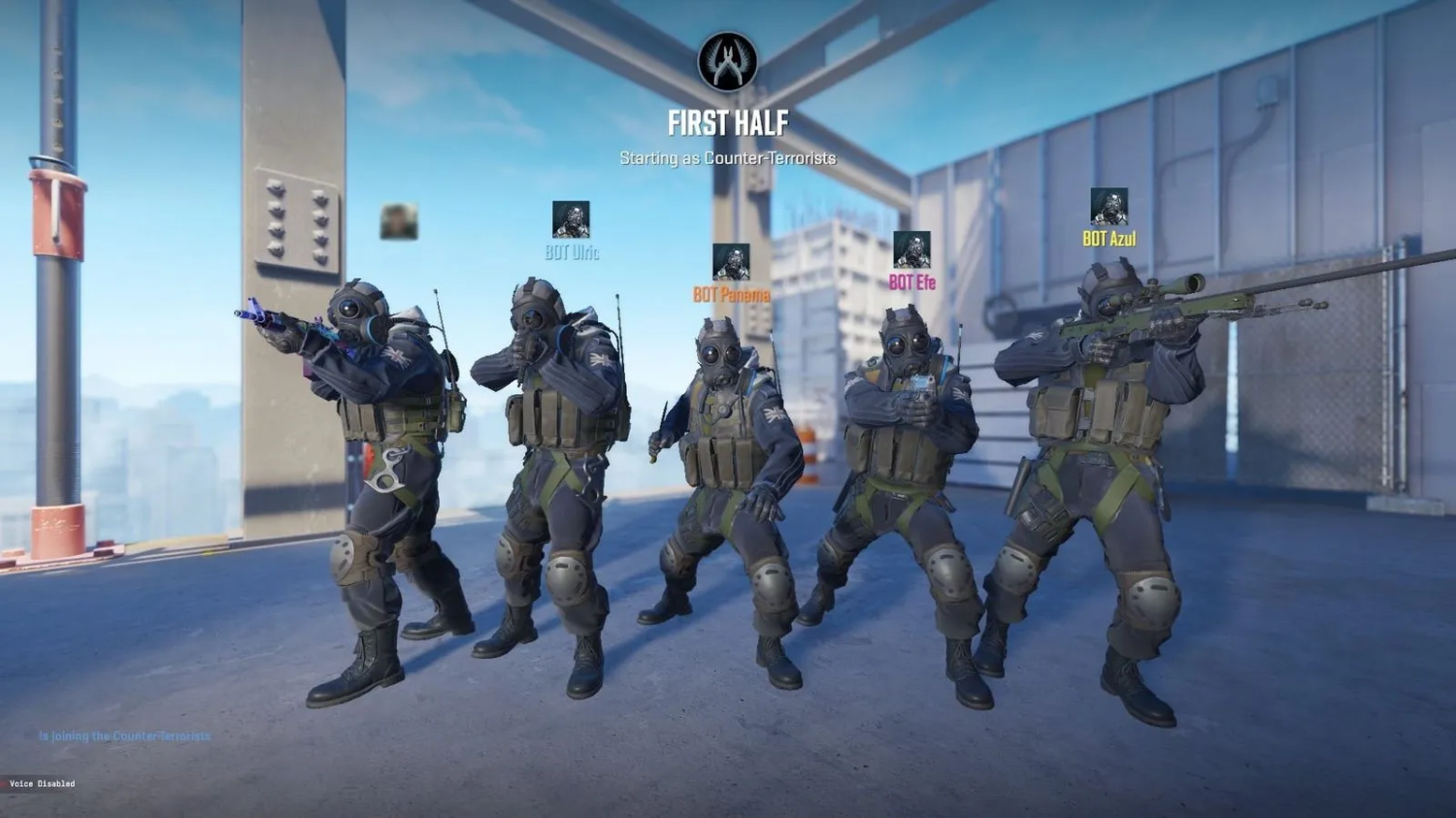
The flexibility of CS2's bot difficulty system lets you build specialized training modes for any skill you want to improve. Pros don't just load up practice with the same difficulty every day — they match the settings to the specific goal of that session. One day might be pure aim mechanics at max difficulty; another might be grenade lineups with passive bots. A structured training approach gets results far faster than jumping in with no clear plan.
Specialized training scenarios:
Scenario 1: Grenade and smoke practice
Commands: bot_difficulty 0 + bot_stop 1.
Bots stand completely still and don't engage.
Perfect for grinding lineups until execution is flawless.
Used by pros when learning new tactical smokes.
Scenario 2: Wallbang and pre-fire practice
Commands: bot_difficulty 1 + bot_stop 0.
Bots move slowly along predictable routes.
Trains you to read footstep audio and anticipate positions.
As your accuracy improves, step up bot difficulty in CS2 to 2–3.
Scenario 3: Standard aim warmup
Command: bot_difficulty 3.
The go-to sweet spot for getting loose before competitive matches.
Bots are fast enough to be engaging without being frustrating.
15 minutes of deathmatch at this level brings muscle memory back online.
Scenario 4: Testing new positions
Commands: bot_difficulty 4–5.
Expert bots aggressively clear angles and use flashes.
Great for stress-testing unconventional setups under realistic pressure.
If a position holds against experts, it'll hold even easier in ranked.
Scenario 5: Clutch training 1vX
Commands: mp_limitteams 0 + mp_autoteambalance 0 + bot_difficulty 3.
Add 5 bots to the opposing team via bot_add.
Drills timing and utility usage under pressure.
Cranking it to 4–5 makes for a genuinely hardcore session.
Each scenario targets a specific skill and calls for its own difficulty setting. There's no universal value that works for everything — training effectiveness depends on matching your settings to what you actually need to work on that day. Many experienced players keep text files with command sets for each scenario so they don't have to type everything out every time. It saves time and makes switching between training modes quick and seamless.
Key Takeaways for Configuring Bot Difficulty
CS2's console-based bot difficulty system may feel less intuitive than the CS:GO dropdown menu, but it offers significantly more control and flexibility. The answer to how to change bot difficulty in CS2 comes down to one command — bot_difficulty — with a range from 0 to 5, where each value fundamentally changes AI behavior from completely passive to full expert mode.
The core principle of effective training is gradually increasing bot difficulty in CS2 as your own skill grows. Starting at max difficulty is counterproductive — it demoralizes more than it teaches. Instead, start at a level where your win rate is around 70–80%, and push it up whenever the current difficulty stops being a challenge. This approach drives consistent progress without burnout.
Don't be afraid to experiment with command combinations to build specialized training modes. Sometimes adjusting bot difficulty in CS2 isn't just about changing a single number — it's about pairing bot_difficulty with bot_stop, mp_respawn, and other commands to accurately simulate a specific situation. Pros invest time in building personal training configs that they can fire up with a single command.
Valve removed the GUI, but CS2's bot configuration capabilities are on par with CS:GO — and in some ways better. Being able to change bot difficulty in CS2 mid-match using bot_kick and bot_add saves time and lets you adapt your training on the fly. After a few sessions, the process becomes automatic, and the console commands stop feeling like extra steps — they're just another tool in your CS2 skill-building kit.