Counter-Strike 2 players regularly run into a situation where bots suddenly turn into statues and refuse to do anything. You load up a practice session or spin up a private lobby with friends, and the AI just stands there at spawn, completely ignoring everything around it. Why are your CS2 bots frozen in place instead of actually playing? The most common culprit is a console command you may have accidentally left active — usually bot_stop 1, bot_dont_move 1, or a misconfigured bot_quota_mode. The issue can also stem from broken navigation meshes on custom maps or specific server settings. In this guide, we'll walk through every reason bots stop moving and how to get them active again.
Which Console Commands Freeze Bots in Place?
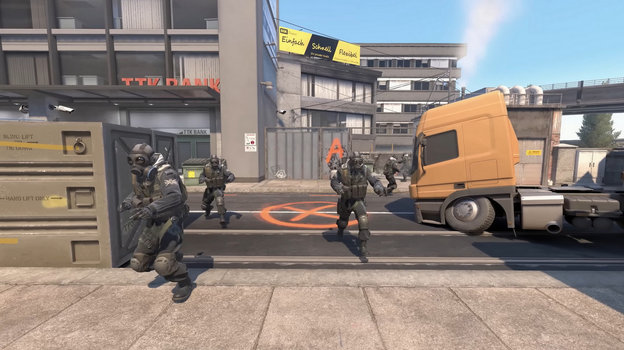
The first thing to check when your bots won't move is which console commands are currently active. CS2 has several commands that directly lock down bot AI. A lot of players accidentally enable them while setting up practice configs or copying settings from guides without fully understanding what each command does.
The most common offender is bot_stop 1. This completely freezes every bot on the map — no movement, no shooting, no actions whatsoever. It's a handy command for working on wallbangs or grenade lineups, but if your bots are standing still for no obvious reason, this is almost certainly why. To unfreeze them, just type bot_stop 0 in the console.
The second command to know is bot_dont_move 1. It works differently: bots hold their position but will still shoot back the moment they spot an enemy. This is great for aim training when you want stationary targets that can actually punish you for missing. Disable it with bot_dont_move 0.
The third command in this category is bot_zombie 1. With this active, bots neither move nor attack — they become completely harmless dummies. Perfect for practicing headshots without any risk of taking damage. Turn it off with bot_zombie 0.
Here's a quick reference table for the main bot control commands:
It's worth noting that these commands only work in practice mode or on private servers with sv_cheats 1 enabled. In official competitive matchmaking, Valve has locked bot controls to preserve fair play. If you've gone through all these commands and your CS2 bots are still frozen, move on to the next possible cause.
Why bot_quota_mode Can Cause Bots to Stop Moving
A less obvious but surprisingly common cause is a misconfigured bot_quota_mode command. This setting controls how the game manages the number and distribution of bots on the server. It has three possible values — 'normal', 'fill', and 'match' — and each one affects bot behavior differently.
With 'normal', the game adds bots up to the bot_quota limit but doesn't always activate them on the map correctly. With 'match', the server tries to maintain a set ratio of human players to bots. Problems most commonly occur when these values are set incorrectly — bots end up standing around waiting for some condition to activate that never actually triggers.
The most reliable fix is to use the 'fill' value. Setting bot_quota_mode fill tells the server to automatically fill empty slots with bots until it reaches the number specified in bot_quota. This mode behaves the most predictably and rarely causes bots to get stuck.
Step-by-step fix using bot_quota_mode:
Open the console with the ~ (tilde) key.
Type sv_cheats 1 to enable advanced commands.
Enter bot_quota_mode fill.
Set the number of bots you want with bot_quota 5 (or any other number).
Restart the round with mp_restartgame 1.
After doing this, your bots should stop standing around and start moving normally. Based on discussions in the Steam Community, bot_quota_mode fill has been the fix for a large number of players dealing with frozen bots after CS2 updates.
How Broken Map Navigation Affects Bot Movement
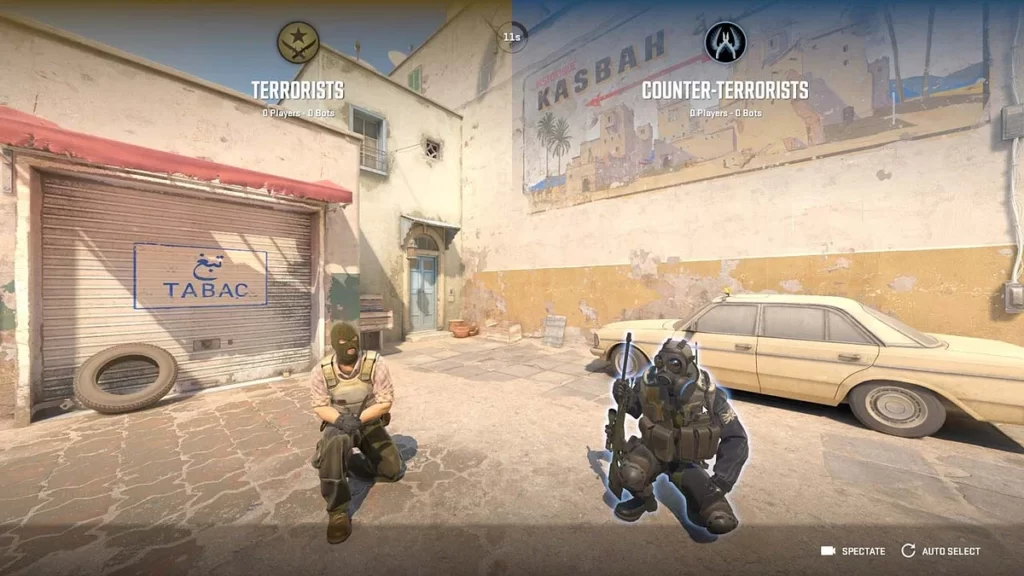
The third cause is tied to the map's navigation mesh — commonly called navmesh. This is the invisible system of nodes and pathways that the AI uses to figure out where it can and can't go. On official Valve maps like Dust 2, Mirage, Inferno, or Anubis, the navmesh has been refined over years and almost never causes issues.
Custom Workshop maps are a different story. Map creators don't always set up navigation correctly, which can result in bots standing frozen at certain spots or bunny-hopping in place — reminiscent of CS 1.6 bots on an unfamiliar map. The AI simply doesn't know where to go next.
Telltale signs of a navmesh problem include bots getting stuck in corners, repeatedly jumping at the same spot, walking into walls, or continuously resetting back to spawn after each failed attempt to move. If you're seeing this behavior, a broken navmesh is almost certainly to blame.
To diagnose it, you can use the command bot_show_nav 1 (requires sv_cheats 1 first). This visualizes the navigation mesh in-game, showing the green squares and lines that bots are supposed to follow. Gaps or missing sections in those lines point directly to the problem.
Unfortunately, there's nothing a player can do to fix a map's navmesh — that's on the map author. If bots refuse to move on a specific Workshop map, your best options are to switch to an official map or find a different custom map with proper navigation.
Server Settings and How They Affect Bot Behavior
The fourth factor involves server-side settings that can indirectly interfere with bot activity. The commands mp_autoteambalance and mp_limitteams control how players are distributed between teams, and a bad configuration can block bots from being added or activated properly.
Setting mp_autoteambalance 1 enables automatic team balancing, which can cause the game to shuffle players or bots around mid-setup. This sometimes results in bots standing idle while waiting to be reassigned. Setting it to 0 disables this behavior and gives you more control.
The mp_limitteams parameter sets the maximum allowed player difference between teams. The default value of 2 can prevent bots from being added if you want to play one-versus-five. Setting mp_limitteams 0 removes the restriction entirely.
Recommended server settings reference table:
On private servers, admins may intentionally disable bot movement for specific game modes. In the Practice mode launched from the main menu, you have full control over all bot commands. Configuring your server correctly will solve the problem of bots standing around doing nothing for no apparent reason.
Keep in mind that in official Valve matchmaking, most of these commands are locked out. Bots only get added automatically when a live player disconnects, and controlling them through the console isn't possible — by design, to keep the competitive experience fair.
How to Make Bots Stand Still for Training
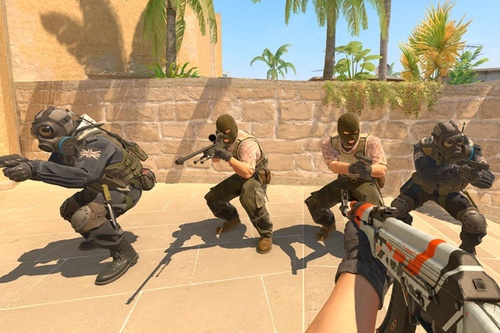
Sometimes you actually want bots to stay put — and for good reason. Practicing wallbangs, checking smoke visibility, drilling headshot accuracy — all of these require stationary targets that won't run away or take cover.
There's a reliable set of commands for setting up static training bots. Start by enabling advanced commands with sv_cheats 1. Then add bots to the team you want using bot_add_ct or bot_add_t. After that, apply bot_stop 1 to lock them completely in place.
Particularly useful here is the bot_place command — it spawns a stationary bot directly in front of you at your crosshair position. This lets you place targets exactly where you need them to practice specific angles or pre-fires. Combining bot_place with bot_stop 1 gives you full control over where your training dummies end up.
Full command sequence for a training setup:
sv_cheats 1
bot_kick
bot_quota 5
bot_add_ct
bot_stop 1
bot_place
mp_roundtime_defuse 60
sv_infinite_ammo 1
These commands create an ideal practice environment: five stationary bots, infinite ammo, and extended round time. Want to use this setup for grenade lineup practice? Throw sv_grenade_trajectory 1 into the mix to visualize your grenade's flight path.
Experienced players save these commands in a training.cfg file inside the csgo/cfg folder. Once the file is created, just type exec training in the console and every setting applies automatically. It saves time and makes it easy to switch between a regular session and a practice setup on the fly.
On the popular Workshop aim training map aim_botz, many players use stationary bots specifically for flick shot and spray control drills. Knowing how to set up frozen bots correctly turns them from a nuisance into a powerful tool for improving your game.
What to Do If Bots Still Won't Move After Fixing the Commands
If you've checked every command, set bot_quota_mode correctly, and bots are still frozen — here's a step-by-step troubleshooting routine to follow.
First, make sure all freeze commands are disabled. Enter each of the following one by one: bot_stop 0, bot_dont_move 0, bot_zombie 0. Then check the difficulty setting with bot_difficulty — it should be at least 2, since difficulty level 0 makes bots nearly inactive.
Second, do a full map reset. The command mp_restartgame 1 restarts the round and resets all bot states. If that doesn't help, use bot_kick to remove every bot from the server, then re-add them with bot_add, or bot_add_ct / bot_add_t depending on which team you need them on.
Third, check the current value of bot_quota_mode by entering the command without any parameter. If it's not set to 'fill', change it with bot_quota_mode fill. Then set your desired bot count — for example, bot_quota 10 for ten bots.
Fourth, create a proper config file. Navigate to Steam/steamapps/common/Counter-Strike Global Offensive/game/csgo/cfg and create a file called botfix.cfg with the following contents:
sv_cheats 1
bot_kick
bot_quota_mode fill
bot_quota 5
bot_difficulty 2
mp_autoteambalance 0
mp_limitteams 0
bot_stop 0
bot_dont_move 0
Save the file, then type exec botfix in the console and all settings will apply at once. This method is more reliable than entering commands one by one since it eliminates typos and skipped lines.
If bots are still not moving in CS2 after all of that, the last resort is verifying your game files through Steam. Right-click CS2 in your library → Properties → Installed Files → Verify integrity of game files. Corrupted navigation or AI script files can sometimes cause bot issues that no console command will fix.
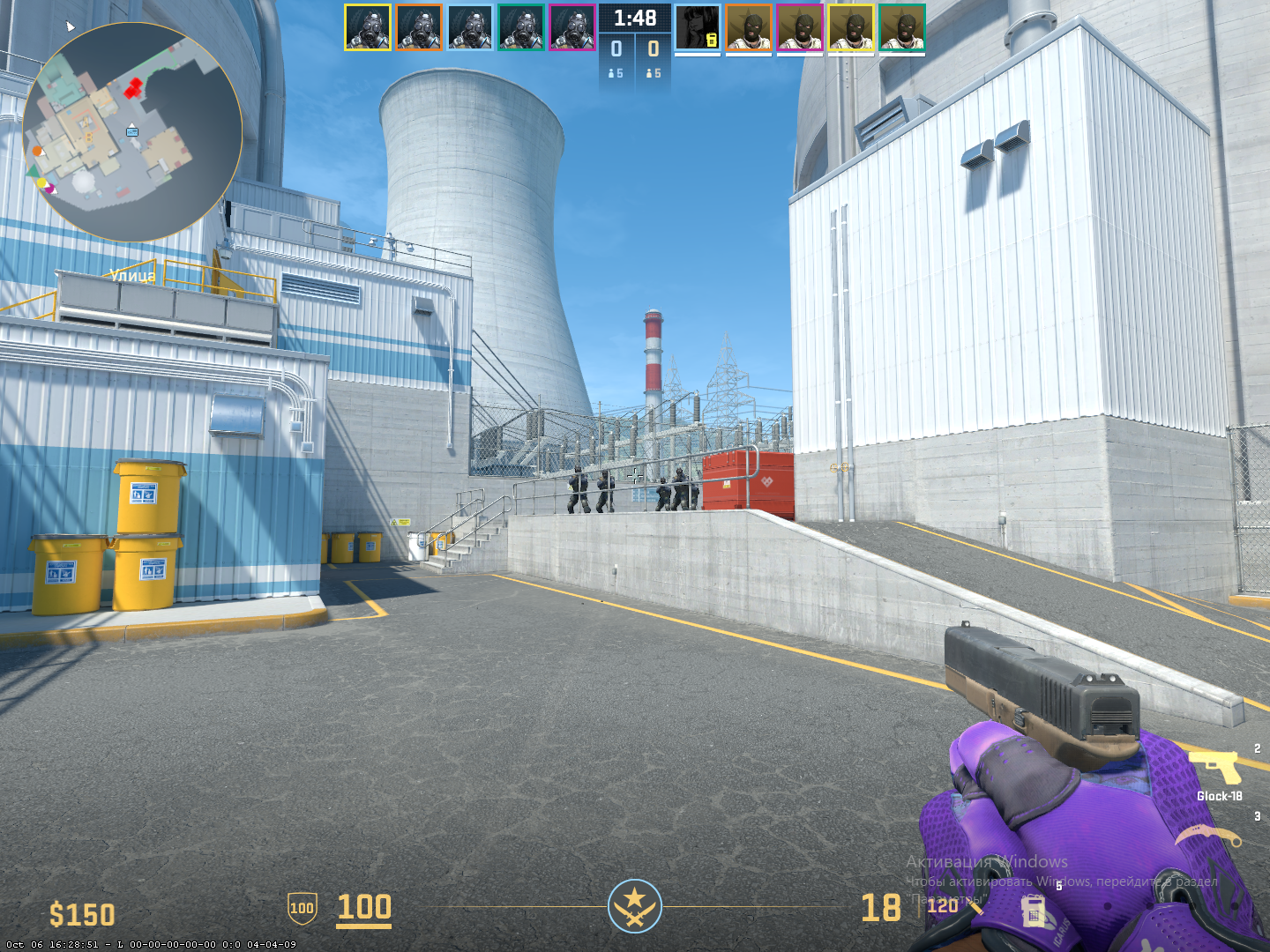
Key Takeaways on Frozen Bots
We've covered all the main reasons why CS2 bots stop moving and how to fix each one. In most cases the solution comes down to a few console commands: disabling bot_stop, setting bot_quota_mode fill, or resetting your server configuration. On the flip side, knowing how to intentionally freeze bots using bot_place and bot_stop 1 is a genuinely useful skill for structured practice sessions. Setting up a config file with the right parameters means you'll never have to type everything out from scratch again. And if nothing works, verifying your game files through Steam is always a solid last line of defense.