You're ready to queue up, and instead of a loading screen you get nothing — the game just doesn't open. It's immediately frustrating, and the first question on anyone's mind is where to even start. The short answer: in 90% of cases, the culprit is corrupted files after an update, outdated drivers, a conflict with your antivirus, or something off with your launch options. Most of these issues can be fixed in 10–15 minutes without reinstalling the game. CS2 is actively maintained by Valve, and every major patch occasionally triggers a wave of launch complaints — that's just part of life with any live online shooter. The key is to work through fixes in a logical order rather than randomly poking at settings.
Why Won't CS2 Launch on Steam — What's Actually Going Wrong?
Before you start fixing anything, it helps to understand the nature of the problem. Different symptoms point to different causes, and knowing which one you're dealing with tells you where to start. The most common culprits are: corrupted or missing game files after a patch, hardware that doesn't meet the minimum system requirements, broken Microsoft Visual C++ Redistributable components, a bloated Steam download cache, antivirus interference, or outdated commands sitting in your launch options.
The symptoms vary: sometimes the game freezes on the Valve splash screen, sometimes Steam shows "Play" but nothing happens, sometimes you get an error window right away. Recognizing the difference saves a lot of time — you don't have to work through every possible fix. Let's go through each scenario, starting from the simplest and working up to the more involved solutions.
Does Your PC Meet the Minimum Requirements to Run CS2?
Before touching any settings, the first thing to check is whether your hardware can actually run the game. Sometimes CS2 simply won't launch because the CPU is too old, your GPU doesn't support the required DirectX version, or you don't have enough RAM. CS2 moved to the Source 2 engine, and the system requirements increased noticeably compared to CS:GO — something owners of older machines need to keep in mind.
You can check your PC specs using Windows' built-in tool: press Win+R, type dxdiag, and hit Enter. The window that opens will show your CPU, RAM, GPU, and DirectX version — everything you need for the comparison. Below are the official minimum system requirements for CS2, as published by Valve on the Steam store page.
If any of these specs don't check out, that may be your direct answer as to why CS2 won't launch on your machine. One specific case worth noting: AMD Athlon and Phenom series CPUs have an architecture that's fundamentally incompatible with CS2, and no software tweak will change that. The only fix here is a hardware upgrade.
What to Try First When CS2 Won't Launch
If your hardware is fine but CS2 still won't start, begin with the basics. Don't jump straight to editing the registry or spending an hour on a reinstall — three straightforward steps resolve the problem in the majority of cases. Here's what to do.
Restart Steam and Your PC
It sounds obvious, but it works more often than you'd think. Steam can get stuck in background processes and prevent the game from launching — especially if the PC hasn't been rebooted in a while. Force-kill all Steam processes: open Task Manager (Ctrl+Shift+Esc), find every Steam-related process, and end them. Alternatively, run this command in the command prompt: taskkill /f /IM steam.exe. Then restart Steam and try again.
Verify Game File Integrity
This is the official Steam Support tool that automatically finds and restores corrupted or missing files. If a simple restart didn't help and CS2 still won't launch, this is your next move. The process takes a few minutes and doesn't touch your in-game settings or progress.
Here's the exact sequence — it's important to follow these steps in order:
Open your Steam Library.
Right-click on Counter-Strike 2.
Select Properties.
Go to the Installed Files tab.
Click "Verify integrity of game files."
Steam will run a scan and download anything missing. If you see a message saying "1 file failed to validate" when it's done — don't worry, that's expected behavior. The platform flags local config files that are intentionally left as-is. Any actually corrupted game data will still be restored. Restart the game after the check — in most cases, this is where the problem gets resolved.
Clear the Steam Download Cache
Accumulated cache files can conflict with the game and prevent it from starting properly — this happens more often than you might expect. Navigate to Steam → Settings → Downloads → "Clear Download Cache." One thing to note: after clearing the cache, Steam will log you out, so make sure you know your password beforehand. The process itself takes two minutes at most, and on a fast PC, it's done in seconds.
Do Driver and System Component Updates Help?
If the basics didn't fix anything and CS2 still won't launch, it's time to dig deeper. Outdated GPU drivers and broken system components are the second most common cause of launch failures, especially after major Windows updates.
GPU Drivers. For NVIDIA cards — update through GeForce Experience or directly from nvidia.com. For AMD — through AMD Software: Adrenalin Edition or from the official amd.com. Only download drivers from official sources; skip third-party driver packs entirely.
Microsoft Visual C++ Redistributable. This is one of the most underrated culprits. If launching the game produces an error mentioning vcruntime140.dll, that's exactly what you're dealing with. You can verify this via Win+R → regsvr32 vcruntime140.dll: if the system returns a module error, download the latest package from Microsoft's official page — look for "Latest Microsoft Visual C++ Redistributable Downloads" on learn.microsoft.com. Reinstalling this component typically resolves the vcruntime error completely.
Is Your Antivirus Blocking CS2 from Launching?
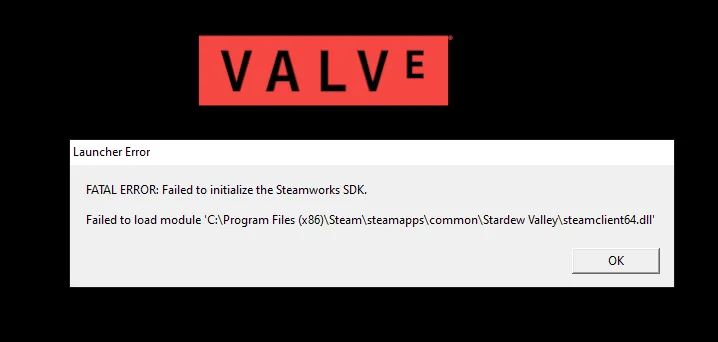
Antivirus software is its own category that often gets overlooked. Some programs block CS2 files or VAC system components, treating them as a threat — and as a result, CS2 won't launch with no meaningful error message at all. It just looks like clicking "Play" does nothing.
The check is simple: temporarily disable your antivirus and try launching the game. If it works — that was the problem. Leaving your protection off permanently isn't the answer, of course; the right fix is adding the CS2 folder to your exclusions. The path to the executable is:
C:\Program Files (x86)\Steam\steamapps\common\Counter-Strike Global Offensive\game\bin\win64\cs2.exe
Add this path to your antivirus exclusions — every product has an "Exclusions" or "Whitelist" section somewhere in its settings. After that you can keep your protection running without any conflicts. If your antivirus pushes back, contacting their support with a description of the issue is a perfectly normal step.
How Can Launch Options Cause CS2 Not to Start?
Launch options are a powerful fine-tuning tool that many experienced players use — but they're also a surprisingly common source of launch failures. Outdated or conflicting commands can prevent the game from starting at all. This is especially likely if you set your launch options manually a long time ago and never revisited them.
A good example: the March 4, 2025 patch updated localization files, and after that, CS2 not launching became a widespread complaint among players who had a language parameter set in their launch options. The fix was straightforward — adding -language english to the launch options, or removing the language flag entirely. One patch, one line, thousands of affected players.
To access your launch options: right-click Counter-Strike 2 in your Steam Library → Properties → the Launch Options field. Remove anything that's accumulated over time that you no longer recognize or need. If you have an older GPU, try adding the -vulkan flag — this switches rendering to the Vulkan API and can sometimes get things working where DirectX 11 falls short. After any changes to launch options, restart the game and check whether it helped.
Run as Administrator and Compatibility Mode
Another working fix that often gets overlooked. If CS2 won't launch, try running Steam itself as an administrator — not cs2.exe directly, but the Steam client. That distinction matters.
How to do it: close all Steam processes via Task Manager, find the Steam shortcut, right-click it and select "Run as administrator." Then launch CS2 through your library as you normally would.
Additionally, check the compatibility settings for cs2.exe itself. This is particularly relevant for users on enterprise editions of Windows 10, where system restrictions can interfere with game launches. File path: C:\Program Files (x86)\Steam\steamapps\common\Counter-Strike Global Offensive\game\bin\win64\cs2.exe — right-click → Properties → Compatibility tab → select a Windows version → enable "Run this program as an administrator."
Reinstalling — When Nothing Else Works
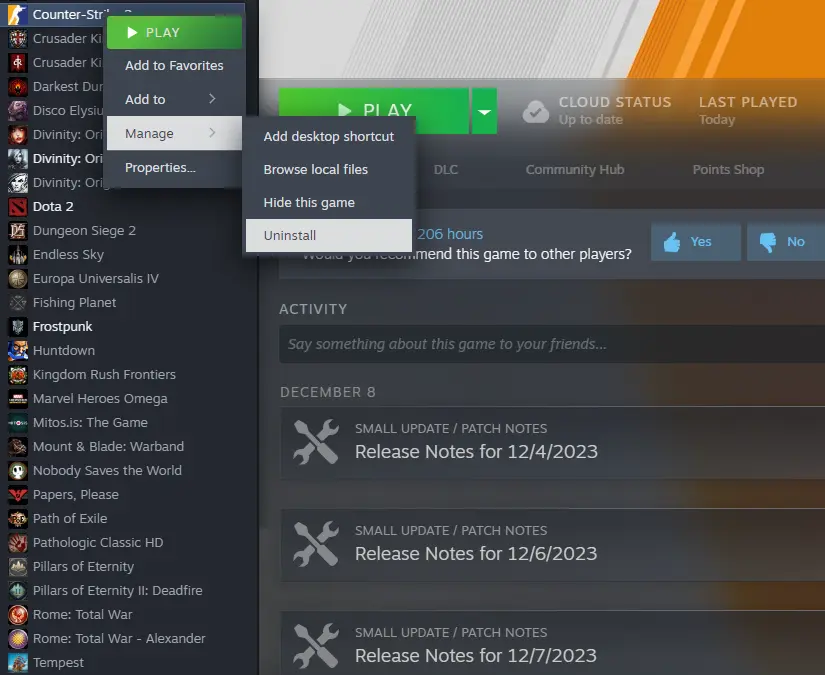
If you've worked through everything above and CS2 still won't launch, reinstalling is your last resort. It's a nuclear option, but sometimes it's unavoidable. Start by reinstalling just the game: right-click CS2 → Manage → Uninstall, then reinstall it from your library. Your in-game progress, inventory, and account settings are stored on Steam's servers — none of that goes anywhere.
If that doesn't fix it either, the next step is reinstalling the Steam client itself. Make sure you have your account password ready before doing this. In truly extreme cases where the issue goes all the way down to corrupted Windows system files, the command sfc /scannow — run from an elevated command prompt — can help. This utility scans and repairs damaged system data, and it occasionally solves problems that game-level fixes simply can't reach.
Quick Reference: What to Try When CS2 Won't Launch on Steam
Rather than keeping the full breakdown in your head, here's a quick-reference checklist ordered from easiest to most involved. Work through it in sequence — only move to the next step if the previous one didn't help. Most players resolve the issue within the first three or four steps; reinstallation is a last resort for the minority.
Every step on this list has been verified by real players and confirmed by official sources — Steam Support and Valve. If CS2 still won't launch after working through the entire checklist, contact Steam Support directly through the official website: describe the specific error code you're seeing and get help from their team. Some issues are specific to a particular hardware configuration or Windows build — and only support can close them out.