Proper screen and graphics settings are essential for top-tier play in CS2. If blurriness on the screen is hindering headshots, you can switch to a different resolution in the settings. But here’s the catch: not all resolutions are available in Windows or in the game itself, because they are non-standard. For example, 1080x1080 is a custom option, and it must be configured manually. Today, we'll show you how to set a 1080x1080 resolution in CS2.
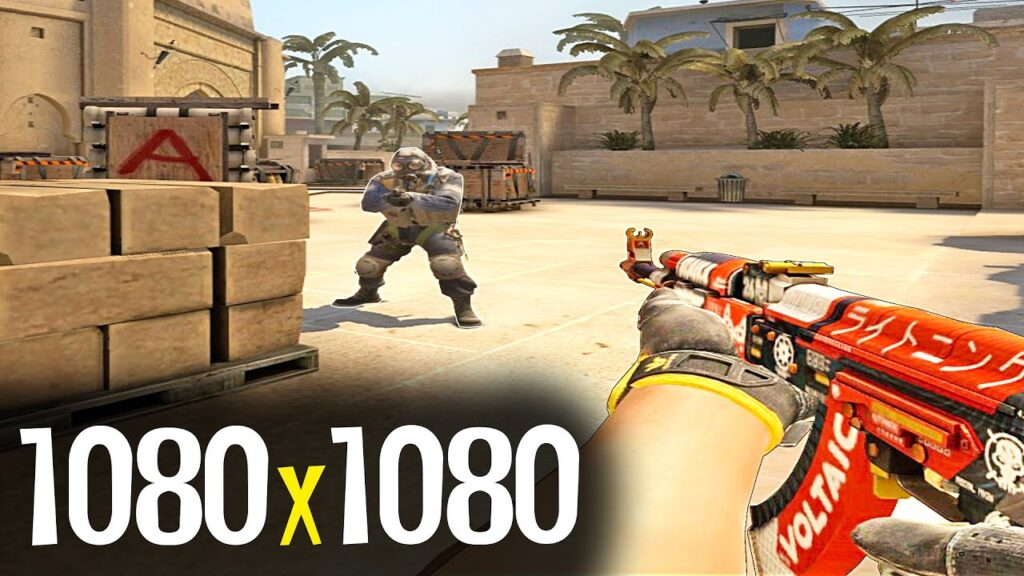
Why is the 1080x1080 Resolution So Popular?
Although the 1080x1080 resolution is not standard, it remains popular. It is chosen to enhance performance or to make gameplay more comfortable for the user. The 1080p resolution is widely supported: most screens, monitors, and graphics cards can handle it.
Here are the main reasons for its popularity:
Focus on the center of the screen — models become wider, making it easier to aim at enemies' heads.
More FPS — fewer pixels = less load on the graphics card.
Stability — custom resolutions help maximize hardware potential, especially on weaker PCs.
Habit — some players simply find it more comfortable, especially if they played on stretched resolutions in CS:GO.
Enhanced reaction — with less visual clutter on the edges, you can spot enemies faster.
Better motion perception — stretched models are easier to track, allowing for faster reaction to their movement.
If you're interested in trying this format, here's a step-by-step guide on how to set it up.
How to Change the Resolution to 1080x1080 for CS2?
To set up a custom resolution, follow these steps:
Access the NVIDIA Control Panel. Right-click anywhere on the desktop and select "NVIDIA Control Panel." You can also access it via the Windows Control Panel.
Click on "Change resolution," then in the settings that appear, select "Create Custom Resolution." Additionally, check the box next to "Enable resolutions not exposed by the display."
Enter the desired screen aspect ratio parameters, for example — 1080x1080p.
In the section marked "Auto," set to "GTF," then click "Test" and "Cancel."
If everything is set correctly, your custom resolution will appear in the list of available resolutions.
If you're using an AMD card, not NVIDIA, you should change standard settings to custom only through the official AMD Adrenalin software.

After opening this program, press the ALT + R keys. The program window will appear on the screen. At the top, right corner, find the settings gear icon, click it. Select the "Display" tab. In the Custom Resolution section, click "Create New." Now, you need to set the required values for the top and bottom.
In the game itself, you also need to adjust the settings. Launch CS2, go to "Video," set it to "Windowed" mode, select the 16:10 format, and turn on your custom 1080x1080.
When using any method of changing screen settings, make sure your monitor supports such a format. Incorrect settings can cause image distortion or complete absence of display.
Potential Problems and Their Solutions
If something goes wrong, here are quick fixes:
Black screen after applying resolution — try different timings in NVIDIA/AMD.
Monitor does not support 1080x1080 — use 1440x1080 or 1024x768 instead.
Game crashes — start with -safe parameters in Steam.
Resolution resets — disable "Display Scaling" in NVIDIA.
If the image becomes blurry after applying settings, try changing the scaling in the driver settings. In some cases, resetting the monitor settings to factory defaults helps. Also, make sure you have the latest versions of your graphics drivers — old versions may not work correctly with custom resolutions. Sometimes a simple PC reboot helps, especially if the settings are applied but not displayed in the game. In the worst case, you can try deleting the CS2 config and setting everything up again.
Now you know how to set up 1080x1080 in CS2. Try different aspect ratios — both standard and custom. The more settings you test, the faster you'll find the perfect option for your matches.