Many players wonder how to set up hands in CS2 so they don't interfere with aiming and look natural. This is especially important for those who switched from CS:GO and are used to a specific weapon model position. In Counter-Strike 2, the developers added more flexible commands that allow players to adjust hand display based on personal preferences. This affects not only comfort but also the overall visual experience.
Hand placement can change the feel of shooting, improve visibility, create screen symmetry, and even enhance concentration. Some players value maximum realism, while others focus on aiming comfort from certain angles. Setting up hands in CS2 to avoid distractions has become easier—just open the console and enter the necessary commands.
Let’s go over which parameters control hand position and how to adjust them to get the display style that best fits each player's needs.
What Affects Hand Display in CS2
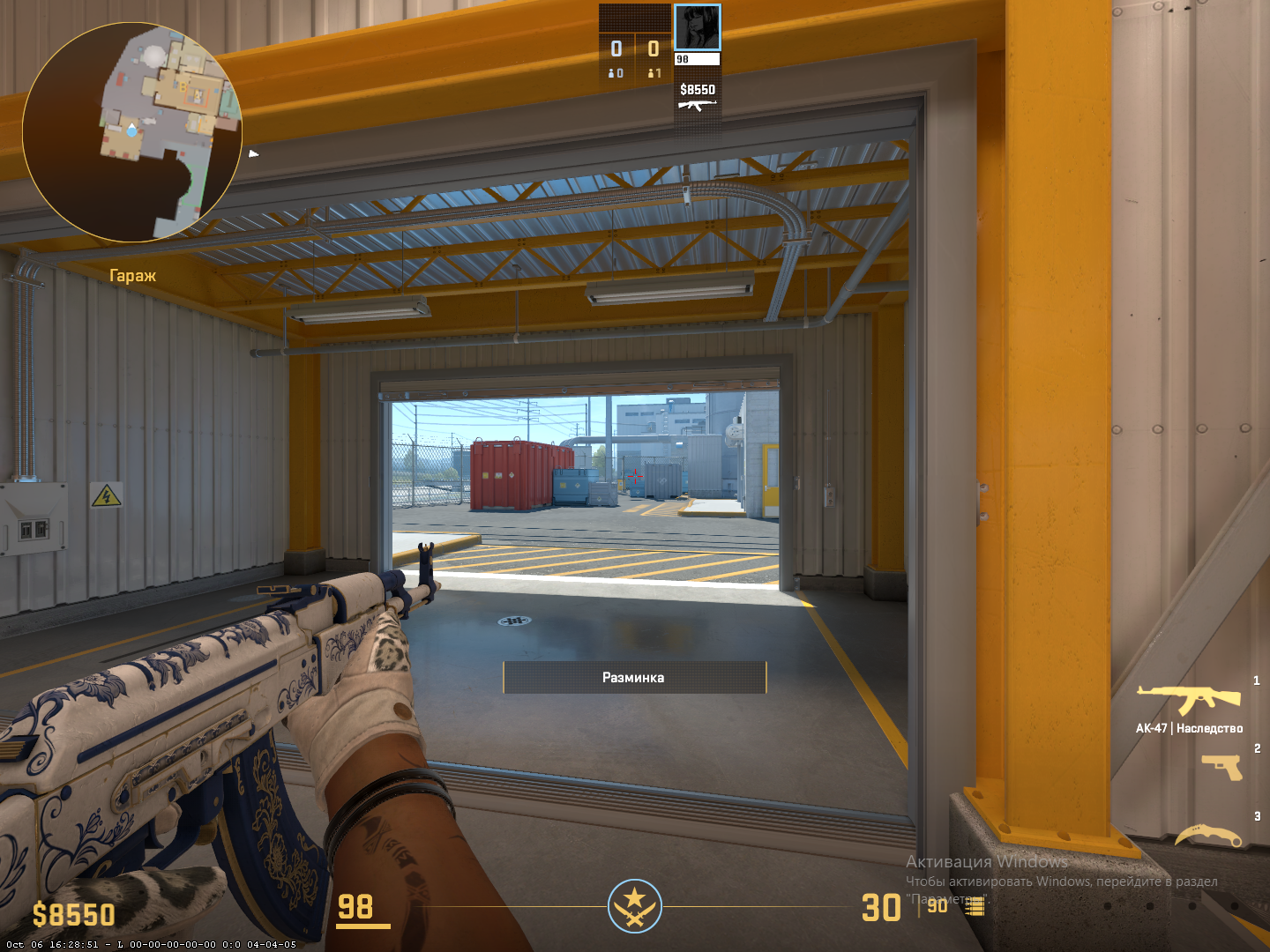
In CS2, the hand model is called viewmodel — it defines how your hands and weapon appear in first-person view. These visuals can differ significantly between players, and it’s not just about skins or gloves — much depends on individual settings that affect how the model is positioned on the screen.
The main parameters that determine how to adjust hand position in CS2 are as follows:
Parameter | Function | Range |
viewmodel_offset_x | Horizontal offset (left/right) | from −2.5 to +2.5 |
viewmodel_offset_y | Forward/backward offset | from −2 to +2 |
viewmodel_offset_z | Vertical offset (up/down) | from −2 to +2 |
viewmodel_fov | Model field of view | from 54 to 68 |
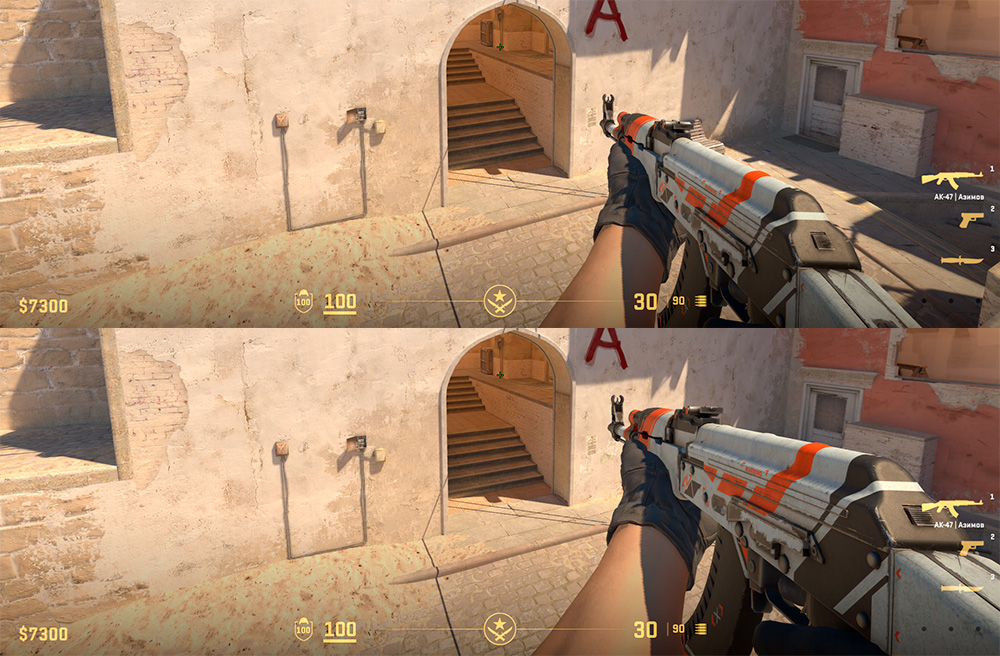
These commands let you literally “reposition” the hands: move them closer to the center, lower them, pull them back, or adjust their size using the FOV. For example, negative viewmodel_offset_y values move the model closer to the screen, while positive ones push it further away.
The default base values are usually as follows:
viewmodel_offset_x 1
viewmodel_offset_y 1
viewmodel_offset_z -1
viewmodel_fov 60
Although adjusting hand position in CS2 doesn’t provide a direct gameplay advantage, it significantly affects aiming comfort and how the weapon is perceived on screen. This becomes especially noticeable during intense moments, where every millisecond matters.
How to Change Hand Position via Console
For players wondering how to adjust hand position in CS2 using the console, it all starts with enabling the developer console. You can do this through Settings → Game tab → Enable Developer Console (~).
Then, enter the following commands:
viewmodel_offset_x 1
viewmodel_offset_y 1
viewmodel_offset_z -1
viewmodel_fov 60
Let’s take a closer look:
viewmodel_offset_x — adjusts horizontal offset (left/right). Range: −2.5 to +2.5.
viewmodel_offset_y — controls forward/backward distance. Range: −2 to +2.
viewmodel_offset_z — moves the model vertically (up/down). Range: −2 to +2.
viewmodel_fov — defines the field of view. Higher values make the hands appear “longer.” Range: 54 to 68.
To make these changes permanent, add them to your autoexec.cfg file, which runs automatically when the game starts.
If you want the hands in CS2 to appear closer to the screen, decrease viewmodel_offset_y. For a more “distant” look, increase the value.
How to Make Hands Closer, Farther, Lower, or Higher
Many players want to adjust hand placement in specific directions. Here’s how it’s done:
1. Closer to the Screen
To make hands appear closer in CS2, use:
viewmodel_offset_y -1.5
Negative values move the model forward. This setup works well for pistols or AWP, as it reduces weapon visibility and keeps focus on the opponent.
2. Farther from the Screen
Command:
viewmodel_offset_y 2
Recommended for players using rifles or SMGs — it helps reduce visual clutter.
3. Lower or Higher
To make hands lower in CS2, enter:
viewmodel_offset_z -1.5
To raise them:
viewmodel_offset_z +1.5
A lower hand position makes the screen look cleaner, especially on maps with complex geometry.
4. Longer or Shorter Hands
This adjustment uses the viewmodel_fov parameter. To make hands appear longer in CS2:
viewmodel_fov 68
For shorter hands:
viewmodel_fov 54
Additionally:
viewmodel_offset_x 2
or
viewmodel_offset_x -2
Be careful not to overdo it — extreme values can distort visual balance and distract from gameplay.
The optimal setup for most players:
viewmodel_offset_x 1.5
viewmodel_offset_y 2
viewmodel_offset_z -1
viewmodel_fov 60
How to Center and Symmetrize Your Hands
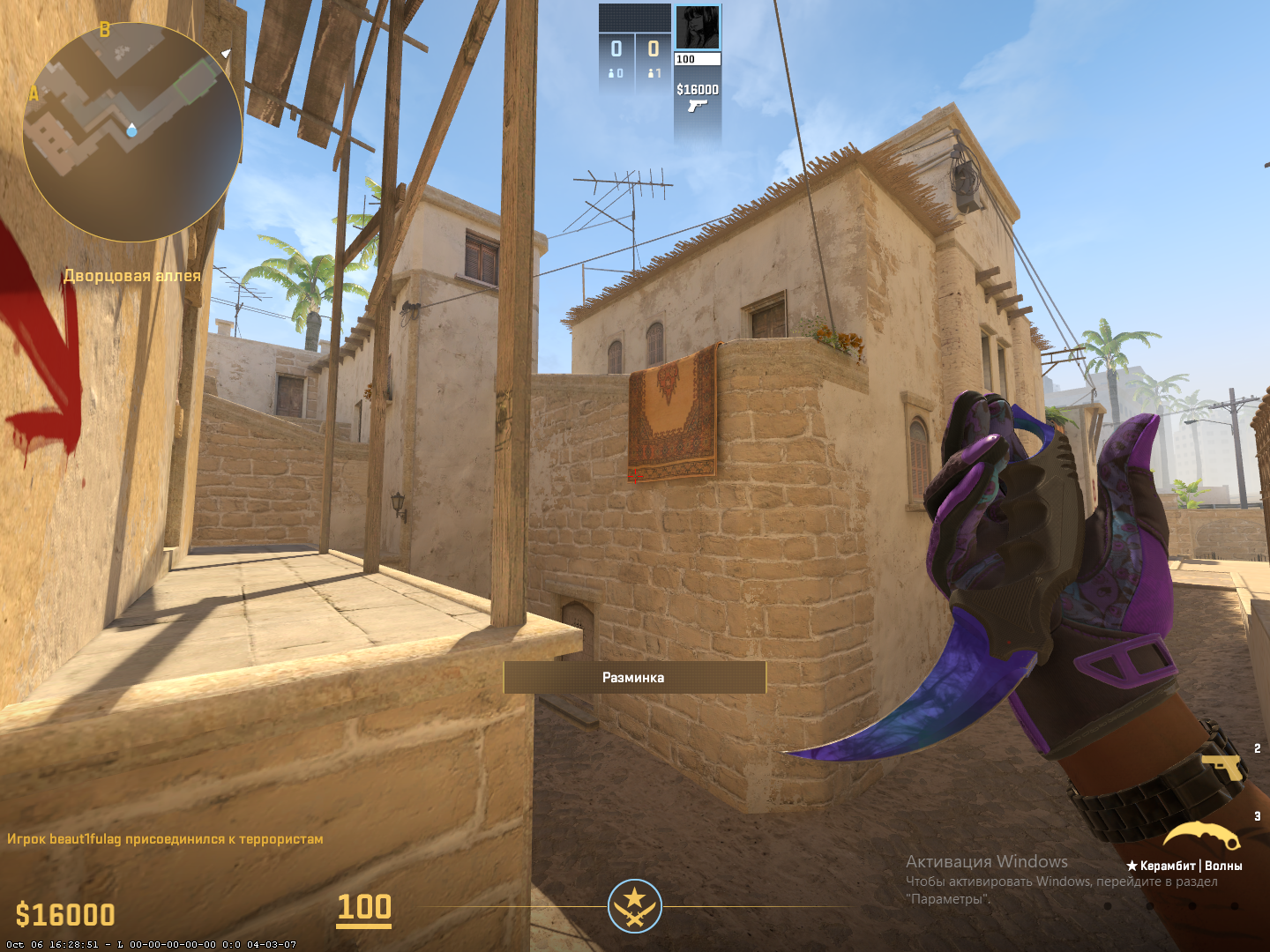
Sometimes players want to center their hands in CS2, especially when coming from other shooters. There’s no perfectly centered position, but you can get as close as possible with:
viewmodel_offset_x 0
viewmodel_offset_y 0
viewmodel_offset_z 0
These settings create a straight, symmetrical viewmodel, not shifted to the left or right. Visually, it’s close to zero, which is convenient for beginners. It also works well for aim training.
To restore the default hand position in CS2, you can use:
viewmodel_presetpos 3
How to Restore Default or Aesthetic Hand Positions
If your settings got reset or you want to return to the original view, preset commands can help. For the query on how to set default hands in CS2:
Preset | Command | Description |
Classic | viewmodel_presetpos 1 | Default viewmodel |
Compact Right | viewmodel_presetpos 2 | Right-shifted model |
Compact Left | viewmodel_presetpos 3 | Mirrored view |
Players also search for how to make beautiful hands in CS2. This depends not only on settings but also on:
Field of view (FOV)
Proper balance between the weapon and the HUD
Choosing skins and gloves that match the overall visual style
It’s recommended to avoid abrupt movements, especially while running or reloading, and to select a hand model that fits the atmosphere of the map.
Individual Hand Position Adjustment
Lighting and background differ from map to map, so there’s no single universal setup. To make hand positioning in CS2 comfortable across all maps, it’s best to test your settings on Workshop maps.
Examples:
AWP positions: fov 58, offset_y -1.2, offset_z -1.5
Rifles: fov 65, offset_y 2, offset_z 0
Professional players often lower viewmodel_fov to keep their focus on the crosshair. While creating distant hands in CS2 can look stylish, excessive distance reduces control over weapon animations.
Common Mistakes When Adjusting Hand Models
Despite the simplicity of the commands, customizing the hand model in CS2 can backfire — especially if done without understanding how the system works. Players often make typical mistakes that directly affect comfort during gameplay.
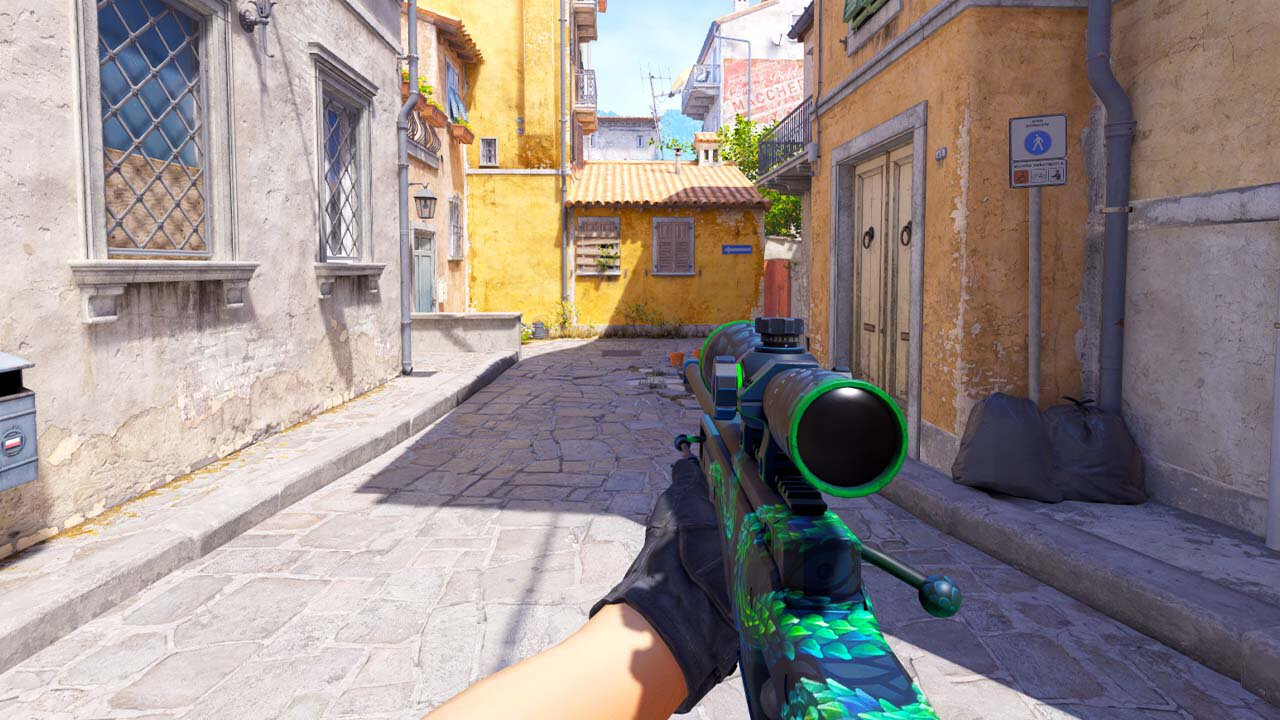
The first common issue for beginners is setting the hands too close. When the viewmodel_offset_y value is negative, the weapon model moves almost to the center of the screen. It may look cinematic, but in real gameplay, such settings make aiming harder and limit visibility, especially in close‑quarters combat or on dynamic maps. The center becomes cluttered, and enemies are less noticeable.
The second mistake is setting the hands too high. Some players try to “raise” their weapon by pushing viewmodel_offset_z to the maximum. As a result, the crosshair gets partially covered by the weapon model — especially large ones like the M249 or SG 553. Shooting becomes less intuitive, and it’s easy to lose control in critical moments.
The third problem is forgotten settings. A player tunes everything “perfectly,” tests it, feels satisfied — and the next day CS2 launches with default hands again. The reason is simple: the changes weren’t saved in autoexec.cfg. Without an autoload file, all parameters reset every time the game starts.
A subtler mistake is copying someone else’s config. A player sees a pro using a unique hand angle in a video and assumes it’s the “meta.” But in practice, someone else’s setup rarely works — everyone has different mouse sensitivity, screen resolution, and aiming style. What’s ideal for one player might be completely uncomfortable for another.
That’s why all values should be selected through careful testing, not guesswork. The ideal parameters are those that don’t distract, don’t block the HUD, and let you stay focused on the crosshair. It’s best to test them in training mode, switching between weapons and distances.
Ultimately, proper configuration isn’t just about aesthetics — it’s about gameplay comfort, which directly affects performance. It’s better to spend 10 minutes fine‑tuning your settings than constantly struggle with an inconvenient viewmodel layout.
How to Save and Quickly Switch Configurations
Adjusting the hand view is only half the job. If you don’t save your changes, everything will disappear after restarting CS2, and you’ll have to start from scratch. To prevent this, experienced players write their parameters into the autoload file — autoexec.cfg. This is the standard method to save your commands, and it’s been reliable for years.
The file is created at the following path:
Steam\steamapps\common\Counter-Strike Global Offensive\game\csgo\cfg\autoexec.cfg
If it doesn't exist — you can create it manually using Notepad, just make sure to save it in .cfg format, not .txt.
Here’s an example of what such a file might contain for those who want a comfortable, neutral hand model:
viewmodel_offset_x 1.5
viewmodel_offset_y 2
viewmodel_offset_z -1
viewmodel_fov 60
After that, add this line to your game launch options:
+exec autoexec.cfg
This ensures that CS2 loads the config file every time it starts.
But in practice, players may prefer different styles. For example, with an AWP you might want the weapon closer and lower, while for rifles — farther away. To avoid retyping commands manually every time, it’s convenient to define aliases in your autoexec.cfg — short commands to quickly switch between configurations.
Example:
alias compact "viewmodel_offset_x 1; viewmodel_offset_y 1.5; viewmodel_offset_z -1.2; viewmodel_fov 58"
alias classic "viewmodel_offset_x 1.5; viewmodel_offset_y 2; viewmodel_offset_z -1; viewmodel_fov 60"
After that, you can simply open the console (~) in-game and type compact or classic — the desired layout will activate instantly without hassle. This is especially useful if you play different roles — like AWP and rifler.
As for testing — the best way to see how the model looks from the side is to use Steam Workshop maps with mirrors and camera positioning controls. There are dozens of such maps, and they allow you to realistically check if the hand model blocks your crosshair or affects visibility. Especially helpful when you're choosing a "universal" config for FACEIT or matchmaking.
In conclusion: saving your settings via autoexec.cfg and smart use of aliases is the best option for those who don’t want to waste time re-entering commands after every update. All you need is to configure it once, save it, and switch styles in just a couple of clicks based on the weapon and situation.
Personal Comfort — The Main Rule of Viewmodel Adjustment
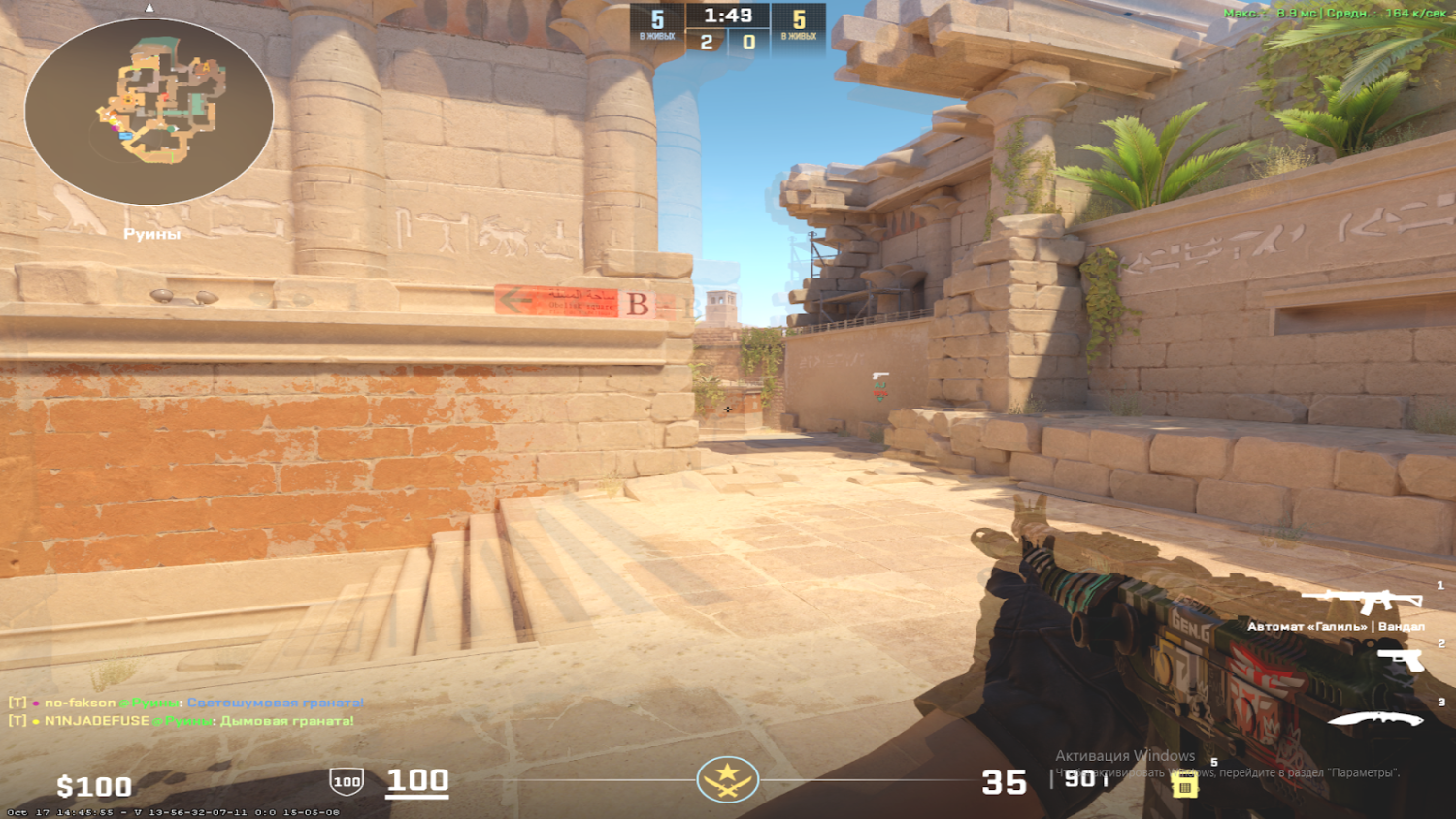
Adjusting your viewmodel in CS2 to your preference is not about fashion — it’s a matter of gameplay comfort. Personal settings affect visibility, screen clarity, and even your mood during the game. It’s important to remember: there is no universal setup — everyone has their own habits, devices, and playstyle.
Now you know how to adjust your hands in CS2 for both comfort and style. Don’t be afraid to experiment, save successful configurations, and choose a visual style that truly makes the game feel yours.