Counter-Strike 2 offers players a practice mode for skill development and learning game mechanics. This mode has become an indispensable tool both for newcomers taking their first steps and for experienced esports athletes honing professional skills. Many gamers face the question: how to remove practice in CS2 and quickly return to the main menu without unnecessary manipulations.
Several effective methods exist for ending a practice session – from standard ESC key usage to advanced console commands for instant server disconnection. Each method has its advantages and suits different gaming situations.
This guide details all available methods for ending practice, managing bots, configuring equipment, and creating optimal conditions for effective practice in Counter-Strike 2.
What Does Practice in Counter-Strike 2 Represent?
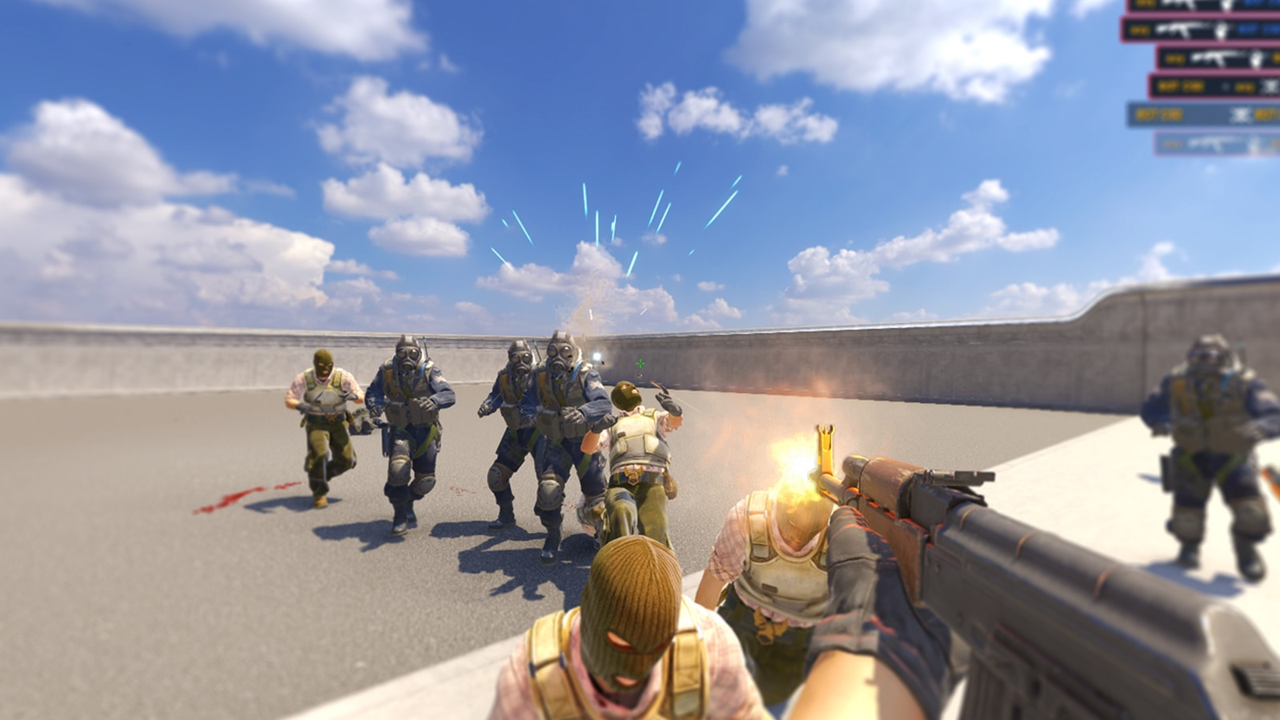
Practice mode is a special game format accessible directly from the client's main menu. When launching practice in CS2, the system automatically creates a local server where the player gains full control over all match parameters. Here you can choose any map from the official pool, configure bot quantity and difficulty, activate warmup period, or immediately start a full game.
The main advantage of practice mode lies in the ability to use extended console commands for fine-tuning game conditions. Valve implemented this mode so players could use their time most effectively for skill development and practicing training elements.
Main practice mode features:
Grenade lineups practice – learning precise positions and trajectories for smokes, molotovs, and flashes.
Wallbang training – practicing shooting through various objects, walls, and boxes to master wallbang positions.
Timing study – practicing critical map movement moments for proper positioning.
New tactics mastery – safe testing of site entry strategies and position holding.
Shooting practice – improving recoil control, accuracy, and reaction speed.
Map learning – detailed exploration of location geometry, cover, and key points.
Professional esports athletes spend a significant portion of their gaming time in practice mode before applying mastered skills in official tournaments. To properly remove practice in CS2 after finishing practice, it's important to understand that the local server operates independently from official Valve servers. This means complete freedom in using special commands without ban risk.
How to Exit Practice Mode in CS2?
Standard Exit Through Game Menu
The simplest and most intuitive way to remove practice in CS2 is using the ESC key to call up the pause game menu. When pressing this button during an active practice session, the standard menu with several available options appears on screen.
Step-by-step menu exit instructions:
Press the ESC key during practice.
Wait for the pause menu to appear on screen.
Select "Leave Game" or "Disconnect."
Confirm the action when prompted.
Wait for return to main menu.
After selecting the exit option, proper disconnection from the local practice server occurs. All user game settings are saved, including graphics, sound, and control parameters. This method is absolutely safe and recommended for normal practice completion.
Exit Through Developer Console
For advanced users, Valve provided the ability to use console commands for quick management. The console opens with the tilde ~ key, located under ESC. If the console doesn't open, activate it in Settings → Game → Enable Developer Console. This method allows maximally fast practice removal in CS2.
Main console commands for exit:
disconnect – disconnection from current server with return to main menu.
quit – complete closure of Counter-Strike 2 client.
cs_quit_prompt – exit from game with confirmation dialog box.
exit – alternative command for closing client (may be absent; create alias if needed).
retry – reconnection to last server for quick practice restart.
The disconnect command disconnects from any server, including practice. After entering the command and pressing Enter, immediate connection termination occurs. The player instantly returns to the main menu without delays, making the practice exit process maximally efficient.
The quit command works differently – completely closes the client without returning to menu. Professional esports athletes often use precisely this command for maximally fast completion. After entering quit, the client closes in 1-2 seconds, allowing instant practice removal in CS2.
Setting Up Quick Binds for Exit
Experienced players use the bind system for command automation. To create a personal button for instant practice exit, enter bind "x" "quit", where "x" can be replaced with any key.
Popular exit bind variants:
bind "p" "quit" – quick exit on P key.
bind "kp_multiply" "quit" – binding to asterisk on numpad.
bind "o" "disconnect" – return to menu on O key.
bind "F10" "quit" – game closure on function key.
After configuring the bind, one key press instantly executes the command. Many professionals configure the bind on NUMPAD, minimizing accidental press risk during practice match.
Exit method comparison table:
How to Remove Bots in CS2 Practice
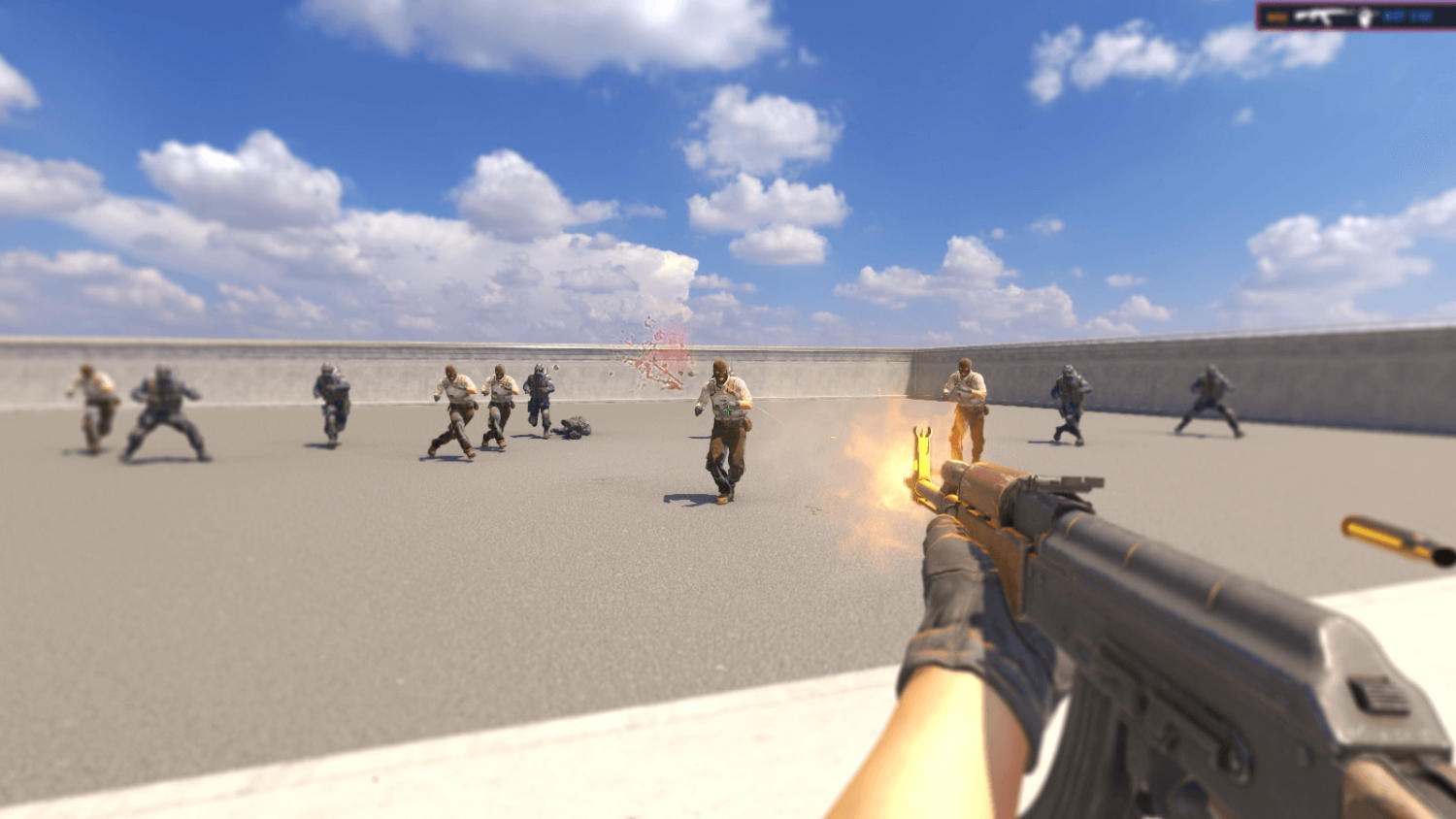
Artificial intelligence management in practice mode is a key skill for organizing effective practice. Many players wonder how to remove bots in CS2 practice to focus on practicing specific technical skills without interference from computer opponents. Bot removal allows creating ideal conditions for CS2 practice.
Console Activation for Work
If the command doesn't work or the console complains about rights, enable sv_cheats 1 – this activates special extended capabilities mode for the local server. Without activating this command, most control functions for practice management will be unavailable.
Main Bot Control Commands
The bot_kick command is a universal and fastest solution for complete removal of all computer players from the map. After entering this command, all bots instantly disappear from the server, leaving the map completely empty for individual practice. This is critically important for those who want to effectively remove bots in CS2 practice.
Extended commands for bot control:
bot_kick Bob – removes only a specific bot with the specified name.
bot_kill – kills all bots, but they'll respawn next round.
bot_zombie 1 – freezes all bots in current positions.
bot_dont_shoot 1 – prohibits bots from using weapons.
bot_add_ct – adds one bot to CT team.
bot_add_t – creates a bot on terrorist side.
Commands mp_autoteambalance 0 and mp_limitteams 0 disable automatic balancing and remove team size restrictions, giving complete freedom in practice mode configuration.
Step-by-step bot removal instructions:
Launch practice mode with any map from main menu.
Wait for complete map loading and match start.
Open developer console with ~ key.
Enter command sv_cheats 1 to activate capabilities.
Enter command bot_kick to remove all bots.
If necessary, use additional configuration commands.
After performing these actions, the map will be completely cleared of computer players, allowing proper practice organization without interference.
How to Remove Armor in CS2 Practice
Equipment configuration in practice mode plays an important role when practicing specific game scenarios. Many players are interested in how to remove armor in CS2 practice to correctly evaluate real base damage of various weapon types. Armor disabling is an important element for quality CS2 practice.
Practical Reasons for Disabling Armor
Shooting practice without armor has specific tactical advantages for the training process. First, it allows precisely evaluating base damage of each weapon against an unprotected opponent. Second, headshot training becomes more effective without armor, as a head hit can destroy the target with one shot.
Console Commands for Armor Management
The mp_free_armor 0 command is the main tool for disabling automatic protective equipment issuance to players at the start of each round. This command is critically important for those who want to properly remove armor in practice.
Main commands for working without armor:
sv_cheats 1 – mandatory command for activating extended capabilities.
mp_free_armor 0 – disables automatic free armor issuance to all players.
mp_damage_scale_ct_body 1.0 – sets standard body damage multiplier.
mp_damage_scale_t_body 1.0 – body damage multiplier for terrorists.
mp_friendlyfire 1 – enables ability to damage teammates for testing.
The mp_buy_anywhere 1 command allows purchasing at any point on the map, making the practice configuration process more convenient.
Warmup Management in Practice
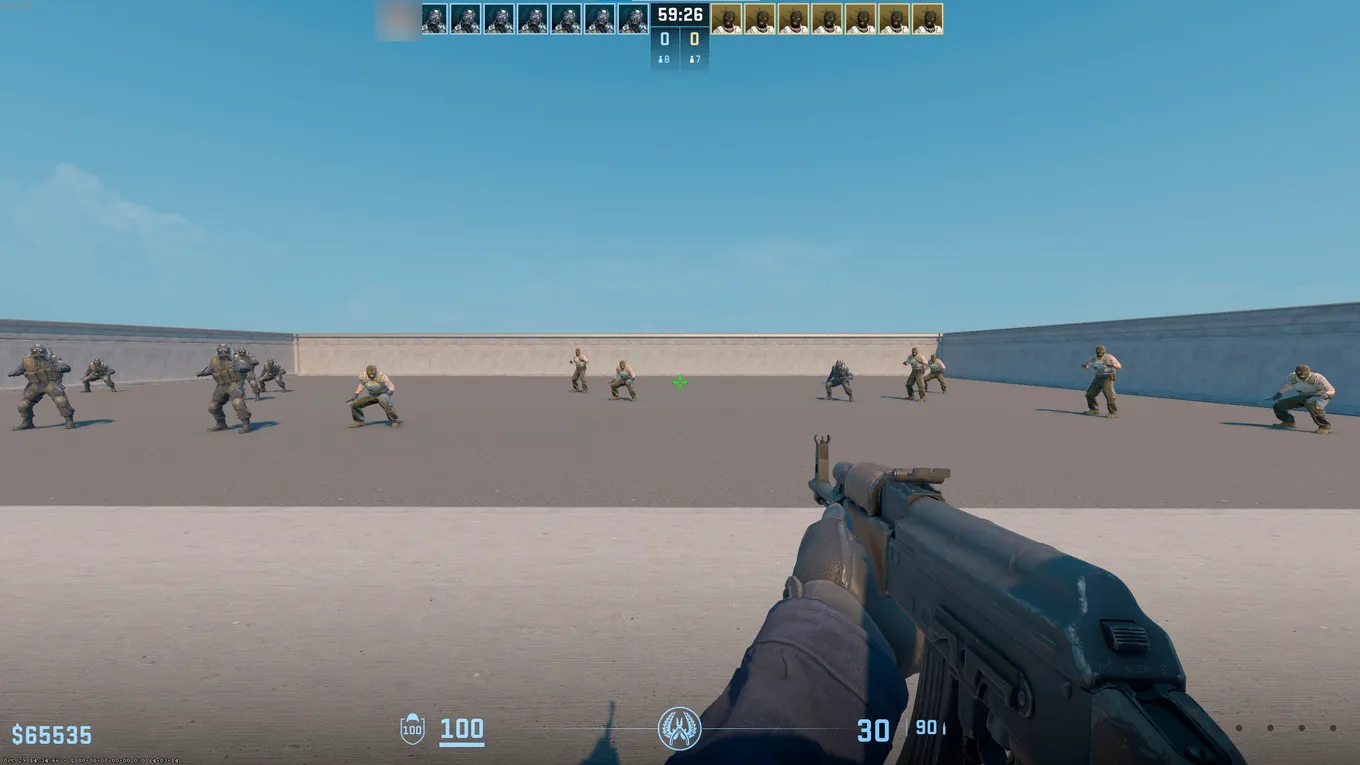
The warmup period in Counter-Strike 2 represents a preparatory phase lasting 2 minutes before the main match begins. Proper warmup management allows more effective CS2 practice organization.
Main warmup commands:
mp_warmup_end – immediate warmup completion and first round start.
mp_warmup_start – launch of new warmup period.
mp_warmuptime 300 – setting specific duration.
mp_warmuptime 999999 – creating practically infinite warmup.
mp_warmup_pausetimer 1 – stopping warmup timer at current value.
For quick practice start without delays, use the command combination: sv_cheats 1 → mp_warmup_end → mp_restartgame 1. This allows quickly completing warmup (removing practice in CS2) and restarting the practice session.
Additional Console Commands
Time and Round Management
mp_restartgame 1 – complete restart of current match for practice reset.
mp_roundtime 60 – setting round duration in minutes.
mp_timelimit 0 – disabling entire match time limit.
mp_freezetime 0 – complete removal of initial freeze.
mp_buytime 3600 – extending buy time to 60 minutes.
Economy Configuration
mp_maxmoney 65000 – setting maximum money amount for practice purposes.
mp_startmoney 16000 – determining starting money for each round.
mp_buy_anywhere 1 – allowing purchase anywhere on map.
sv_infinite_ammo 1 – activating infinite ammo without reloading.
sv_infinite_ammo 2 – infinite ammo supply with reloading required.
Special Practice Modes
noclip – activating free flight mode through objects for map study in practice.
god – enabling complete character immortality mode.
sv_grenade_trajectory_prac_pipreview – displaying colored grenade flight trajectory (depends on version).
sv_rethrow_last_grenade – instant repeat of last grenade throw.
Creating autoexec.cfg File
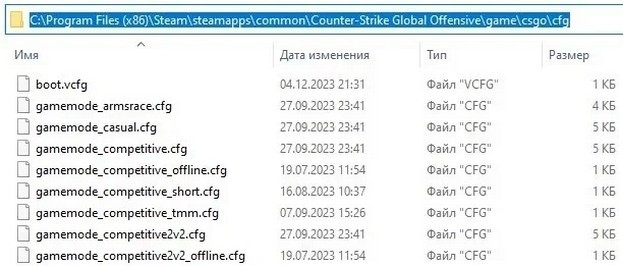
To automate repetitive settings, create the autoexec.cfg configuration file in directory: C:\Program Files (x86)\Steam\steamapps\common\Counter-Strike Global Offensive\game\csgo\cfg
This file allows automatically configuring CS2 practice at each launch.
Example of optimal file contents:
sv_cheats 1
mp_warmup_end
bot_kick
mp_maxmoney 65000
mp_startmoney 16000
mp_buy_anywhere 1
mp_buytime 3600
sv_infinite_ammo 2
sv_grenade_trajectory 1
mp_roundtime 60
mp_timelimit 0
mp_freezetime 0
mp_restartgame 1
Configuration loading methods:
Automatic loading at game start.
exec autoexec command in console after launch.
+exec autoexec parameter in game properties in Steam.
Creating a personalized config saves time at each practice session and allows quick practice setup.
Solving Common Problems
Console Doesn't Open
Solutions:
Activate console in Settings → Game → Enable Developer Console.
Check keyboard layout – use English for ~ key.
Add launch parameter -console in game properties in Steam.
Rebind key in interface settings.
Without active console, it's impossible to effectively manage CS2 practice.
Commands Don't Work Properly
Main causes and solutions:
If command doesn't work – enable sv_cheats 1.
Use mp_restartgame 1 after entering commands to apply changes.
Remember – commands only work on local server and in practice.
Check command spelling correctness.
Settings Don't Save Between Sessions
Problem solution:
Create autoexec.cfg file for automatic command loading.
Check cfg folder access rights – run editor as administrator.
Ensure file has .cfg extension, not .txt.
Use exec autoexec command for manual configuration loading.
Proper config setup allows not wasting time on repeated command entry at each practice mode launch.
Final Settings Checklist
Knowing how to properly remove practice in CS2 and configure optimal conditions is a fundamental skill for any Counter-Strike 2 player. From simple ESC exit to creating configuration files – each method has its application. Bot management through bot_kick when you need to remove bots in CS2 practice, and equipment configuration using mp_free_armor 0 to remove armor in CS2 practice, allow creating specialized practice scenarios.
Automation through autoexec.cfg file saves time at each practice session. It's important to remember – all commands work exclusively in practice mode on local servers. Regular practice with proper settings is the key to progress in Counter-Strike 2.