In Counter-Strike 2, you can customize virtually every element on screen. The question of how to remove crosshair in CS2 interests many – some take screenshots for content, others experiment with unconventional gameplay methods, and some simply want to try something new. Valve built several ways to control crosshair visibility into the game, and everyone will find a suitable option.
The fastest way to remove crosshair in CS2 is with the command cl_crosshairalpha 0 – it instantly makes the crosshair invisible. There's also a second route through the game menu: open settings, find the "Crosshair" tab, and move the transparency slider to zero. Both methods work instantly, and reverting everything is just as simple.
Why Remove the Crosshair from the Game at All
Gamers remove the standard crosshair for various reasons. Content creators and streamers constantly capture footage without interface – this produces clean cinematic moments or impressive game demonstrations. Nobody wants to see a bunch of icons on a beautiful frag. This is the first and most obvious reason.
Some players install external overlay programs with custom crosshairs over the CS2 image. The trick is that such crosshairs are visible even when shooting from AWP or other sniper rifles without scoping. In certain situations, this really helps, though it remains a controversial point.
The third group consists of those who like making life harder for themselves to improve their skills. Try playing without a crosshair – you'll immediately understand how much you rely on muscle memory. Such training forces the brain to perceive weapon recoil and mouse movement differently. Yes, it's brutal, but it works.
How to Enable Developer Console
Before entering commands, you'll need to unlock the console. This is done once, and the tool will always be at hand afterward. The console opens access to hundreds of settings not in the regular menu – a true paradise for those who love digging into parameters.
Go into Counter-Strike 2, click the settings gear, select the "Game" section. There's a line "Enable Developer Console" – switch it to "Yes," and you're done. Now the console is called up with the tilde key (~), or if you have a Russian layout, the ё key.
After enabling, the console appears over any screen – whether in menu or mid-round. At the top you see the command field, below run lines with history and system notifications. It closes with the same key press.
How to Completely Hide Crosshair Through Commands
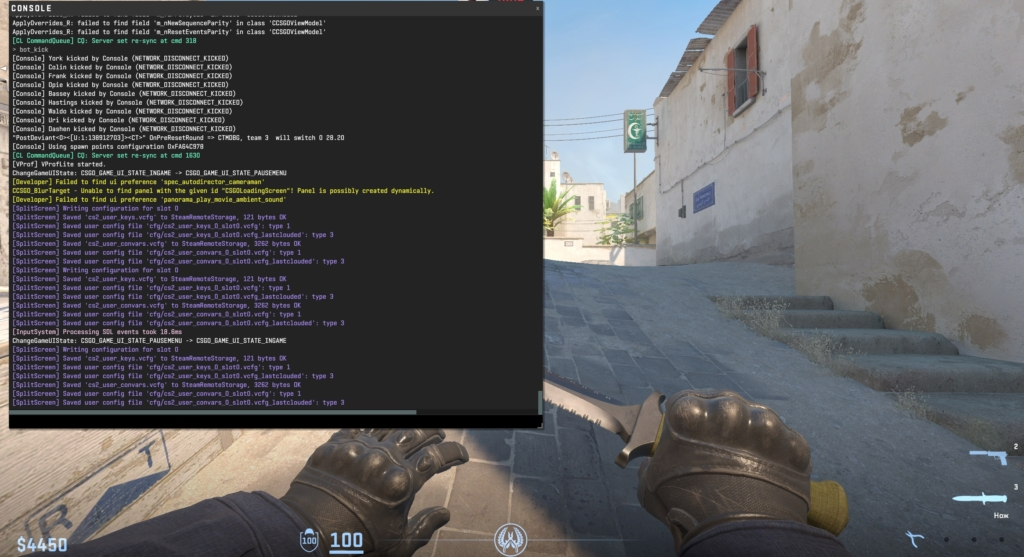
Console is the most convenient way to work with crosshair in CS2.
The command cl_crosshairalpha 0 changes transparency to zero, making the crosshair invisible. Technically it remains in place, the eye just can't distinguish it. To remove crosshair in CS2 with this method, press tilde, type the command exactly as written, and hit Enter. The crosshair disappears instantly.
You can bring it back with the command cl_crosshairalpha 255 – this is maximum opacity. Between 0 and 255 are tons of intermediate values, so you can set up a semi-transparent crosshair if you suddenly want to.
There's an even more radical option – cl_drawhud 0. It turns off the entire interface: crosshair, ammo counter, radar, timer, health and armor bars – everything at once. Perfect for shooting clean video or artistic screenshots. The command cl_drawhud 1 returns the interface.
Crosshair Setup Through Game Menu
Not everyone wants to deal with console – and that's fine. The developers made a graphical interface where you can adjust everything with the mouse. Beginners will appreciate this method most because you see results immediately on screen without needing to memorize commands.
To remove crosshair in CS2 through the menu, click the gear in the main menu, go to "Settings," then the "Game" tab, and you'll see a "Crosshair" subsection. Inside are all the main features: which style to choose, how thick to make it, what color to set, and most importantly – the transparency slider.
Move "Transparency" to zero, and the crosshair disappears. The range is from 0 to 255, so you can play with semi-transparent options if you want. At the top is a preview window – you can see how the crosshair looks on different backgrounds. Everything saves automatically, no need to press any additional buttons.
Removing the Center Dot
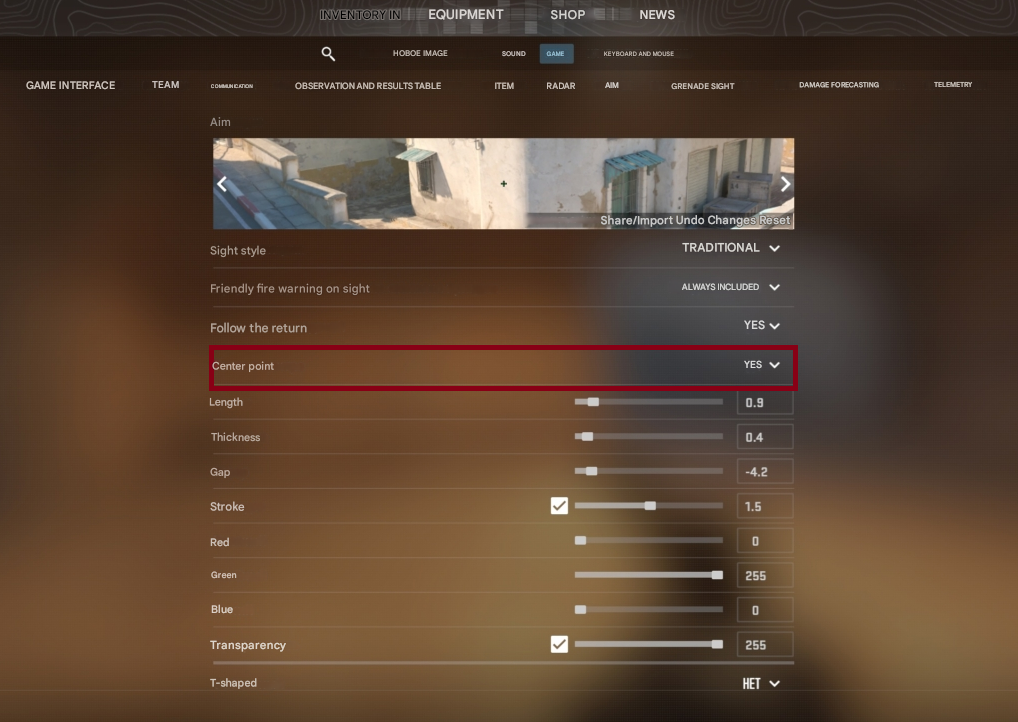
Some love the dot in the middle of the crosshair – it helps land tap shots more accurately.
Others think this dot only gets in the way and blocks vision. The question of how to remove circle in CS2 crosshair is solved in a couple seconds with one command or menu click.
The command cl_crosshairdot 0 erases the dot instantly, leaving only four lines. Want it back? Type cl_crosshairdot 1, and it's there. You can do it without console too: go into crosshair settings, there's a "Center Dot" parameter – set it to "No," done.
Without the dot, it's easier to control long sprays and track where recoil shifts. Many pro players remove the dot when playing rifle positions – it's better to see the opponent's head movement during spray control. Depends on role and personal preference.
How to Get Rid of Shaking Crosshair
Beginners often ask how to remove crosshair shake in CS2 because the standard crosshair jerks in all directions. Run – it spreads. Jump – it flies apart. Shoot – it lives its own life. This is dynamic crosshair, showing how inaccurate the weapon is right now.
For those who already understand recoil mechanics, such animation only annoys. It creates visual clutter distracting from the target. The problem of how to remove dynamic crosshair in CS2 is solved with the command cl_crosshairstyle – it switches between different crosshair behavior modes.
In CS2, six styles exist, and each behaves differently. Understanding them is worth it because comfort depends on your choice. Most professionals use a completely static option – the crosshair remains motionless no matter what you do.
To remove crosshair expansion in CS2 and remove crosshair movement in CS2, it's recommended to use the command cl_crosshairstyle 4. This style represents a classic static crosshair that remains absolutely motionless regardless of player actions. This is exactly the option used by professionals like s1mple, ZywOo, and donk.
The command instantly changes crosshair behavior, eliminating any visual recoil effects. Alternative method through settings: "Crosshair" section → "Style" parameter → select "Classic (Static)".
For players who want to see feedback only when shooting, the command cl_crosshairstyle 5 is suitable. This hybrid mode shows crosshair expansion exclusively during weapon recoil but remains motionless during character movement.
T-Shaped Crosshair and Removing Top Line
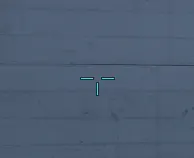
Some players prefer a non-standard crosshair form where the top line is absent. Such a T-shaped crosshair opens slightly more view at the top of the screen, which can be useful when holding positions or checking angles above cover. Creating such a crosshair requires just one console command and is an alternative way to partially remove crosshair in CS2.
The command cl_crosshair_t 1 activates T-shaped mode, removing the top crosshair line. Visually, the crosshair starts resembling the letter "T," hence the name of this style. To return to standard cross-shaped crosshair, use the command cl_crosshair_t 0. This setting works with any crosshair style and can be combined with other parameters.
T-shaped crosshair is especially popular among players who often hold angles at opponent head level. The absence of the top line minimally improves visibility, though most professionals still prefer the classic cross-shaped option. Experimenting with different crosshair shapes helps find the most comfortable option for those seeking to remove new crosshair in CS2 from standard appearance.
Additional Commands for Fine-Tuning
When basic visibility issues are solved, you can dig deeper. CS2 is packed with commands for customizing crosshair appearance – literally every little thing changes. If you understand how this works, you can build your dream crosshair, and also supplement your knowledge of how to remove crosshair in CS2 or modify it beyond recognition.
Color changes through cl_crosshaircolor – there are five ready options: 0 is red, 1 green (default), 2 yellow, 3 dark blue, 4 cyan. Want your unique shade? Use RGB commands: cl_crosshaircolor_r, cl_crosshaircolor_g, and cl_crosshaircolor_b. Each accepts values from 0 to 255, so the color palette is practically infinite.
The command cl_crosshairsize controls line length and works in the range from 0 to 1000. Zero effectively removes lines completely. Adjust thickness through cl_crosshairthickness – usually set from 0.5 to 5. And cl_crosshairgap controls the gap between lines: from -10 to 10, with negative values making lines overlap each other, which looks quite specific.
Steam Workshop Map for Visual Configuration
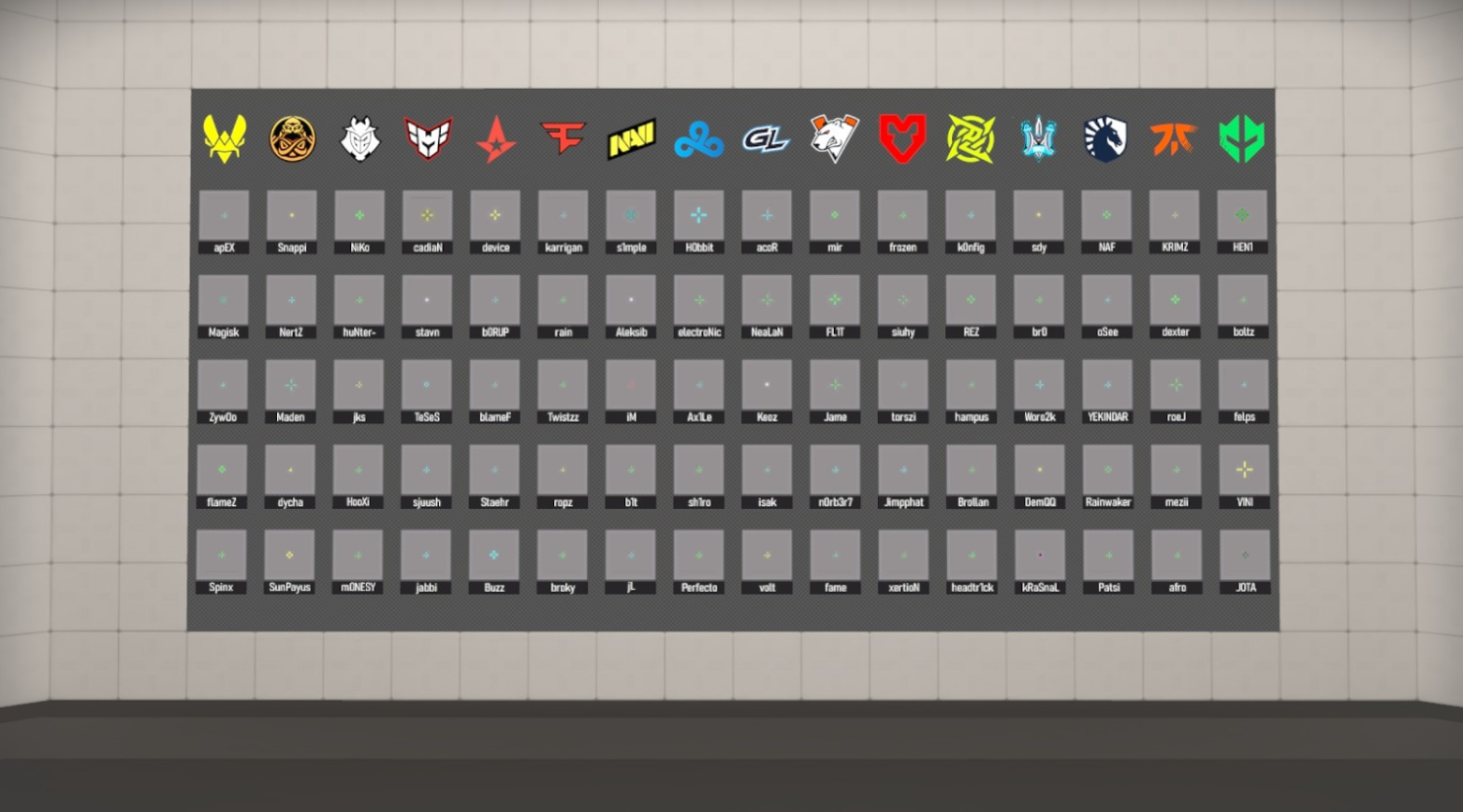
Besides console commands, there's a convenient tool – the crashz' Crosshair Generator v4 map from Steam Workshop. This is an interactive environment where you can visually configure all crosshair parameters and immediately test results in practice. The map is regularly updated and contains professional player settings, useful for those wanting to remove crosshair in CS2 from standard appearance and try proven options.
Installation takes a few seconds: open Workshop in Steam, enter "crashz' Crosshair Generator v4" in search, and click subscribe. After downloading, the map appears in the available list. It presents all main configuration parameters, ready presets from professionals, and a special zone with bots for testing the created crosshair.
The map's main advantage is instant visualization of changes and automatic console command generation for saving. You can copy any pro player's settings or create a unique parameter combination. The map especially helps beginners just figuring out configuration nuances and seeking ways to remove crosshair in CS2 or modify it without needing to memorize dozens of commands.
Frequently Asked Questions About Crosshair Setup
Why Doesn't Console Respond to Tilde Press?
Most likely, the developer console is simply disabled in settings. You need to go into the "Game" section and activate the "Enable Developer Console" parameter by switching it to "Yes." After that, the key will work immediately – you won't need to restart Counter-Strike 2.
Commands Are Entered But Nothing Happens or an Error Appears – What's Wrong?
Console in CS2 is strict about syntax. All letters must be lowercase, spaces are forbidden – only underscores. Even one capital letter or extra space will break the command. When trying to remove crosshair in CS2 or change its parameters, check spelling twice – the slightest typo turns the command into a useless set of symbols.
Crosshair Disappeared from Screen, How to Return It?
The command cl_crosshairalpha 255 restores crosshair with full opacity. If there's no result, open game settings, go to the "Crosshair" section, and find the reset to default values button. This returns all parameters to original state.
Settings Reset After Every Game Launch – How to Fix?
The problem is usually related to configuration file access rights. The config.cfg file may have "read only" attribute or be in a protected folder where the system blocks changes. Check file properties and ensure Counter-Strike 2 has write permissions to the configuration folder. Under normal conditions, the game saves all settings automatically.
Find Optimal Configuration for Individual Playstyle
Knowing how to remove crosshair in CS2 or configure its parameters is a useful skill for players of any level in Counter-Strike 2. Valve provided a wide set of customization tools: from intuitive menu settings to advanced console commands. Each method has its advantages and applies in certain situations.
Main methods include the command cl_crosshairalpha 0 for complete crosshair transparency, cl_drawhud 0 for hiding the entire interface, and cl_crosshairstyle 4 for eliminating dynamic expansion. All commands are reversible and don't permanently affect game files – settings can be returned to original state at any time.
Experimenting with different styles and parameters helps find optimal configuration for individual playstyle. It's important to remember commands for restoring standard settings and not be afraid to try new options. Properly selected crosshair can noticeably improve gameplay comfort and aiming accuracy in Counter-Strike 2.