In Counter-Strike 2, a round is the heartbeat of the game—a moment of tension and battle. But sometimes, something else matters more: how to make an infinite round in CS2 to practice in peace, test grenades, or perfect positioning. Not everyone joins a match to win—some want to get comfortable with the map, others to perfect a throw. Without time pressure, the process becomes more productive and comfortable.
The setup methods vary depending on the mode—whether it's a local game with bots, your own server, or a lobby match with friends. That’s why it’s important to understand how and where the commands work, and what exactly needs to be changed to make the round last as long as you want.
What Is a Round in CS2 and How It Works
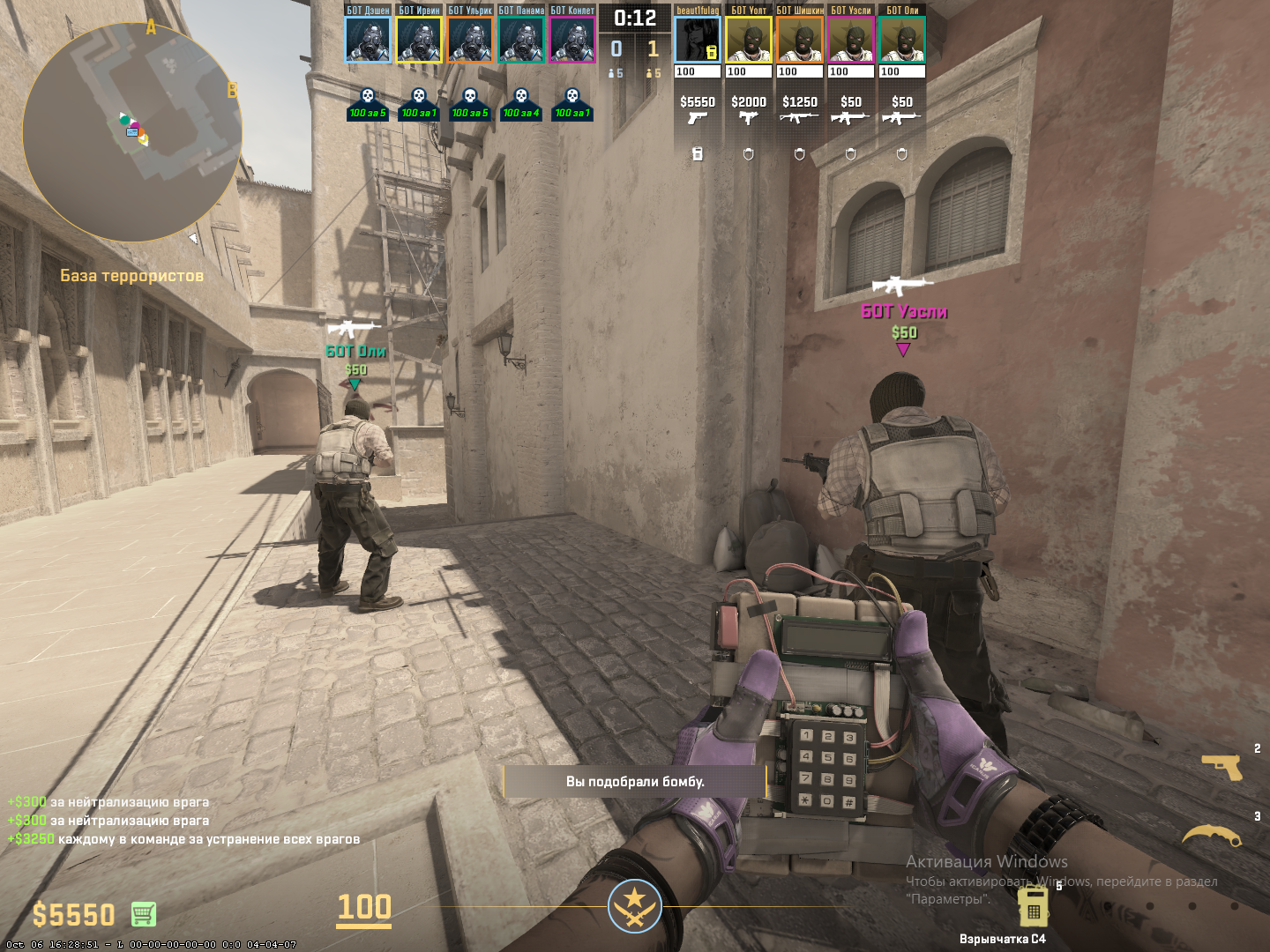
A round in CS2 is a time-limited phase of a match during which one side must achieve its goal—plant and defend the bomb or prevent that from happening. In standard matchmaking modes, the round lasts 1 minute 55 seconds. A team wins by eliminating the opponent or completing the objective, such as a successful detonation.
But these values are hardcoded and not suitable for custom tasks. On local servers or in "with friends" mode, it’s different: players can edit game parameters, including the duration and behavior of rounds. This is where the question arises: how to make an infinite round in CS2 by disabling the standard restrictions.
How to Enable Developer Console
To take control of round settings, you need to enable the developer console. This is done once in the settings:
Go to Settings → “Game” → “Enable Developer Console” — set it to “Yes.”
By default, the console opens with the ~ (tilde) key, located to the left of 1. You can reassign this key in the “Keyboard / Mouse” section.
To begin, enter these basic commands:
sv_cheats 1
status
bot_kick
These commands enable cheat mode (needed for most training), display server status, and remove bots. Keep in mind that such commands do not work in competitive or matchmaking—only in local games or custom lobbies.
Commands to Control Round Time
To make a long round in CS2, just set a high time value. The main command is:
mp_roundtime 60
This sets the round duration to 60 minutes—the maximum allowed by the game. Additional commands include:
mp_roundtime_defuse 60
mp_roundtime_hostage 60
These are for bomb defusal and hostage rescue maps, respectively. Some maps ignore mp_roundtime, so it's safer to set both.
Example setup for grenade training:
mp_roundtime 60
mp_roundtime_defuse 60
True Infinity
Sometimes you don’t just want a long round, but a truly endless one. Here’s how to make an infinite round in CS2:
mp_roundtime 60
mp_ignore_round_win_conditions 1
— this will create a nearly infinite round without ending due to win conditions, though it won’t bypass the 60-minute technical limit.
How to Change the Number of Rounds
Sometimes it’s important not just how long each round lasts, but how many rounds there are. For example, in tournaments, custom modes, or marathon training. Here’s how to set more rounds in CS2:
mp_maxrounds 100 — sets the number of rounds in a match;
mp_winlimit 50 — sets how many rounds a team needs to win the match.
These commands apply only to server or lobby matches with a round system. In training sessions using mp_ignore_round_win_conditions, they may be ignored.
If you want to set a specific number of rounds in CS2, like 30, use this:
mp_maxrounds 30
You can keep the default round time or increase it as needed.
How to Set One Hour or More for a Round
Some players need to set a specific round time—like one hour. Here’s how to set a one-hour round in CS2:
mp_roundtime 60
mp_ignore_round_win_conditions 1
The mp_roundtime value cannot exceed 60—any higher and the game will automatically cap it at 60.
These parameters allow for relaxed practice of smokes, flashes, and grenade lineups without constant restarts.
How to Restart a Match and Save Settings
Once you’ve entered all the commands, you need to activate them with a restart. Here’s how to restart a round in CS2:
mp_restartgame 1
The number sets the delay before the restart (in seconds). After that, all parameters will apply.
To avoid typing commands every time, create an autoexec.cfg file in the csgo/cfg/ folder and insert:
sv_cheats 1
mp_ignore_round_win_conditions 1
mp_restartgame 1
When loading a map, type exec autoexec in the console and all parameters will apply automatically. This is especially convenient if you often train or review grenade setups.
Additional Commands and Tips
For full control and flexibility, use the following:
mp_freezetime 0 — disables the freeze time at the start of the round;
mp_respawn_on_death_ct 1 and mp_respawn_on_death_t 1 — instant respawn;
mp_buy_anywhere 1 — enables buying anywhere on the map at any time.
These settings turn your match into a full-fledged training mode with no interruptions.
If you want to make a long round in CS2 while keeping game mechanics like the bomb, use the following combo:
mp_roundtime 60
mp_roundtime_defuse 60
mp_freezetime 0
mp_ignore_round_win_conditions 1
These commands work especially well with custom maps from the Workshop — like aim trainers, AWP practice maps, or team training sessions.
Additionally, if your goal is to add lots of rounds in CS2, combine mp_maxrounds and mp_roundtime, for example:
90 rounds of 3 minutes each — mp_maxrounds 90, mp_roundtime 3
If you want to run a long sequence of rounds, use:
mp_maxrounds 999
mp_ignore_round_win_conditions 1
However, the game will still treat this as a single continuous match, not a series of "infinite" separate rounds.
How to Set Up an Infinite Round on Workshop Maps
Players often train not only on default maps but also on custom ones from the Workshop — like aim_botz, training_aim_csgo2, Yprac, and others. At first glance, the infinite round commands should work there too. But in practice, it’s not that simple.
Many custom maps use built-in launch scripts (typically gamemode_script.txt or gamemode_training.cfg) that automatically overwrite your settings: timers, freeze time, bot count, win conditions, and even sv_cheats.
That’s why even if you manually enter mp_roundtime 99999 or mp_ignore_round_win_conditions 1, the map may reset them within seconds — and you’re left wondering why nothing “sticks.”
What to Do If Commands Don’t Work:
Check whether the map is overwriting the values. Just re-enter mp_roundtime — if the value changes or shows something else, the map is resetting it.
Try launching the map with a config file. Add this to your Steam launch options: +map workshop/aim_botz +exec practice.cfg
Explore the map’s menu. Some maps, especially from the Yprac series, have their own UI systems. Look for a “Round Settings” menu to disable timers or enable infinite mode without using the console.
Open the map’s cfg files. You can manually edit conflicting values inside — but do so at your own risk.
Examples of Popular Map Behavior:
Workshop Map | Compatibility with mp_roundtime and mp_ignore_round_win_conditions | Comment |
aim_botz | Partial | Allows most commands but resets some on startup |
training_aim_csgo2 | Full | Fully compatible, commands work consistently |
Yprac Dust2, Yprac Nuke | No | Commands don’t work — handled entirely through in-game menu |
Aim Training (CS2) | Yes | Commands work, but it’s better to run them via exec |
If you notice that the parameters still reset, the easiest way is to use a default map like de_dust2, set your values, and practice there. Alternatively, look for custom maps that explicitly state: “full server settings support.”
Common Errors and How to Fix Them
Even if the commands for setting up an infinite round in CS2 are entered correctly, the game doesn’t always behave as expected. It can be frustrating — especially when you’re ready to train and something goes wrong. Below are the most common issues players encounter and simple ways to fix them:
These nuances are familiar to most players who have ever tried to make an infinite round in CS2. The key is not to panic. These aren’t bugs but rather engine and configuration mechanics. Once you set it up correctly and save it in a config file, all future practice sessions will run smoothly.
Ready‑Made Config Examples
When you need to start training quickly without unnecessary hassle, it’s best to save all the commands in a separate config file. This saves you from manually entering each line every time you launch a map and ensures that all parameters work exactly as intended. Below are two proven options: one for a completely infinite round and another for a long training session with a fixed number of rounds.
Config for Infinite Round
Perfect for situations where you need to disable all time and win‑condition limits. It works great for map exploration, grenade testing, video recording, or creating training scenarios.
sv_cheats 1
mp_roundtime 60
mp_roundtime_defuse 60
mp_roundtime_hostage 60
mp_ignore_round_win_conditions 1
mp_freezetime 0
mp_restartgame 1
With this config, the match won’t end even if the bomb is planted or all enemies are eliminated. The game continues until you manually restart or shut down the server. This is how to make an infinite round in CS2 by completely removing any timers.
Config for Long Training Match (by Rounds)
This option suits players who want to run a full series of rounds — for example, 60 rounds lasting 5 minutes each. It’s great for practicing aim, teamwork, or testing “almost match‑like” scenarios but with custom duration.
mp_roundtime 5
mp_maxrounds 60
mp_freezetime 0
mp_restartgame 1
When used in single‑player practice, mp_maxrounds may not apply — this parameter works mainly in match modes or on dedicated servers.
How to Save and Launch the Config:
Open the game folder via Steam → Manage → Browse local files. In CS2 the directory structure may vary, but configs are usually located at .../Counter‑Strike Global Offensive/game/csgo/cfg/ — check your actual installation path.
Create a new file, for example practice.cfg, and paste the desired set of commands into it.
In‑game, launch the desired map, open the console, and type:
exec practice
If the config is formatted correctly, all settings will apply automatically. It’s a convenient way to quickly set up a session — especially if you often return to the same practice modes.
Final Thoughts and Tips
Now you know how to create an infinite round in CS2, set an exact number of rounds, adjust the timer, and even enable respawn. These features are useful not only for coaches or professionals but also for regular players. Keep in mind that the maximum round duration in CS2 is limited to 60 minutes, even if higher values are entered — that’s a technical limit of the Source 2 engine.
All the described commands work in local games, on your own server, or in custom lobbies. In competitive matches, such changes are naturally not allowed.
Ultimately, adjusting timers and round conditions isn’t cheating — it’s a tool. The main thing is to use it wisely for growth and practice. Experimenting with these parameters is not only helpful but also fun.