Every player who regularly plays Counter-Strike 2 on the FACEIT platform eventually considers analyzing their statistics. Average stats help objectively assess gameplay level, identify weak points, and track progress. Many platform beginners don't know how to check AVG on FACEIT in CS2, although this information is accessible through several methods.
AVG (Average) on FACEIT refers to a player's average performance across all matches played, including average kills, deaths, damage, assists, and MVPs. This data can be viewed through the official FACEIT profile on the website, third-party statistics services, or browser extensions. Each method has its advantages and suits different tasks – from quick basic stats checks to deep gameplay dynamics analysis.
What Does AVG Mean in FACEIT Statistics?
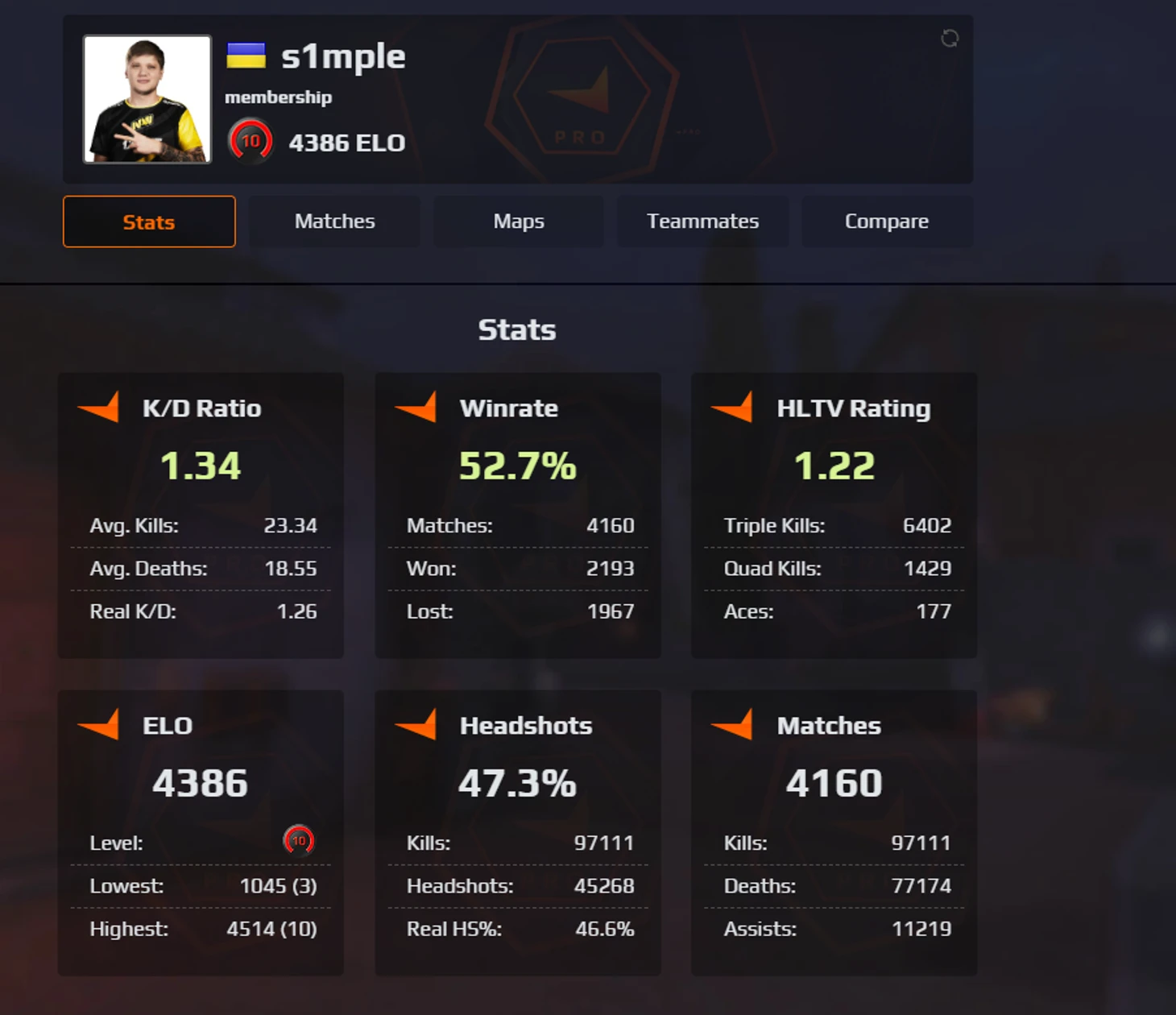
The abbreviation AVG stands for Average, which translates to "average" or "mean." In FACEIT gaming statistics context, this is a complex of indicators characterizing a player's average effectiveness per match or round. Understanding these numbers is critically important for those striving to improve their level and climb platform ranks.
Main average indicators include several key metrics. Avg. Kills shows average kill count per match and demonstrates how effective a player is in firefights. Avg. Deaths reflects average death count, important for understanding positioning and caution in gameplay. Avg. Damage indicates average damage per round or match – one of the most objective indicators of team contribution.
Additionally, you can check AVG on FACEIT in CS2 for parameters like Avg. Assists (average assists demonstrating team play) and Avg. MVPs (average best round player titles). These indicators together create a complete picture of gameplay style and help determine what needs work first.
How to Check AVG in Your Profile on the Official FACEIT Website?
The official FACEIT website provides the most complete and current statistics, updated immediately after each match completion. The platform interface constantly improves, and now access to extended analytics has become maximally convenient. Viewing your average stats requires just a few simple steps.
The process of viewing statistics on the official website takes no more than a minute and requires no additional programs or extensions. All information is accessible directly in your profile after authorization. The FACEIT interface is intuitive even for beginners, and section navigation is logically organized. Follow these step-by-step instructions:
Log into your account at faceit.com using your credentials or Steam authorization.
Navigate to your profile by clicking the avatar in the upper right corner of the page.
Select the "Stats" tab in the opened profile menu.
Specify Counter-Strike 2 from the list of available games on your account.
Open the FACEIT Track section – a personal statistics tracker with deep analytics.
These simple steps open access to all extended statistics on your account. After completing the last step, you'll find yourself on the main analytics page displaying all your gaming performance. The FACEIT Track interface automatically loads latest data and updates after each completed match.
FACEIT Track Overview offers powerful data filtering tools. Players can filter statistics by match type (regular matchmaking, tournaments, leagues), time range (last week, month, all time), and specific maps. This allows checking AVG on FACEIT in CS2 precisely under conditions of current interest – for example, seeing your effectiveness only on favorite maps or only in tournament games.
The extended statistics section displays all key AVG indicators. The platform collects and analyzes data across dozens of parameters, providing players complete effectiveness picture. Additionally available are ELO change graphs, clutch statistics (1v1, 1v2, 1v3+), and detailed information for each active pool map. Main average indicators available in profile:
Avg. Kills – average kill count per match.
Avg. Deaths – average death count per match.
Avg. Assists – average assist count per match.
Avg. MVPs – average best round player titles.
Avg. Damage – average damage per round.
Avg. K/D Ratio – average kill-to-death ratio.
Win Rate – win percentage across all matches.
All this data updates automatically and allows tracking skill improvement dynamics. Statistics remain in your profile indefinitely, enabling progress analysis over any time period.
Recommendation: Take a screenshot of the FACEIT Track page with highlighted filtering tabs and main average indicators for clarity.
What Third-Party Services Show FACEIT AVG Statistics?
Besides the official website, several proven third-party services exist that collect data through FACEIT API and present it in convenient format. These platforms often offer additional analytics features unavailable on the main site. Many professional players use a combination of official statistics and third-party tools for maximally complete analysis.
FACEIT Tracker
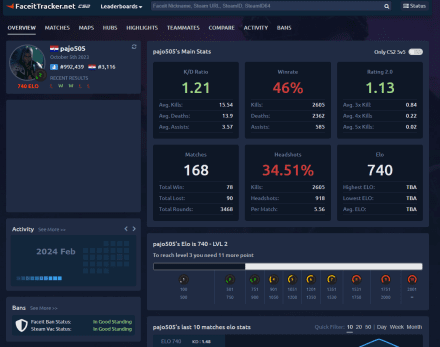
FACEIT Tracker (faceittracker.net) is considered one of the most detailed and convenient services for statistics analysis. To check AVG on FACEIT in CS2 through this service, simply enter Steam URL or Steam ID in the search bar – the system automatically finds the linked FACEIT profile. The service requires no registration and is completely free.
The profile page displays an impressive set of average indicators. Besides basic Average Kills, Deaths, and Assists, metrics like average triple, quadruple, and pentakill counts per match are available. Average Damage is shown separately, allowing assessment of real team contribution. Particularly useful are 1v1 and 1v2 Win Rate indicators – clutch situation win percentage, characterizing composure and ability to play outnumbered.
FACEIT Tracker offers detailed match history with filtering capability, statistics comparison with teammates, and even ELO progress graphs by month. The interface is intuitive, and all data updates within minutes after match completion on FACEIT.
Other Useful Services
FACEIT Stats (faceitstats.com and faceit-stats.me) are alternative platforms with similar functionality. They show ELO, current level, complete match history, headshot percentage, and HLTV rating. Profile search uses FACEIT nickname, convenient when you don't know a player's Steam ID.
FACEIT Analyser (faceitanalyser.com) specializes in deep gaming data analysis. The service helps identify user's best maps and hubs, analyzes match history emphasizing strengths and weaknesses. This is an excellent tool for those wanting to check AVG on FACEIT in CS2 broken down by specific maps and understand where skills need improving.
FACEIT Finder (faceitfinder.com) solves a simple task – quickly find FACEIT account by Steam profile. The service shows basic information: ELO, level, and link to full profile. This is convenient when you need quick teammate or opponent statistics check right during game sessions.
Third-party services comparison table:
Recommendation: Insert a screenshot of the FACEIT Tracker page displaying player average indicators for visual example.
How to Install Repeek to View AVG Directly on FACEIT?
For those constantly playing on FACEIT, a convenient solution exists – the Repeek browser extension (formerly known as FACEIT Enhancer). This is a popular third-party extension (unofficial) that adds features to the FACEIT interface. It integrates directly into the FACEIT website interface and adds many useful functions, including the ability to check AVG on FACEIT in CS2 without navigating to third-party sites.
Repeek not only shows statistics but also automates routine actions. All these features are individually customizable to each player's preferences. Main extension capabilities include:
Automatic match and party invite acceptance.
Display of both teams' average ELO in match room.
Showing potential rating change after game.
Adding won or lost ELO information to match history.
Installing Repeek takes literally a minute and depends on the browser used. The installation process is simple and identical for all supported browsers:
For Google Chrome, Opera, Microsoft Edge, and Yandex Browser: go to Chrome Web Store and find the Repeek (formerly FACEIT Enhancer) extension.
For Firefox: visit Mozilla Add-ons site and find Repeek.
Click the "Install" button and confirm extension addition to browser.
After installation, Repeek automatically activates on all FACEIT pages. In extension settings (icon in browser toolbar), you can enable or disable individual features. Particularly useful is the option displaying progress to next FACEIT level as a progress bar and showing other players' detailed statistics right in match lobby. This allows quickly checking AVG on FACEIT in CS2 for your future teammates or opponents even before game starts.
Recommendation: Add a screenshot of Repeek interface on FACEIT page with highlighted elements (teams' average ELO, potential rating change) and installation process screenshot from Chrome Web Store.
What Other Statistics Can You Check Besides AVG?
Average indicators are just part of the overall gameplay effectiveness picture. FACEIT provides extended statistics helping understand gameplay style nuances and identify specific improvement areas. Professional players pay attention not only to AVG indicators but also more specific metrics revealing details of each gameplay aspect.
RWS (Round Win Shares) is a system evaluating player contribution to team victory, accounting not only for kills but objective actions like bomb plant or defuse. RWS attempts filtering "trash" kills and focuses on truly important frags. Average professional indicator is 9-10 RWS, while regular players have 6-8 RWS.
ADR (Average Damage per Round) is average damage per round, one of the most objective effectiveness indicators. A player with high ADR but average kill count likely plays support and holds positions well. ADR around 70-80 is considered good for average level, professionals deliver 80-100+ ADR.
K/D Ratio (kill-to-death ratio) remains a classic metric. An indicator above 1.0 means the player brings more benefit to the team than harm. Headshot % demonstrates shooting accuracy – professionals maintain this indicator at 50-60% and higher. Utility Damage shows grenade usage effectiveness, critically important at high gameplay levels.
Entry Frags (first round kills) characterize aggressiveness and readiness to open positions. Clutch statistics (1v1, 1v2, 1v3+ situations) reflect ability to maintain composure and make correct decisions under pressure. All these parameters are available in the Advanced Stats section on the official FACEIT website and help check AVG on FACEIT in CS2 from different angles.
Main statistics indicators breakdown table:
Why Track Average Indicators on FACEIT?
Regular statistics analysis is what distinguishes players striving for development from those simply spending time in-game. The ability to check AVG on FACEIT in CS2 provides an objective progress picture impossible to obtain through subjective feelings. Numbers don't lie – they show the real situation without embellishments or self-deception.
Tracking average indicators helps identify gameplay strengths and weaknesses. If AVG Damage is low with normal kill count, perhaps utility and health trading need work. Low Headshot % indicates aim training necessity. Poor statistics on specific maps signals need for studying positions and timing on those locations.
Comparing your indicators with similar level players provides understanding of where you stand relative to average players at your rank. This helps set realistic goals and track their achievement. Professional teams use such analytics for tournament preparation, identifying opponent weak links, and adjusting their own tactics.
The ability to check AVG on FACEIT in CS2 across different time periods allows evaluating training effectiveness. If Headshot % grew 5% after a week of aim practice, training works. If indicators stagnate or drop, it's time to change the skill development approach.
Final Recommendations
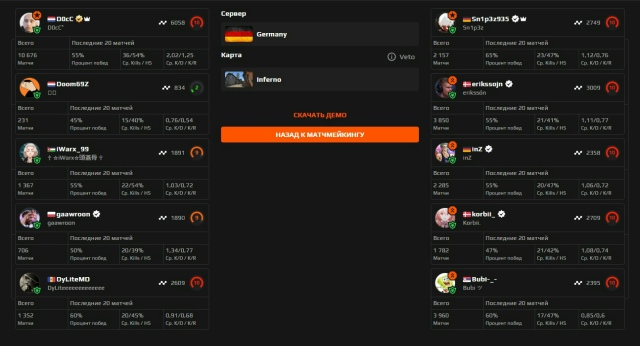
Three main methods exist to check AVG on FACEIT in CS2: through the official profile on FACEIT website using the FACEIT Track section, through third-party services like FACEIT Tracker or FACEIT Stats, and using the Repeek browser extension. Each method has advantages – the official site offers maximum detail, third-party services are convenient for quick access, and Repeek integrates everything necessary directly into the FACEIT interface.
Experienced players recommend using a combination of several methods for complete picture. Official statistics for deep analysis, FACEIT Tracker for comparison with other players, and Repeek for quick checks right during game sessions. Regular average indicator analysis is critically important for skill growth and FACEIT rank advancement – only by understanding your strengths and weaknesses can you effectively work on their improvement.